
How to Turn Off AI Overviews in Google Search (and Meta AI Everywhere Else)
Google has no official off switch for AI Overviews, and Meta AI can't be fully removed either. Real workarounds that actually work, platform by platform.

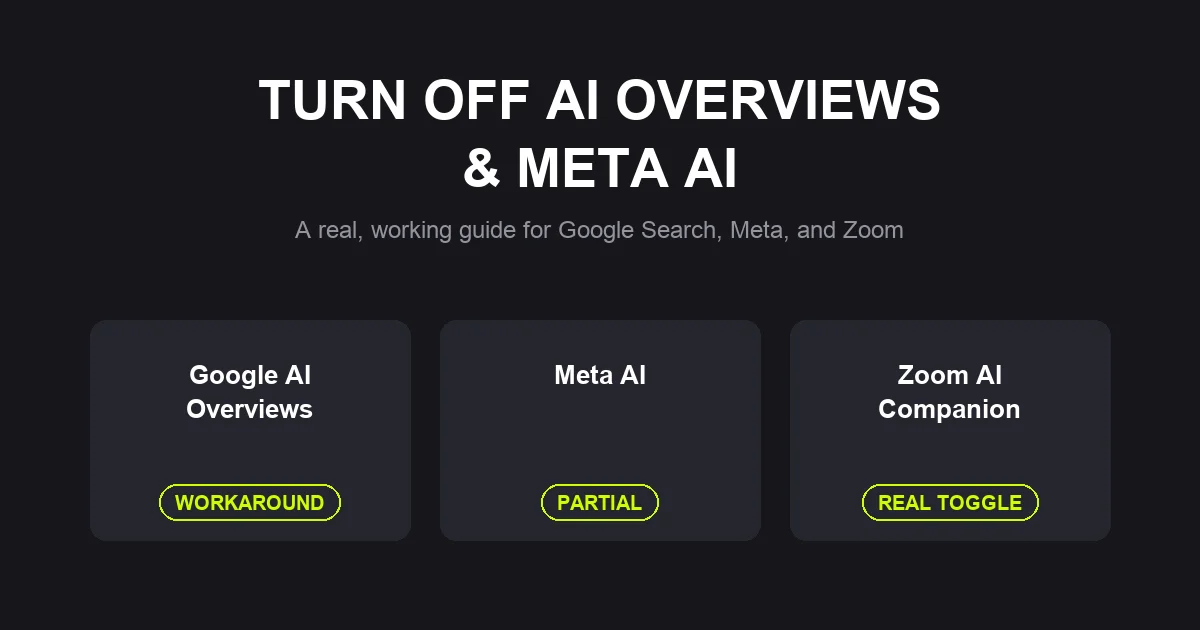
Searching for a way to switch off Google's AI Overviews or Meta AI usually leads to the same frustrating discovery: there is no simple toggle. Google has never shipped an official "turn off AI Overviews" button, and Meta has said directly that its AI cannot be removed from Facebook, Instagram, or WhatsApp. That does not mean you are stuck looking at them, it means the real fix is a workaround, and some workarounds are far more reliable than others.
This guide covers what actually works right now, not the generic "check your settings" advice that assumes a toggle exists when it does not. For Google, that means the Web filter, the udm=14 URL trick, and the Search Labs AI Mode setting, each with a different scope and a different catch. For Meta AI, it means the specific hide and mute options that exist today on Facebook, Instagram, and WhatsApp, and an honest note about what stays on regardless. A shorter section covers Zoom's AI Companion too, since it is one of the few AI features here with a real, working off switch.
By the end, you will know exactly which method fits your situation, what breaks it, and what to do when a platform quietly turns the AI back on after an update. If you are curious about the bigger question behind why so many people are looking to dial AI back in the first place, our piece on whether AI is making us dumber digs into the actual research.
Prerequisites
- A Google account (optional, only needed if you want the Search Labs AI Mode setting to follow you across devices)
- Chrome, Firefox, Edge, or Safari, for the custom search engine method
- The Facebook, Instagram, or WhatsApp app updated to the latest version
- A Zoom account, with admin access if you manage AI Companion for an organization rather than just your own account
In This Guide
What AI Overviews and Meta AI Actually Are
Google AI Overviews is the AI-generated summary block that appears above the normal blue links on many searches, introduced broadly in 2024 and expanded significantly since. Google AI Mode is a separate, related feature, a full conversational search experience you opt into through Search Labs, not the same thing as AI Overviews even though the two get confused constantly in search results and in support forums.
Meta AI is Meta's assistant, built into Facebook, Instagram, WhatsApp, and Messenger. Unlike AI Overviews, which only appears in search results, Meta AI shows up as a chat icon, inside comment threads, and in direct message suggestions across every Meta app you use.
| Feature | Where it appears | Official off switch? |
|---|---|---|
| Google AI Overviews | Above search results, most queries | No |
| Google AI Mode | Dedicated search tab, opt-in via Search Labs | Yes, through Search Labs |
| Meta AI | Facebook, Instagram, WhatsApp, Messenger | No, hide and mute options only |
| Zoom AI Companion | Meeting panel, chat summaries | Yes, through account or personal settings |
That last column is the honest summary of this entire guide. Two of these four have a real switch. Two do not, and the fastest path forward is a workaround that reduces exposure rather than a setting that removes the feature entirely.
How to Turn Off Google AI Overviews
Google has not published an official way to disable AI Overviews across regular search. Every method below is a workaround, and each has a different tradeoff.
Method 1: The Web filter (works per search, no setup)
After running any search, look for a filter bar below the search box. If you do not see "Web" directly, click "More" to expand the full filter list, then select "Web". This strips the page down to traditional links only, no AI Overview, no image carousel, no video previews.
The catch: this only applies to the current search. Run a new query and the AI Overview is back, so you need to click the Web filter every single time.
Method 2: The udm=14 URL trick (the closest thing to a permanent fix)
Adding a specific parameter to the end of any Google search URL forces the Web filter automatically.
https://www.google.com/search?q=your+search+here&udm=14This parameter has worked since May 2024 and continues to function as of October 2026. You can go one step further and make this your browser's default search engine, which means every search you type in the address bar skips the AI Overview automatically.
Set it as your default search engine in Chrome
1. Open Chrome Settings
2. Go to Search engine, then Manage search engines and site search
3. Click Add next to "Site search"
4. Name: Google (no AI)
5. Shortcut: anything you want, e.g. gna
6. URL: {google:baseURL}/search?q=%s&udm=14
7. Click Add, then click the three-dot menu next to it and select "Make default"Set it as your default search engine in Firefox
1. Open Firefox Settings
2. Go to Search
3. Scroll to "Search Shortcuts" and click Add
4. Name: Google (no AI)
5. URL: https://www.google.com/search?q=%s&udm=14
6. Save, then set it as your default from the same Search settings pageThe tradeoff: udm=14 removes AI Overviews, but it also strips other rich elements from the results page, image previews, video carousels, and the "People also ask" box. You get plain blue links, nothing else. For most people searching for information rather than browsing visually, that is a fair trade.
Method 3: Add "-AI" to your query
A quick, no-setup trick: typing `-AI` at the end of a search sometimes suppresses the AI Overview for that specific query. It is unreliable and Google has not confirmed it as an intentional behavior, so treat it as a fallback, not a primary method.
Method 4: Turn off AI Mode in Search Labs (the one official toggle that exists)
This is the single setting Google documents officially, though it is important to understand what it does and does not cover.
1. Open Google Search on desktop or the Google app on mobile
2. Click or tap the Search Labs icon (a flask symbol, usually near your profile picture)
3. Find "AI Mode" in the list
4. Toggle it offThis setting is tied to your Google account, so it follows you across every signed-in device. The catch: this only controls AI Mode, the separate conversational search experience. It does not disable AI Overviews in regular search results, these are two different features that frequently get conflated. If you do not see AI Mode listed in Search Labs at all, you were never opted in, so there is nothing to turn off there, and AI Overviews are the feature actually showing up in your results.
Some users have reported AI Mode features appearing even without an explicit opt-in as Google continues rolling the feature out more broadly, which would mean the Search Labs toggle stops being available to opt out of. If that happens to you, the udm=14 method above is the fallback that still works regardless of your Labs status.
More how-to guides like this
Step-by-step AI guides and tool walkthroughs, straight to your inbox, twice a week.
How to Turn Off Meta AI on Facebook, Instagram, and WhatsApp
Meta has stated plainly that Meta AI cannot be fully removed from its apps. What you can do is hide its most visible entry points and mute its notifications, platform by platform.
1. Open WhatsApp and go to Settings
2. Tap Chats
3. Look for "Show Meta AI Button" or a similar toggle
4. Turn it offThis hides the Meta AI icon from your chat list. The rollout has been phased, so if you do not see this option yet, your version of WhatsApp may not have it enabled for your account or region. As a fallback, you can mute the Meta AI conversation itself the same way you would mute any other chat, which stops its notifications without removing the icon.
There is no setting that removes Meta AI from Facebook entirely. Two things reduce its presence:
1. Go to Settings, then Audience and visibility, then Posts
2. Turn off AI-generated comment summariesIf you are in the EU or UK, Meta's Privacy Center includes an objection form for AI training on your data specifically, which is a separate control from hiding the assistant itself. It affects what Meta can train on, not whether the AI icon appears in your app.
Same limitation as Facebook: no full removal. Mute the Meta AI chat from its own settings menu the same way you would mute a person, and check the Privacy Center objection form if you are in a region where it applies.
What stays on no matter what
Meta AI-generated content in your main feed (posts, Reels, and suggestions it decides to inject) is not covered by any of the settings above. There is currently no documented way to remove algorithmic Meta AI content from your feed itself, only the chat assistant and comment-summary features have real hide controls.
How to Turn Off the Zoom AI Companion
Zoom is the one platform in this guide with a genuine, working off switch, for both individual accounts and organization-wide deployments.
If you manage your own Zoom account
1. Sign in to the Zoom web portal (not the desktop app) at zoom.us
2. Go to Settings
3. Click the AI Companion tab
4. Find the general AI Companion toggle and switch it off
5. Scroll down and also switch off individual features like Meeting Summary and AI Companion Questions, since some remain active separately from the main toggleIf you are on a company or school Zoom account
1. An admin signs in to the Zoom web portal
2. Go to Account Management, then Account Settings
3. Click the AI Companion tab
4. Use the account-level toggle to disable features for everyone on the accountIf your personal toggle is grayed out, your organization has locked the setting at the account level, and you will need to ask your Zoom admin to change it rather than trying to override it yourself.
During a live meeting
A host can stop AI Companion mid-meeting without changing any account settings: open the AI Companion panel during the call and select "Stop AI Companion".
Troubleshooting
The udm=14 trick stopped showing results, just a blank or error page
Cause: The URL parameter syntax was typed incorrectly, or Google changed how the parameter is parsed
Fix: Retype the URL manually rather than copy-pasting from a source that may have altered the characters, and confirm it reads exactly `&udm=14` with no extra spaces
AI Overview still shows up even with the custom search engine set as default
Cause: The browser is using a different default search engine than the one you configured, often because a browser update reset the default
Fix: Reopen your browser's search engine settings and confirm the udm=14 entry still shows as the active default, not just saved in the list
AI Mode is not listed anywhere in Search Labs
Cause: You were never opted into AI Mode, so there is nothing to toggle off there
Fix: What you are seeing is standard AI Overviews, not AI Mode, use the Web filter or udm=14 method instead
The "Show Meta AI Button" option is missing from WhatsApp settings
Cause: The hide toggle is a phased rollout and has not reached your account or region yet
Fix: Mute the Meta AI chat directly as a temporary workaround, and check again after your next WhatsApp update
Zoom's AI Companion toggle is grayed out and will not switch off
Cause: An account admin has locked the setting at the organization level
Fix: Contact your Zoom admin, personal settings cannot override an account-level lock
Zoom AI Companion turned itself back on after being disabled
Cause: A Zoom product update reset the setting, a pattern multiple users have reported
Fix: Recheck the AI Companion tab in Settings after every Zoom update rather than assuming the setting persists permanently
Alternatives to Consider
| Tool | Type | Price | Best For |
|---|---|---|---|
| DuckDuckGo | Search engine | Free | A search engine that does not inject AI-generated summaries by default, with a privacy-focused result set |
| Kagi | Search engine | From $5/month | A paid, ad-free search engine with AI features fully opt-in rather than default-on |
| Startpage | Search engine | Free | Google-powered results delivered through a privacy proxy, without Google's own AI Overview layer |
| Signal | Messaging app | Free | A WhatsApp alternative with no built-in AI assistant at all, for anyone who wants to avoid Meta AI entirely rather than hide it |
Frequently Asked Questions
Can you permanently turn off Google AI Overviews?
Not through an official Google setting, since none exists. The closest thing to permanent is setting a custom search engine with the udm=14 parameter as your browser default, which applies the Web filter automatically to every search until you change the setting back.
What does udm=14 actually do?
It forces Google's Web filter, the view that shows only traditional blue links with no AI Overview, image carousel, or video previews. It has worked since May 2024 and continues to function as of October 2026, though Google has never documented it as an official feature, meaning it could stop working after a future update.
Is there a difference between Google AI Overviews and Google AI Mode?
Yes, these are two different features that get confused constantly. AI Overviews is the summary block that appears above regular search results automatically. AI Mode is a separate, full conversational search experience you opt into through Search Labs. Turning off AI Mode in Search Labs does not disable AI Overviews.
Can you turn off Meta AI on WhatsApp?
You can hide the Meta AI chat icon through Settings, then Chats, then "Show Meta AI Button", where that option has rolled out to your account. Meta has confirmed the assistant itself cannot be fully removed, hiding the button and muting its chat are the available options, not a full removal.
Why can't I remove Meta AI from Facebook or Instagram?
Meta has stated directly that Meta AI is built into these apps and cannot be switched off entirely. You can reduce its visibility, turning off AI-generated comment summaries on Facebook and muting the Meta AI chat on Instagram, but algorithmic AI content in your main feed has no documented opt-out.
Does turning off AI Mode in Search Labs stop AI Overviews too?
No. AI Mode and AI Overviews are separate features. Turning off AI Mode only affects the dedicated conversational search tab. AI Overviews, the summary block above regular results, requires the Web filter or udm=14 workaround instead.
Can you fully disable Zoom's AI Companion?
Yes, through Settings, then the AI Companion tab, for an individual account, or through Account Settings for an organization-wide disable. This is the one platform in this guide with a genuine official off switch, though some users report it being silently re-enabled after Zoom updates.
Will a browser extension remove AI Overviews for me?
Third-party extensions exist that hide the AI Overview box using a CSS selector rule, which works until Google changes its page layout and breaks the selector. The udm=14 method is generally more reliable since it changes what Google's server returns rather than hiding an element after the page loads.
Is adding "-AI" to a Google search a real way to turn off AI Overviews?
It works inconsistently. Some searches respond to the "-AI" modifier by suppressing the AI Overview, others do not, and Google has not confirmed this as an intentional, documented behavior. Treat it as a quick fallback for a single search, not a reliable method to build a habit around.
Are there search engines that never show AI-generated summaries?
DuckDuckGo and Startpage do not inject AI Overview-style summaries into standard results by default. Kagi, a paid search engine, keeps its AI features fully opt-in rather than enabled automatically, which is a structural difference from how Google and Meta currently default their AI features to on.