
How to Deploy n8n on a VPS: Production Setup with Nginx and SSL (2026)
Deploy n8n on a VPS with Nginx reverse proxy, free SSL certificate, and PostgreSQL. Full production setup guide for Contabo, Hetzner, or any Linux VPS.

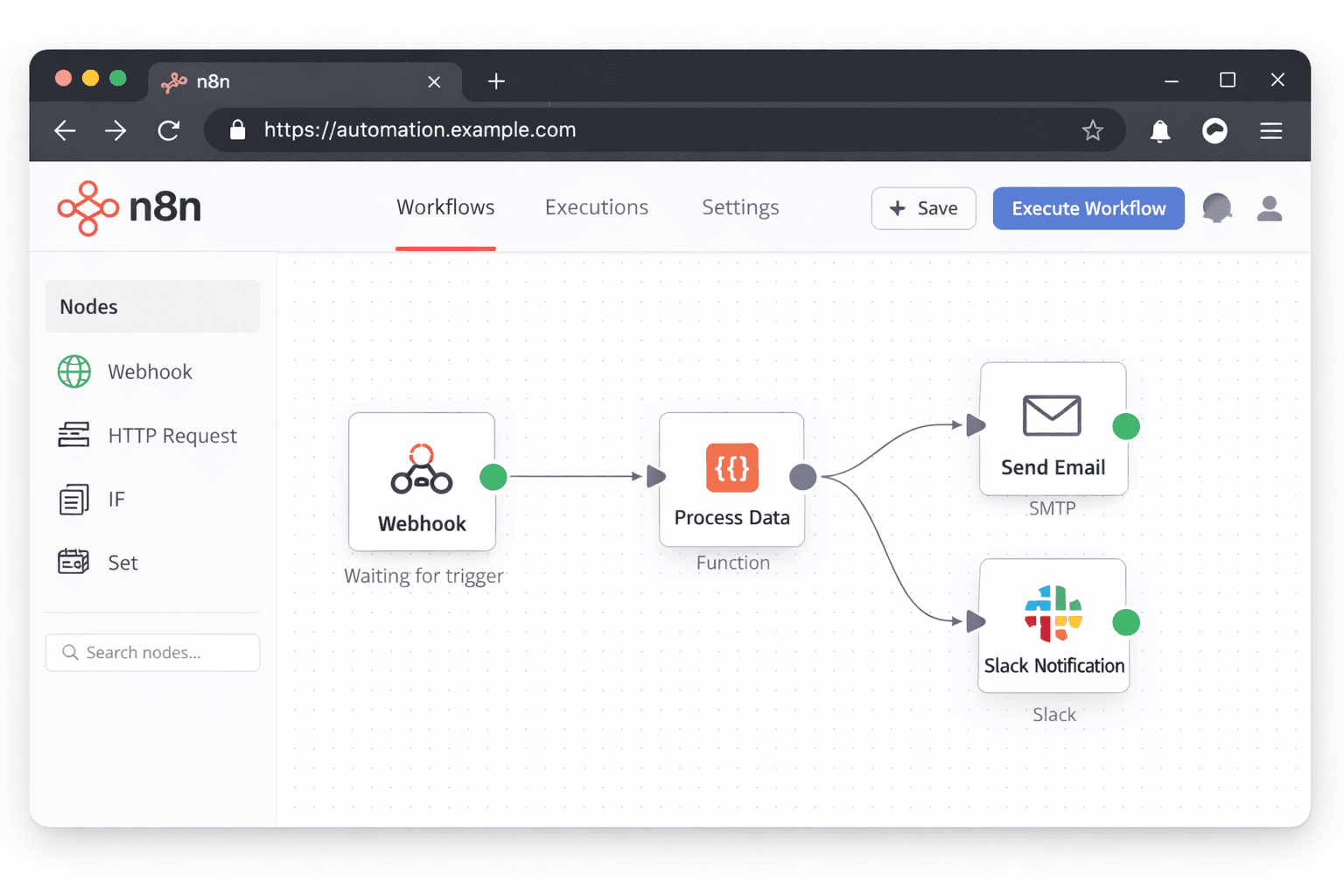
Running n8n on your own VPS gives you a persistent automation server accessible from anywhere, with no monthly subscription fees beyond the server cost. Unlike the n8n cloud plan ($24/month), a self-hosted VPS instance has no workflow limits, no execution caps, and no data leaving your infrastructure.
This guide builds on the Docker Compose n8n install guide and adds everything needed for a real production deployment: a custom domain, Nginx reverse proxy, a free SSL certificate from Let's Encrypt, and security hardening. You will end up with n8n accessible at your own domain over HTTPS.
A Contabo Cloud VPS 20 at €8.45/month (4 vCPUs, 8 GB RAM, 100 GB NVMe) handles n8n comfortably for solo use or small teams running dozens of concurrent workflows. If you prefer to skip the manual setup, Contabo also offers pre-installed n8n VPS plans from €4.50/month where n8n comes ready to use out of the box with no configuration required.
Prerequisites
- A Linux VPS running Ubuntu 22.04 or 24.04 (root or sudo access)
- A domain name with DNS access (to point an A record at your VPS IP)
- Docker and Docker Compose installed on the VPS
- Basic comfort with SSH and Linux terminal commands
- Ports 80 and 443 open in your VPS firewall
Need a VPS?
Run this on a Contabo Cloud VPS 20 starting at €8.45/mo. Reliable Linux VPS with NVMe storage, ideal for self-hosted AI workloads.
In This Guide
Point Your Domain to the VPS
Before setting up n8n, create a DNS A record pointing your subdomain at your VPS IP address. This lets Let's Encrypt verify domain ownership for the SSL certificate.
Step 1: Find Your VPS IP
Log into your VPS provider dashboard and note the public IPv4 address. For Contabo, this is shown on the VPS detail page.
Step 2: Create an A Record
In your DNS provider's dashboard (Cloudflare, Namecheap, Google Domains, etc.), add:
| Field | Value |
|---|---|
| Type | A |
| Name | n8n (or automation, or any subdomain you want) |
| Value | Your VPS IPv4 address |
| TTL | 300 (5 minutes, for faster propagation) |
This creates `n8n.yourdomain.com` pointing at your server. Use any subdomain you like.
Step 3: Verify DNS Propagation
# From your local machine, check if DNS has propagated
nslookup n8n.yourdomain.com
# or
dig n8n.yourdomain.com +short
# Expected output: your VPS IP addressDNS propagation typically takes 5-15 minutes with a 300-second TTL. Do not proceed to SSL setup until this resolves correctly.
Install Docker on the VPS
If Docker is not already installed on your VPS, run the official install script. This works on Ubuntu 22.04 and 24.04.
# Update package index
sudo apt update && sudo apt upgrade -y

# Install Docker using the official convenience script
curl -fsSL https://get.docker.com | sudo sh

# Add your user to the docker group (avoids needing sudo for every docker command)
sudo usermod -aG docker $USER

# Apply the group change without logging out
newgrp docker

# Verify Docker is running
docker --version
docker compose versionExpected output:
Docker version 27.x.x
Docker Compose version v2.x.xCreate the n8n Project Directory and Config Files
Create a dedicated directory for n8n and set up the environment file and Docker Compose configuration.
Step 1: Create the Project Directory
mkdir -p ~/n8n && cd ~/n8nStep 2: Create the .env File
nano ~/n8n/.envPaste the following, replacing every value in `< >` with your own:
# Your domain (the subdomain you pointed at this VPS)
N8N_HOST=n8n.yourdomain.com
N8N_PORT=5678
N8N_PROTOCOL=https
WEBHOOK_URL=https://n8n.yourdomain.com

# Generate a random encryption key: openssl rand -hex 16
N8N_ENCRYPTION_KEY=replace_with_32_char_random_string

# Basic auth to protect the n8n UI
N8N_BASIC_AUTH_ACTIVE=true
N8N_BASIC_AUTH_USER=admin
N8N_BASIC_AUTH_PASSWORD=replace_with_strong_password

# PostgreSQL database
DB_TYPE=postgresdb
DB_POSTGRESDB_HOST=postgres
DB_POSTGRESDB_PORT=5432
DB_POSTGRESDB_DATABASE=n8n
DB_POSTGRESDB_USER=n8n
DB_POSTGRESDB_PASSWORD=replace_with_db_password

# Timezone
GENERIC_TIMEZONE=Europe/LondonGenerate the encryption key:
openssl rand -hex 16Copy the output into the `N8N_ENCRYPTION_KEY` value.
Step 3: Create the Docker Compose File
nano ~/n8n/docker-compose.ymlversion: '3.8'
volumes:
n8n_data:
postgres_data:
services:
postgres:
image: postgres:15-alpine
restart: unless-stopped
environment:
POSTGRES_DB: n8n
POSTGRES_USER: n8n
POSTGRES_PASSWORD: ${DB_POSTGRESDB_PASSWORD}
volumes:
- postgres_data:/var/lib/postgresql/data
healthcheck:
test: ['CMD-SHELL', 'pg_isready -h localhost -U n8n -d n8n']
interval: 5s
timeout: 5s
retries: 10
n8n:
image: n8nio/n8n:latest
restart: unless-stopped
ports:
- "127.0.0.1:5678:5678"
environment:
- N8N_HOST=${N8N_HOST}
- N8N_PORT=${N8N_PORT}
- N8N_PROTOCOL=${N8N_PROTOCOL}
- WEBHOOK_URL=${WEBHOOK_URL}
- N8N_ENCRYPTION_KEY=${N8N_ENCRYPTION_KEY}
- N8N_BASIC_AUTH_ACTIVE=${N8N_BASIC_AUTH_ACTIVE}
- N8N_BASIC_AUTH_USER=${N8N_BASIC_AUTH_USER}
- N8N_BASIC_AUTH_PASSWORD=${N8N_BASIC_AUTH_PASSWORD}
- DB_TYPE=${DB_TYPE}
- DB_POSTGRESDB_HOST=${DB_POSTGRESDB_HOST}
- DB_POSTGRESDB_PORT=${DB_POSTGRESDB_PORT}
- DB_POSTGRESDB_DATABASE=${DB_POSTGRESDB_DATABASE}
- DB_POSTGRESDB_USER=${DB_POSTGRESDB_USER}
- DB_POSTGRESDB_PASSWORD=${DB_POSTGRESDB_PASSWORD}
- GENERIC_TIMEZONE=${GENERIC_TIMEZONE}
volumes:
- n8n_data:/home/node/.n8n
depends_on:
postgres:
condition: service_healthyNotice that the n8n port binding is `127.0.0.1:5678:5678` — this binds to localhost only, so n8n is not directly accessible from the internet. Nginx handles the public traffic.
Install Nginx and Configure SSL
Install Nginx as the reverse proxy and use Certbot to get a free Let's Encrypt SSL certificate.
Step 1: Install Nginx and Certbot
sudo apt install -y nginx certbot python3-certbot-nginxStep 2: Create the Nginx Config for n8n
sudo nano /etc/nginx/sites-available/n8nPaste the following, replacing `n8n.yourdomain.com` with your actual subdomain:
server {
    listen 80;
    server_name n8n.yourdomain.com;

    location / {
        proxy_pass http://localhost:5678;
        proxy_http_version 1.1;
        proxy_set_header Upgrade $http_upgrade;
        proxy_set_header Connection 'upgrade';
        proxy_set_header Host $host;
        proxy_set_header X-Real-IP $remote_addr;
        proxy_set_header X-Forwarded-For $proxy_add_x_forwarded_for;
        proxy_set_header X-Forwarded-Proto $scheme;
        proxy_cache_bypass $http_upgrade;
        proxy_read_timeout 300s;
        proxy_connect_timeout 75s;
    }
}The `proxy_read_timeout 300s` prevents Nginx from cutting off long-running webhook calls before n8n finishes processing them.
Step 3: Enable the Site and Test Nginx Config
# Enable the site
sudo ln -s /etc/nginx/sites-available/n8n /etc/nginx/sites-enabled/n8n

# Test the Nginx configuration
sudo nginx -t
# Expected: configuration file test is successful

# Reload Nginx
sudo systemctl reload nginxStep 4: Get the SSL Certificate
sudo certbot --nginx -d n8n.yourdomain.comCertbot will: 1. Ask for your email address (for renewal reminders) 2. Ask you to agree to the Let's Encrypt terms 3. Automatically configure Nginx to use HTTPS and redirect HTTP to HTTPS
After completion, test that HTTPS is working:
curl -I https://n8n.yourdomain.com
# Expected: HTTP/2 200 or HTTP/2 401 (if basic auth is enabled)Start n8n and Verify the Setup
With DNS, Docker Compose, Nginx, and SSL all configured, start the n8n stack and verify everything works.
Step 1: Start the Stack
cd ~/n8n && docker compose up -dCheck that both containers started:
docker compose psNAME STATUS
n8n-postgres-1 Up (healthy)
n8n-n8n-1 UpWait 30-60 seconds for n8n to complete its database migrations on first run.
Step 2: Access the n8n UI
Open your browser and navigate to:
https://n8n.yourdomain.comYou should see the n8n login prompt (or the basic auth dialog if basic auth is enabled). Log in with the credentials from your `.env` file.
Step 3: Verify Webhooks Work
Create a test webhook in n8n (Webhook node, POST method, Test URL) and trigger it:
curl -X POST https://n8n.yourdomain.com/webhook-test/your-webhook-path \
  -H "Content-Type: application/json" \
-d '{"test": "hello"}'If the webhook node in n8n shows the received data, the full setup is working correctly.
Security Hardening and Updating n8n
A few additional steps significantly improve the security of a production n8n instance.
Configure UFW Firewall
# Allow SSH, HTTP, and HTTPS only
sudo ufw allow OpenSSH
sudo ufw allow 'Nginx Full'
sudo ufw enable

# Verify rules
sudo ufw statusStatus: active
To Action From
-- ------ ----
OpenSSH ALLOW Anywhere
Nginx Full ALLOW AnywhereThis blocks direct access to port 5678 from the internet while keeping your Nginx proxy working.
Backup n8n Data
# Create a dated backup of both volumes
docker run --rm \
  -v n8n_n8n_data:/n8n \
  -v n8n_postgres_data:/postgres \
  -v $(pwd)/backups:/backup \
alpine sh -c "tar czf /backup/n8n-backup-$(date +%Y%m%d).tar.gz /n8n /postgres"Run this weekly via a cron job: `crontab -e` then add:
0 2 * * 0 cd ~/n8n && docker run --rm -v n8n_n8n_data:/n8n -v n8n_postgres_data:/postgres -v $(pwd)/backups:/backup alpine sh -c "tar czf /backup/n8n-backup-$(date +\%Y\%m\%d).tar.gz /n8n /postgres"Update n8n
cd ~/n8n

# Pull the latest n8n image
docker compose pull

# Restart with the new image (zero-downtime swap)
docker compose up -d --no-deps n8n# Verify which version is now running
docker compose exec n8n n8n --versionTroubleshooting
502 Bad Gateway when accessing the domain
Cause: Nginx cannot reach n8n on localhost:5678 — either n8n is not running or it has not finished starting up
Fix: Check container status: `docker compose ps`. Check n8n logs: `docker compose logs n8n --tail 50`. Wait 60 seconds after first start for database migrations. Verify n8n is listening: `curl http://localhost:5678`.
SSL certificate issuance fails with "DNS problem"
Cause: DNS has not propagated yet or the A record is incorrect
Fix: Verify DNS resolution first: `dig n8n.yourdomain.com +short`. The output must match your VPS IP. If using Cloudflare, ensure the record is set to DNS-only (grey cloud). Wait at least 5 minutes after creating the DNS record before running Certbot.
Webhooks time out after exactly 60 seconds
Cause: Nginx default proxy_read_timeout is 60 seconds, cutting off long-running workflows
Fix: Add `proxy_read_timeout 300s;` to the Nginx location block. Reload Nginx: `sudo systemctl reload nginx`. For very long workflows, increase to 600s.
n8n UI loads but shows "Could not establish database connection"
Cause: PostgreSQL container is not healthy yet, or the database credentials in .env do not match
Fix: Check PostgreSQL logs: `docker compose logs postgres --tail 30`. Verify the DB_POSTGRESDB_PASSWORD in .env matches what PostgreSQL was initialised with. If credentials changed, remove the postgres_data volume and restart: `docker compose down -v && docker compose up -d`.
n8n container keeps restarting
Cause: Usually a malformed .env file or a missing required environment variable
Fix: Check logs: `docker compose logs n8n --tail 50`. Look for "Error:" lines. Common issues: missing N8N_ENCRYPTION_KEY, invalid WEBHOOK_URL format (must include https://), or syntax errors in the .env file.
Alternatives to Consider
| Tool | Type | Price | Best For |
|---|---|---|---|
| n8n Cloud | Cloud | $24/month (Starter) | Teams that do not want to manage infrastructure and are happy with execution limits |
| Make (formerly Integromat) | Cloud | Free tier / $9/month | Beginners who want a visual automation tool without any server setup |
| Activepieces | Self-hosted or cloud | Free (self-hosted) | Open-source Zapier alternative with simpler setup than n8n, fewer integrations |
| Pipedream | Cloud | Free tier / $19/month | Developers who prefer writing Node.js code over visual workflows |
Frequently Asked Questions
How much does it cost to self-host n8n on a VPS?
A Contabo Cloud VPS 20 at €8.45/month (4 vCPUs, 8 GB RAM, 100 GB NVMe) handles n8n comfortably for a solo user or small team with dozens of active workflows. That is significantly cheaper than the n8n Starter cloud plan at $24/month, with no workflow or execution limits.
For heavier workloads with many concurrent workflows or large data volumes, a Contabo VPS 30 at €16.95/month with 16 GB RAM is a better fit. The server cost is your only recurring expense.
Can I migrate my existing n8n cloud workflows to self-hosted?
Yes. Export your workflows from n8n cloud as JSON (Settings > Workflow > Export All), then import them on your self-hosted instance (Settings > Import Workflows). Credentials need to be re-entered manually since they are encrypted and cannot be transferred.
The workflow logic, nodes, and connections all transfer cleanly. Webhook URLs will change to your new domain, so update any services that POST to the old n8n cloud webhook URLs.
How do I update n8n on my VPS without losing workflows?
Workflows and credentials are stored in the PostgreSQL database and the n8n data volume, not in the Docker image. Updating the image does not affect your data:
cd ~/n8n
docker compose pull
docker compose up -d --no-deps n8nThis pulls the latest n8n image and restarts only the n8n container while PostgreSQL keeps running. Always check the n8n release notes for breaking changes before updating.
Is self-hosted n8n secure enough for production use?
Yes, with the right configuration. This guide covers the key security layers: HTTPS via Let's Encrypt, basic auth on the n8n UI, UFW firewall blocking direct port access, and n8n bound to localhost so it is only reachable through Nginx.
For additional hardening: use SSH key authentication instead of passwords, keep the VPS OS updated with `sudo apt update && sudo apt upgrade`, and rotate the `N8N_BASIC_AUTH_PASSWORD` periodically.
What happens to my n8n workflows if the VPS reboots?
All containers have `restart: unless-stopped` in the Docker Compose configuration, so they restart automatically after a reboot. n8n will be back online within 30-60 seconds of the VPS coming up.
Active workflow executions that were in progress at the moment of reboot will show as "Error" in the execution log. Scheduled workflows will resume on their next scheduled time. Webhook-triggered workflows start responding as soon as the container is running again.
Can I run n8n and Ollama on the same VPS?
Yes, but check your RAM budget. n8n with PostgreSQL uses about 1-2 GB RAM under normal load. Running Ollama with a 7B model (Llama 3.3 or Mistral) requires an additional 6-8 GB. A Contabo VPS 30 with 16 GB RAM handles both comfortably.
This combination lets you build AI automation workflows in n8n that call your local Ollama instance via the HTTP Request node at `http://localhost:11434/api/generate`. No external API costs, completely self-contained.