
How to Run Ollama Locally: Complete Setup Guide (2026)
Step-by-step guide to install Ollama on Linux, macOS, or Windows, pull your first model, and access the REST API. Includes GPU setup and troubleshooting.

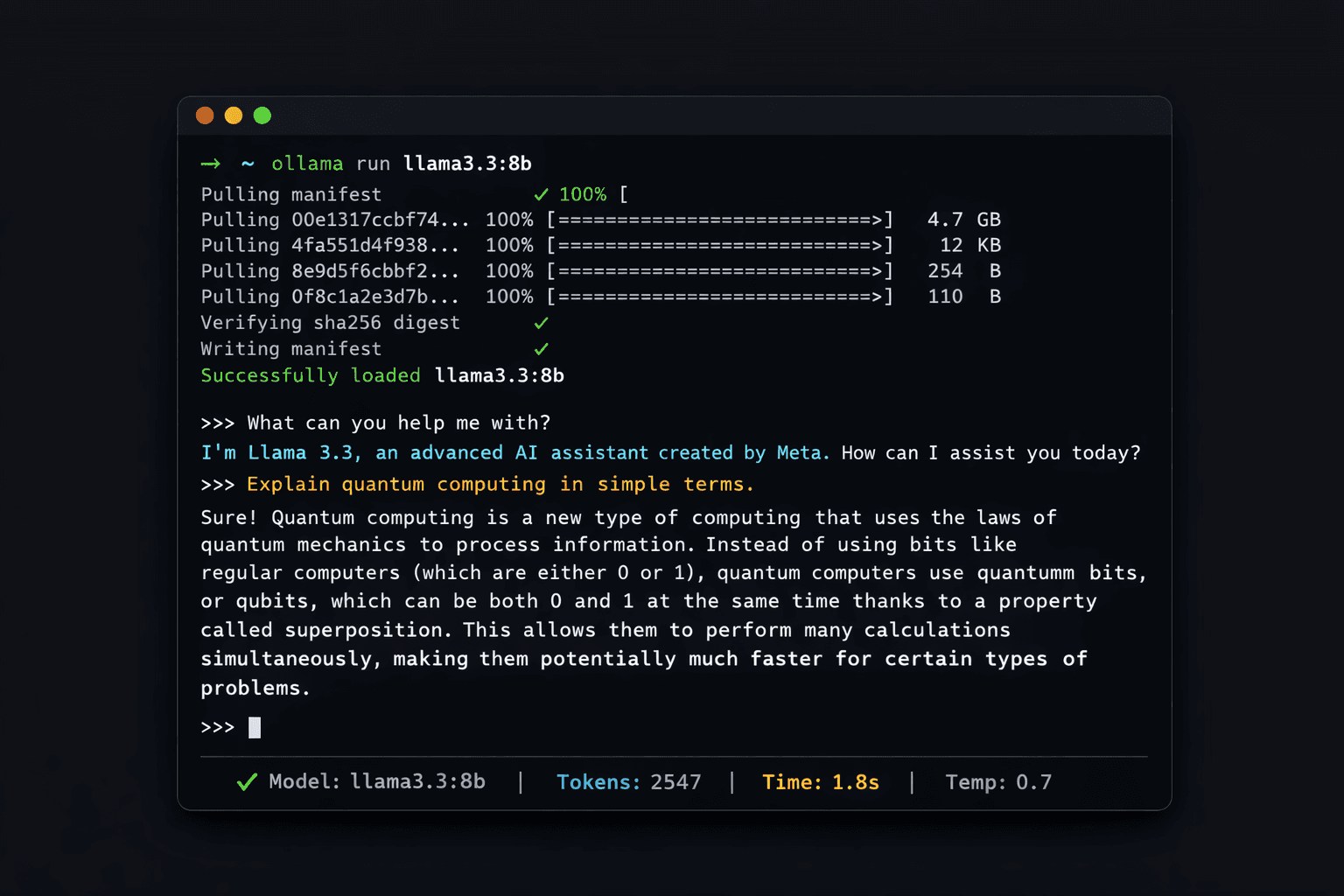
Ollama lets you run large language models on your own hardware without sending data to external servers. The project reached 95,000+ GitHub stars in early 2026, making it the most widely adopted local LLM runtime available. Models run entirely on your machine, which means zero API costs, no usage limits, and complete data privacy.
This guide covers every step from initial installation through your first inference request. You will install Ollama on Linux, macOS, or Windows, pull a 7B or 8B parameter model, run it from the command line, and use the REST API. A final section covers GPU acceleration for NVIDIA, AMD, and Apple Silicon hardware.
By the end you will have a working local LLM setup that handles text generation, coding assistance, and question answering entirely offline.
Prerequisites
- Computer with at least 8 GB RAM (for 7B-8B parameter models)
- Linux (Ubuntu 20.04+), macOS 11+, or Windows 10 with WSL2
- 5-10 GB free disk space per model (the Llama 3.3 8B model is 4.9 GB)
- Internet connection for the initial model download
- (Optional) NVIDIA GPU with 4+ GB VRAM for hardware-accelerated inference
- (Optional) A VPS if you want to run Ollama on a remote server
Need a VPS?
Run this on a Contabo Cloud VPS 30 starting at €16.95/mo. Reliable Linux VPS with NVMe storage, ideal for self-hosted AI workloads.
In This Guide
Install Ollama
Ollama provides a one-command installer for Linux and macOS, a Windows installer package, and a Docker image for containerised deployments.
Install on Linux or macOS
Run the official install script. It downloads the Ollama binary, sets up a systemd service on Linux, and adds the `ollama` command to your PATH.
curl -fsSL https://ollama.com/install.sh | shOn macOS, Homebrew is also supported:
brew install ollamaAfter installation, verify it works:
ollama --version
# Expected output: ollama version 0.6.xInstall on Windows
Download the Windows installer from ollama.com/download. Run the `.exe` file and follow the prompts. Ollama installs to `%LOCALAPPDATA%\Programs\Ollama` and adds itself to PATH.
After installation, open a new Command Prompt or PowerShell window and verify:
ollama --versionInstall with Docker
Docker is the recommended method for server deployments and production use. The official image is `ollama/ollama`.
# Pull the Ollama image
docker pull ollama/ollama

# Run Ollama in a container
# -d: run in background
# -v ollama:/root/.ollama: persist downloaded models to a named volume
# -p 11434:11434: expose the Ollama API on localhost port 11434
docker run -d \
  -v ollama:/root/.ollama \
  -p 11434:11434 \
  --name ollama \
ollama/ollamaVerify the container is running:
docker ps
# Expected output:
# CONTAINER ID   IMAGE           COMMAND                  CREATED        STATUS        PORTS
# a1b2c3d4e5f6 ollama/ollama "/bin/ollama serve" 5 seconds ago Up 4 seconds 0.0.0.0:11434->11434/tcpPull and Run Your First Model
With Ollama installed, the next step is downloading a model. Ollama pulls models from the Ollama Library at ollama.com/library, which hosts 100+ pre-quantised models.
Recommended First Models
For most users with 8-16 GB RAM, start with one of these:
| Model | Pull Command | Size on Disk | RAM Required | Best For |
|---|---|---|---|---|
| Llama 3.3 8B | `ollama pull llama3.3:8b` | 4.9 GB | 8 GB | General use, conversation |
| Mistral 7B | `ollama pull mistral:7b` | 4.1 GB | 8 GB | Fast inference, low RAM |
| Qwen2.5 7B | `ollama pull qwen2.5:7b` | 4.7 GB | 8 GB | Coding, multilingual |
| Phi-4 | `ollama pull phi4` | 9.1 GB | 16 GB | Strong reasoning, small footprint |
Step 1: Pull a Model
# Pull Llama 3.3 8B (recommended for beginners)
ollama pull llama3.3:8bExpected output while downloading:
pulling manifest
pulling 970aa74c0a90... 100% ▕████████████████▏ 4.9 GB
pulling 0ba8f0e314b4... 100% ▕████████████████▏  12 KB
pulling 56bb8bd477a5... 100% ▕████████████████▏   96 B
pulling f02dd72bb242... 100% ▕████████████████▏  418 B
verifying sha256 digest
writing manifest
successThe download time depends on your connection speed. A 4.9 GB model takes roughly 3-4 minutes on a 200 Mbps connection.
Step 2: List Your Installed Models
ollama listNAME ID SIZE MODIFIED
llama3.3:8b a6eb4748fd29 4.9 GB 2 minutes agoStep 3: Run a Model
ollama run llama3.3:8bOllama loads the model and opens an interactive prompt:
>>> Send a message (/? for help)
>>> What is the capital of France?
The capital of France is Paris.

>>> /byeType `/bye` or press Ctrl+D to exit. Type `/?` for a list of available commands including `/set` to change context length or temperature.
More local-AI guides like this
Step-by-step guides for running AI on your own hardware, twice a week.
Use the Ollama REST API
Ollama exposes a REST API on `http://localhost:11434` when the Ollama service is running. This API lets you integrate local LLM inference into your own scripts, applications, and tools.
Check the API is Running
curl http://localhost:11434
# Expected output: Ollama is runningGenerate Text (POST /api/generate)
The `/api/generate` endpoint takes a model name and a prompt and returns the generated text.
curl http://localhost:11434/api/generate \
  -d '{
    "model": "llama3.3:8b",
    "prompt": "Write a Python function that checks if a number is prime",
    "stream": false
}'The response is a JSON object. The `"response"` field contains the generated text:
{
  "model": "llama3.3:8b",
  "created_at": "2026-03-16T10:00:00Z",
  "response": "def is_prime(n):
    if n < 2:
        return False
    for i in range(2, int(n**0.5) + 1):
        if n % i == 0:
            return False
    return True",
  "done": true,
  "total_duration": 3200000000,
  "eval_count": 87
}Chat API (POST /api/chat)
The `/api/chat` endpoint supports multi-turn conversations with a `messages` array:
curl http://localhost:11434/api/chat \
  -d '{
    "model": "llama3.3:8b",
    "messages": [
      {"role": "user", "content": "What is Docker?"},
      {"role": "assistant", "content": "Docker is a containerisation platform."},
      {"role": "user", "content": "How does it differ from a VM?"}
    ],
    "stream": false
}'OpenAI-Compatible Endpoint
Ollama exposes an OpenAI-compatible API at `http://localhost:11434/v1`. Any application built for the OpenAI API can point to this endpoint instead, with no code changes other than the base URL and model name.
from openai import OpenAI

# Point the OpenAI client at your local Ollama instance
client = OpenAI(
    base_url='http://localhost:11434/v1',
    api_key='ollama'  # required by the client but not used by Ollama
)

response = client.chat.completions.create(
    model='llama3.3:8b',
    messages=[{'role': 'user', 'content': 'What is 2+2?'}]
)
print(response.choices[0].message.content)Enable GPU Acceleration
CPU inference works but is slow for interactive use. A GPU reduces response latency from 20-60 seconds per response to 1-5 seconds for 7B-8B models. Ollama supports NVIDIA (CUDA), AMD (ROCm), and Apple Silicon (Metal).
Apple Silicon (M1/M2/M3/M4)
No setup needed. Ollama detects Apple Metal automatically when installed on macOS. All inference uses the GPU by default. Verify GPU usage with:
ollama run llama3.3:8bCheck the Ollama log for Metal confirmation:
# In a separate terminal while the model is running
tail -f ~/.ollama/logs/server.log | grep -i "metal|gpu"
# Expected: llm_load_print_meta: n_gpu_layers = 33NVIDIA GPU (CUDA)
Ollama automatically detects NVIDIA GPUs when the CUDA toolkit is installed on the host. For Docker deployments, the NVIDIA Container Toolkit is required.
Install the NVIDIA Container Toolkit on Ubuntu:
# Add NVIDIA package repository
curl -fsSL https://nvidia.github.io/libnvidia-container/gpgkey | sudo gpg --dearmor -o /usr/share/keyrings/nvidia-container-toolkit-keyring.gpg
curl -s -L https://nvidia.github.io/libnvidia-container/stable/deb/nvidia-container-toolkit.list | \
  sed 's#deb https://#deb [signed-by=/usr/share/keyrings/nvidia-container-toolkit-keyring.gpg] https://#g' | \
  sudo tee /etc/apt/sources.list.d/nvidia-container-toolkit.list

sudo apt update && sudo apt install -y nvidia-container-toolkit
sudo nvidia-ctk runtime configure --runtime=docker
sudo systemctl restart dockerThen run the Ollama Docker container with GPU passthrough:
docker run -d \
  --gpus=all \
  -v ollama:/root/.ollama \
  -p 11434:11434 \
  --name ollama \
ollama/ollamaVerify GPU is in use during inference:
# While a model is running
nvidia-smi
# The ollama process should appear with VRAM usageAMD GPU (ROCm)
Ollama includes ROCm support for AMD GPUs. Use the ROCm-specific Docker image:
docker run -d \
  --device /dev/kfd \
  --device /dev/dri \
  -v ollama:/root/.ollama \
  -p 11434:11434 \
  --name ollama \
ollama/ollama:rocmChecking How Many Layers Are on GPU
Ollama offloads model layers to GPU incrementally based on available VRAM. Run a model and check the log:
tail -f ~/.ollama/logs/server.log | grep "n_gpu_layers"
# Example output:
# llm_load_print_meta: n_gpu_layers = 33 (all layers on GPU)
# llm_load_print_meta: n_gpu_layers = 18 (partial offload, not enough VRAM)If `n_gpu_layers` is 0, inference is on CPU. If it is less than the total layer count, only partial GPU offload occurred.
Key Configuration Options
Ollama reads configuration from environment variables. Set them before starting the service, either in your shell profile or as Docker `-e` flags.
| Variable | Default | Purpose |
|---|---|---|
| `OLLAMA_HOST` | `127.0.0.1:11434` | IP and port for the API server. Set to `0.0.0.0:11434` to allow network access |
| `OLLAMA_MODELS` | `~/.ollama/models` | Directory where downloaded models are stored |
| `OLLAMA_NUM_PARALLEL` | `1` | Number of simultaneous inference requests |
| `OLLAMA_MAX_LOADED_MODELS` | `1` | Maximum number of models kept in memory at once |
| `OLLAMA_FLASH_ATTENTION` | `0` | Set to `1` to enable flash attention for compatible models (improves throughput) |
| `OLLAMA_CONTEXT_LENGTH` | model default | Override default context window size in tokens |
| `OLLAMA_DEBUG` | `0` | Set to `1` for verbose logging |
Allow Remote Access
By default, Ollama binds to localhost only. To access the API from another machine (for example, from Open-WebUI running in Docker), expose the API on all interfaces:
# Set before starting Ollama (Linux systemd service)
sudo systemctl edit ollamaAdd these lines in the editor:
[Service]
Environment="OLLAMA_HOST=0.0.0.0:11434"Then reload and restart:
sudo systemctl daemon-reload
sudo systemctl restart ollamaConnect a Web Interface (Open-WebUI)
The Ollama CLI is useful for testing but most users prefer a browser-based chat interface. Open-WebUI provides a ChatGPT-style interface that connects directly to your local Ollama instance.
Quick Start (One Command)
If Ollama is running natively (not in Docker), this single command installs and starts Open-WebUI:
docker run -d \
  -p 3000:8080 \
  --add-host=host.docker.internal:host-gateway \
  -v open-webui:/app/backend/data \
  --name open-webui \
  --restart always \
ghcr.io/open-webui/open-webui:mainOpen your browser at `http://localhost:3000`. Create an admin account on first visit. Open-WebUI auto-detects Ollama at `http://host.docker.internal:11434`.
For a full Docker Compose setup of Open-WebUI with Ollama, see the complete guide: How to Set Up Open-WebUI with Ollama.
Troubleshooting
"ollama: command not found" after install
Cause: The installer added Ollama to PATH but the current shell session does not see it yet
Fix: Run `source ~/.bashrc` (Linux) or open a new terminal window. On macOS with zsh: `source ~/.zshrc`
Model pull fails or stops mid-download
Cause: Network timeout or temporary connection drop. Ollama does not resume partial downloads automatically in all versions
Fix: Run `ollama pull llama3.3:8b` again. Ollama checks what is already downloaded and resumes from where it stopped in version 0.5+
Inference is very slow (5+ seconds per token)
Cause: Model is running entirely on CPU, which is expected without a GPU
Fix: This is normal on CPU-only hardware. For 7B models on a modern CPU, expect 2-8 tokens/second. Enable GPU acceleration (see GPU section above) for faster inference
Port 11434 already in use
Cause: Another Ollama instance is running, or a different process is using port 11434
Fix: Find and stop the existing process: `lsof -i :11434` then `kill
NVIDIA GPU not detected, inference uses CPU
Cause: CUDA toolkit not installed, NVIDIA driver out of date, or (in Docker) NVIDIA Container Toolkit not configured
Fix: Check CUDA installation: `nvidia-smi`. For Docker, install nvidia-container-toolkit and run `sudo systemctl restart docker`. Minimum CUDA version: 11.8
"Error: model requires more system memory" or process killed
Cause: The model needs more RAM than available. A 7B model at Q4 quantisation needs ~5-6 GB, at full precision needs ~14 GB
Fix: Use a smaller quantisation: `ollama pull llama3.3:8b:q4_K_M` (4-bit, 4.9 GB). Or switch to a smaller model like Phi-4 mini or Mistral 7B
Alternatives to Consider
| Tool | Type | Price | Best For |
|---|---|---|---|
| LM Studio | Desktop app | Free | Windows and macOS users who prefer a GUI over the CLI |
| GPT4All | Desktop app | Free | Fully offline use with no Docker or CLI required |
| Jan | Desktop app | Free | Built-in chat UI without needing Open-WebUI separately |
| llama.cpp | CLI | Free (open source) | Maximum performance tuning and running custom GGUF model files directly |
Frequently Asked Questions
What hardware do I need to run Ollama?
The minimum requirement is 8 GB of RAM to run 7B-8B parameter models at 4-bit quantisation. Here is a quick reference:
| Model Size | Minimum RAM | Recommended RAM | Example Models |
|---|---|---|---|
| 3B-4B | 4 GB | 8 GB | Phi-4 mini, Llama 3.2 3B |
| 7B-8B | 8 GB | 16 GB | Llama 3.3 8B, Mistral 7B |
| 13B | 16 GB | 24 GB | Llama 3.1 13B |
| 30B-34B | 24 GB | 48 GB | Qwen2.5 32B |
| 70B | 48 GB | 64 GB | Llama 3.3 70B |
A GPU is not required but dramatically speeds up inference. An NVIDIA RTX 3060 with 12 GB VRAM runs 7B models at 60-80 tokens/second, versus 2-8 tokens/second on a modern CPU.
Is Ollama free to use?
Yes. Ollama is open source under the MIT license and completely free. The Ollama CLI, API server, and all models in the Ollama Library are free to download and use locally. There are no usage limits, no subscriptions, and no per-token charges. The only cost is your hardware and electricity.
The commercial models in the Ollama Library (such as some variants of Llama) have their own licenses covering commercial use. Meta's Llama models allow commercial use for companies with fewer than 700 million monthly active users.
What are the best models to start with in Ollama?
For a first-time setup, Llama 3.3 8B is the most balanced choice: 4.9 GB download, requires 8 GB RAM, and produces high-quality responses across most tasks including conversation, writing, and code. Pull it with `ollama pull llama3.3:8b`.
For coding tasks specifically, Qwen2.5-Coder 7B (`ollama pull qwen2.5-coder:7b`) outperforms general models on programming questions. For users with only 4-6 GB RAM, Phi-4 mini (`ollama pull phi4-mini`) delivers strong reasoning in a smaller footprint. For the best overall quality with 16+ GB RAM, DeepSeek R1 8B (`ollama pull deepseek-r1:8b`) handles complex reasoning tasks well.
Does Ollama send my data anywhere?
No. Once a model is downloaded, all inference runs entirely on your local machine with no outbound network requests. Ollama does not collect prompts, responses, or usage telemetry.
The only network requests Ollama makes are: the initial model download from ollama.com/library, and version update checks (which can be disabled). The Ollama service itself has no analytics or telemetry built in.
How do I run Ollama as a background service?
On Linux, the Ollama installer creates a systemd service automatically. It starts on boot and runs in the background. Manage it with:
# Check status
systemctl status ollama

# Start the service
sudo systemctl start ollama

# Stop the service
sudo systemctl stop ollama

# Restart after configuration changes
sudo systemctl restart ollamaOn macOS, Ollama runs as a menu bar application after installation. It starts automatically at login. To run it as a background service without the menu bar app, use Homebrew services: `brew services start ollama`.
On Windows, Ollama runs as a background task in the system tray after installation.
Can I use Ollama with Python or Node.js?
Yes. Ollama provides official client libraries for Python and JavaScript.
Install the Python library:
pip install ollamaBasic usage:
import ollama

response = ollama.chat(
    model='llama3.3:8b',
    messages=[{'role': 'user', 'content': 'What is the capital of Germany?'}]
)
print(response['message']['content'])Install the JavaScript library:
npm install ollamaAlternatively, since Ollama exposes an OpenAI-compatible API, you can use the `openai` Python or Node.js SDK by setting `base_url='http://localhost:11434/v1'`.
How much disk space do Ollama models use?
Model sizes at 4-bit quantisation (Q4_K_M), which is what Ollama downloads by default:
- 3B-4B models: 2-2.5 GB
- 7B models: 4-5 GB
- 13B models: 8-9 GB
- 30B-34B models: 19-22 GB
- 70B models: 43-45 GB
Models are stored in `~/.ollama/models` on Linux and macOS, and `C:\Users\
Can I run multiple models at the same time?
Yes, but by default Ollama keeps only one model loaded in memory at a time. When you switch models, it unloads the current model and loads the new one. For a 7B model, this takes 5-15 seconds depending on your storage speed.
To run multiple models simultaneously, increase the `OLLAMA_MAX_LOADED_MODELS` environment variable. For example, to keep two models in memory:
OLLAMA_MAX_LOADED_MODELS=2 ollama serveThis requires enough RAM to hold both models. Two 7B models at 4-bit quantisation need approximately 10-12 GB RAM total.
Related Guides
How to Set Up LM Studio: Complete Local LLM Guide (2026)
Best Ollama Alternatives in 2026: 5 Local LLM Apps Compared
How to Set Up Open-WebUI with Ollama (Docker Guide)
Best Local LLM Models to Run in 2026 (Benchmarks + Use Cases)
How to Install n8n with Docker Compose (Self-Hosted Setup)
How to Run Gemma 4 on Ollama: Complete Setup Guide (2026)
How to Run DeepSeek OCR on Ollama: Local Setup Guide (2026)
How to Run Laguna XS 2.1 on Ollama: Local Setup Guide (2026)