
How to Set Up Open-WebUI with Ollama (Docker Guide)
Install Open-WebUI for a ChatGPT-style interface with local Ollama models. Covers Docker setup, Docker Compose, model switching, and key configuration options.

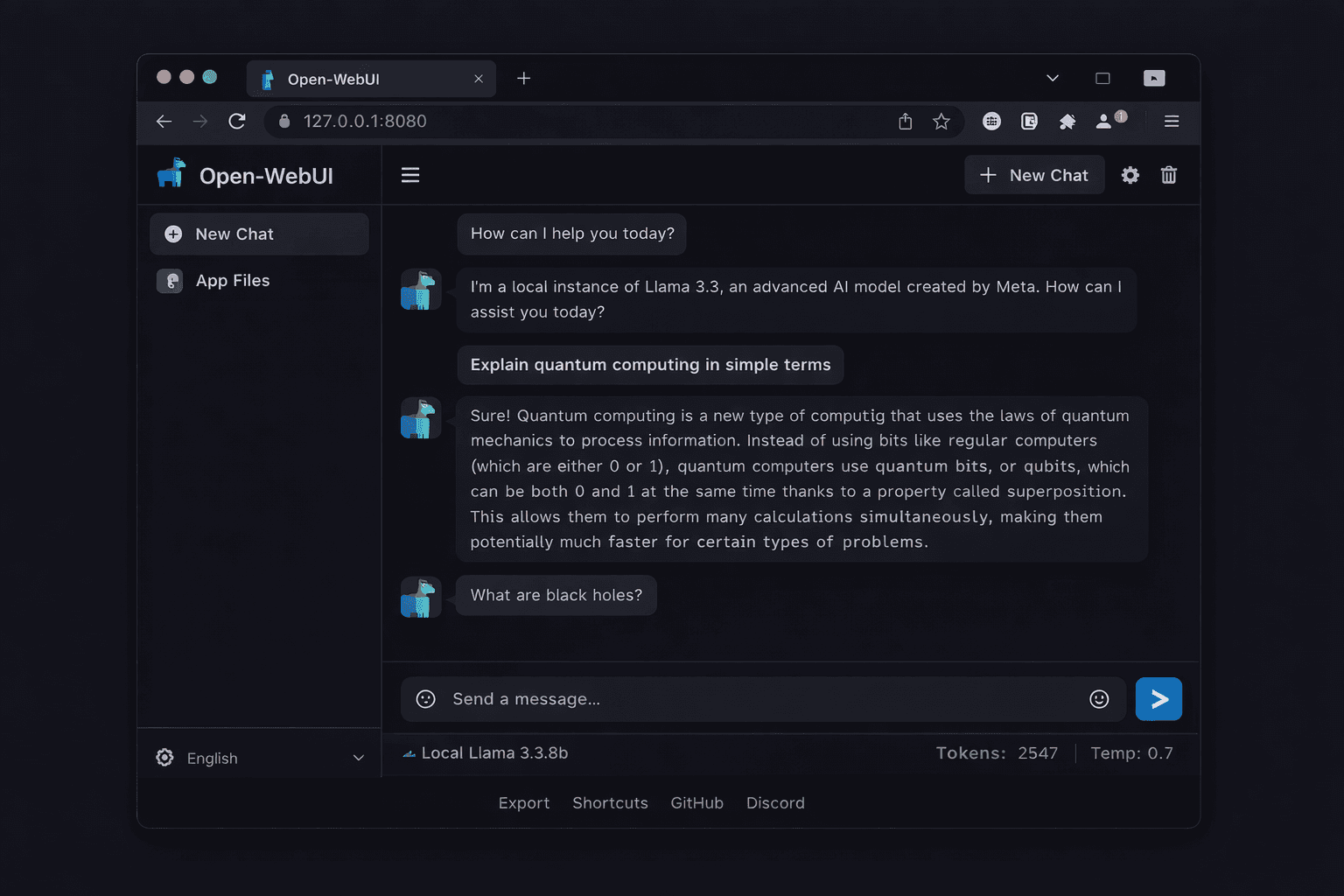
Open-WebUI is a browser-based interface for Ollama that provides a ChatGPT-style chat experience for your local models. It adds features that the Ollama CLI lacks: a conversation history sidebar, model switching without restarting, file uploads for document Q&A, image generation support, and multi-user access with separate accounts.
The project has over 65,000 GitHub stars and is the most widely used frontend for local LLM setups. This guide covers two installation methods: a single Docker command for personal use, and a Docker Compose setup for running alongside Ollama on a remote server. Both methods take under 5 minutes to complete.
You need Ollama installed and running before starting this guide. If you have not set up Ollama yet, follow the Ollama setup guide first.
Prerequisites
- Ollama installed and running (with at least one model pulled)
- Docker Engine 24.x+ installed
- Port 3000 free on your machine (Open-WebUI default port)
- 500 MB free disk space for the Open-WebUI Docker image
Need a VPS?
Run this on a Contabo Cloud VPS 10 starting at €5.45/mo. Reliable Linux VPS with NVMe storage, ideal for self-hosted AI workloads.
In This Guide
Quick Install with Docker (Recommended for Local Use)
If Ollama is running natively on the same machine (not in Docker), use this single command to install and start Open-WebUI:
docker run -d \
  -p 3000:8080 \
  --add-host=host.docker.internal:host-gateway \
  -v open-webui:/app/backend/data \
  --name open-webui \
  --restart always \
ghcr.io/open-webui/open-webui:mainWhat each flag does:
- `-p 3000:8080` — maps port 8080 inside the container to port 3000 on your machine
- `--add-host=host.docker.internal:host-gateway` — lets the container reach Ollama running on the host machine
- `-v open-webui:/app/backend/data` — persists your conversations, settings, and uploads in a Docker volume
- `--restart always` — restarts Open-WebUI automatically if the container stops or the server reboots
Wait 30-60 seconds for the image to download and the container to start. Then open your browser at:
http://localhost:3000After creating your account, select a model from the dropdown at the top of the chat window and start a conversation.
Verify Ollama Connection
If the model dropdown is empty or shows "No models available", Open-WebUI cannot reach Ollama. Check the connection:
# From inside the Open-WebUI container, test the Ollama API
docker exec open-webui curl -s http://host.docker.internal:11434
# Expected: Ollama is runningIf that command fails, Ollama is not running or the `host.docker.internal` DNS entry is not resolving. Start Ollama: `ollama serve` (or `sudo systemctl start ollama` on Linux).
Docker Compose Setup (Ollama + Open-WebUI Together)
Use Docker Compose when you want to run Ollama and Open-WebUI in containers together — common for remote server deployments or when you want everything managed in one file.
Create a project directory and a `docker-compose.yml` file:
mkdir -p ~/open-webui && cd ~/open-webui
nano docker-compose.ymlPaste the following:
version: '3.8'

volumes:
  ollama_data:
  open_webui_data:

services:
  ollama:
    image: ollama/ollama
    restart: unless-stopped
    volumes:
      - ollama_data:/root/.ollama
    ports:
      - "11434:11434"
    # Uncomment the lines below to enable NVIDIA GPU passthrough
    # deploy:
    #   resources:
    #     reservations:
    #       devices:
    #         - driver: nvidia
    #           count: all
    #           capabilities: [gpu]

  open-webui:
    image: ghcr.io/open-webui/open-webui:main
    restart: unless-stopped
    ports:
      - "3000:8080"
    environment:
      - OLLAMA_BASE_URL=http://ollama:11434
    volumes:
      - open_webui_data:/app/backend/data
    depends_on:
- ollamaStart both services:
docker compose up -dCheck both containers are running:
docker compose psNAME STATUS
open-webui-ollama-1 Up 30 seconds
open-webui-open-webui-1 Up 28 secondsPull a model into the Ollama container:
# Run ollama pull inside the Ollama container
docker compose exec ollama ollama pull llama3.3:8bFirst Use and Key Features
After creating your admin account, here is what to explore first.
Select and Load a Model
Open the model dropdown at the top centre of the chat window. All models pulled with Ollama appear here. Select `llama3.3:8b` (or whichever model you pulled) and start a conversation.
Upload Files for Document Q&A
Open-WebUI supports RAG (Retrieval-Augmented Generation) out of the box. Click the paperclip icon in the chat input to upload a PDF, Word document, or text file. The model reads the document and answers questions about its content.
Manage Multiple Users
In the admin panel (click your username at the bottom left, then Admin Panel), you can:
- Approve pending user registrations
- Set default models for new users
- Configure which models are visible to non-admin users
- Enable or disable user registration
Change the Ollama Server URL
If you need to point Open-WebUI at a different Ollama instance, go to Settings (gear icon) > Connections. Update the Ollama API URL field. This is useful if Ollama is running on a different machine than Open-WebUI.
Enable Web Search
Open-WebUI supports web search integration via SearXNG (self-hosted search), Bing Search API, or Google Programmable Search. Go to Admin Panel > Settings > Web Search to configure a search provider. Once enabled, users can prefix queries with `@web` to include search results as context.
Key Configuration Options
Open-WebUI reads configuration from environment variables passed to the Docker container.
| Variable | Default | Purpose |
|---|---|---|
| `OLLAMA_BASE_URL` | `http://localhost:11434` | Ollama API endpoint |
| `WEBUI_SECRET_KEY` | random | JWT secret for session tokens. Set explicitly for predictable sessions across restarts |
| `DEFAULT_MODELS` | first available | Model loaded by default for new chat sessions |
| `ENABLE_SIGNUP` | `true` | Set to `false` to disable new user registration (admin creates accounts manually) |
| `DEFAULT_USER_ROLE` | `pending` | Role assigned to new signups: `pending`, `user`, or `admin` |
| `WEBUI_AUTH` | `true` | Set to `false` to disable login entirely (single-user local setup) |
| `RAG_EMBEDDING_MODEL` | `sentence-transformers/all-MiniLM-L6-v2` | Embedding model for document Q&A |
| `OPENAI_API_BASE_URL` | not set | Optional: OpenAI API URL to use alongside Ollama |
| `OPENAI_API_KEY` | not set | Optional: OpenAI API key if mixing local and cloud models |
To set variables in your Docker run command, add `-e VARIABLE=value` flags. In Docker Compose, add them under the `environment:` section of the open-webui service.
Example: disabling auth for a single-user local setup:
docker run -d \
  -p 3000:8080 \
  --add-host=host.docker.internal:host-gateway \
  -v open-webui:/app/backend/data \
  -e WEBUI_AUTH=false \
  --name open-webui \
  --restart always \
ghcr.io/open-webui/open-webui:mainUpdate Open-WebUI
Open-WebUI releases updates frequently. Update by pulling the latest image and recreating the container:
Docker (single container)
# Pull the latest image
docker pull ghcr.io/open-webui/open-webui:main

# Stop and remove the current container (data is in the named volume, not the container)
docker stop open-webui
docker rm open-webui

# Start a new container with the updated image
docker run -d \
  -p 3000:8080 \
  --add-host=host.docker.internal:host-gateway \
  -v open-webui:/app/backend/data \
  --name open-webui \
  --restart always \
ghcr.io/open-webui/open-webui:mainDocker Compose
cd ~/open-webui

# Pull new images
docker compose pull

# Recreate containers with new images
docker compose up -dYour conversations, settings, and uploaded documents are stored in the `open-webui` Docker volume, which is not affected by container removal.
Troubleshooting
Model dropdown is empty after setup
Cause: Open-WebUI cannot reach the Ollama API. Common reasons: Ollama is not running, the host.docker.internal hostname is not resolving, or the OLLAMA_BASE_URL points to the wrong address
Fix: Verify Ollama is running: `curl http://localhost:11434`. If using Docker Compose, check that OLLAMA_BASE_URL=http://ollama:11434 (using the service name, not localhost). Test from inside the container: `docker exec open-webui curl http://host.docker.internal:11434`
Cannot create the first admin account (blank screen or error)
Cause: The Open-WebUI container started before it finished initialising its database
Fix: Wait 60 seconds and refresh the page. Check the container logs: `docker logs open-webui`. If you see database migration errors, remove the container and volume and start fresh: `docker stop open-webui && docker rm open-webui && docker volume rm open-webui && docker run ...`
Responses stop generating mid-sentence
Cause: A proxy timeout (Nginx or Cloudflare) is cutting off long-running inference requests
Fix: Increase the proxy read timeout. For Nginx, add `proxy_read_timeout 300;` to the location block. For Cloudflare, set the timeout to at least 100 seconds in your tunnel or proxy settings
File uploads fail with "unsupported file type"
Cause: Open-WebUI supports PDF, DOCX, TXT, and Markdown files for RAG. Other formats are not yet supported by default
Fix: Convert unsupported files to PDF or TXT before uploading. For CSV and spreadsheet data, paste the data as text in the chat input instead of uploading as a file
Slow first response after selecting a model
Cause: The model is being loaded from disk into RAM on first use. This is normal and takes 5-30 seconds depending on model size and storage speed
Fix: This delay only occurs on the first message after switching models. Subsequent messages in the same session respond faster. Use NVMe storage rather than HDD to reduce model load time significantly
Alternatives to Consider
| Tool | Type | Price | Best For |
|---|---|---|---|
| Hollama | Desktop app | Free | Minimal Ollama frontend with a very simple interface and no Docker required |
| Msty | Desktop app | Free | macOS users who want a native app instead of a browser-based UI |
| LM Studio | Desktop app | Free | All-in-one local LLM tool that includes its own model runner and does not need Ollama |
| AnythingLLM | Self-hosted or desktop | Free (self-hosted) | Teams that need agent features, workspace isolation, and more advanced RAG than Open-WebUI |
Frequently Asked Questions
Does Open-WebUI work without Ollama?
Yes. Open-WebUI can connect to any OpenAI-compatible API endpoint, not just Ollama. To use it with the OpenAI API directly, set the `OPENAI_API_KEY` environment variable and the `OPENAI_API_BASE_URL` to `https://api.openai.com/v1`. You can also mix both: configure both Ollama and an OpenAI API key to switch between local and cloud models from the same interface.
Other supported backends include Groq, Anthropic (via an OpenAI-compatible proxy), and any locally running OpenAI-compatible inference server like LocalAI or vLLM.
Is Open-WebUI free to use?
Open-WebUI is open source under the MIT license and completely free to self-host. The Docker image is free to pull and run. There is a paid cloud version (Open-WebUI Plus) but self-hosting has no restrictions, no limits, and no subscription.
The only cost is your server. Running Open-WebUI alongside Ollama on a Contabo Cloud VPS 10 (€5.45/month) handles single-user local model access well. For multi-user team deployments, a VPS 20 or VPS 30 with more RAM handles several concurrent users.
How do I add a custom system prompt?
Set a default system prompt in the model settings. Click the model name at the top of the chat window, then select "Edit Model". In the "System Prompt" field, enter any instructions you want the model to follow in every conversation.
For per-conversation system prompts, start a new chat and click the system prompt icon (vertical lines) in the message input area. This opens a text field where you can type the system prompt for just that conversation.
Can multiple users share one Open-WebUI instance?
Yes. Open-WebUI has full multi-user support with account-based access. Each user has their own conversation history, settings, and uploaded documents. The admin can approve or reject new user registrations, set role-based permissions, and restrict which models each user can access.
Conversation data is isolated between users. One user cannot see another user's chat history. The admin can view all conversations if needed from the Admin Panel.
How do I back up my Open-WebUI conversations?
Conversations and settings are stored in the `open-webui` Docker volume at `/app/backend/data` inside the container. Back up this directory:
# Copy the data directory to your host machine
docker cp open-webui:/app/backend/data ./open-webui-backup

# Or create a compressed archive
docker run --rm \
  -v open-webui:/data \
  -v $(pwd):/backup \
alpine tar czf /backup/open-webui-backup.tar.gz -C /data .To restore, reverse the process: extract the archive back into the Docker volume before starting the container.