
How to Install Flowise with Docker: AI Agent Builder Setup Guide
Step-by-step guide to install Flowise AI agent builder with Docker. Set up LLM chains, chatbots, and autonomous agents with a visual drag-and-drop interface.

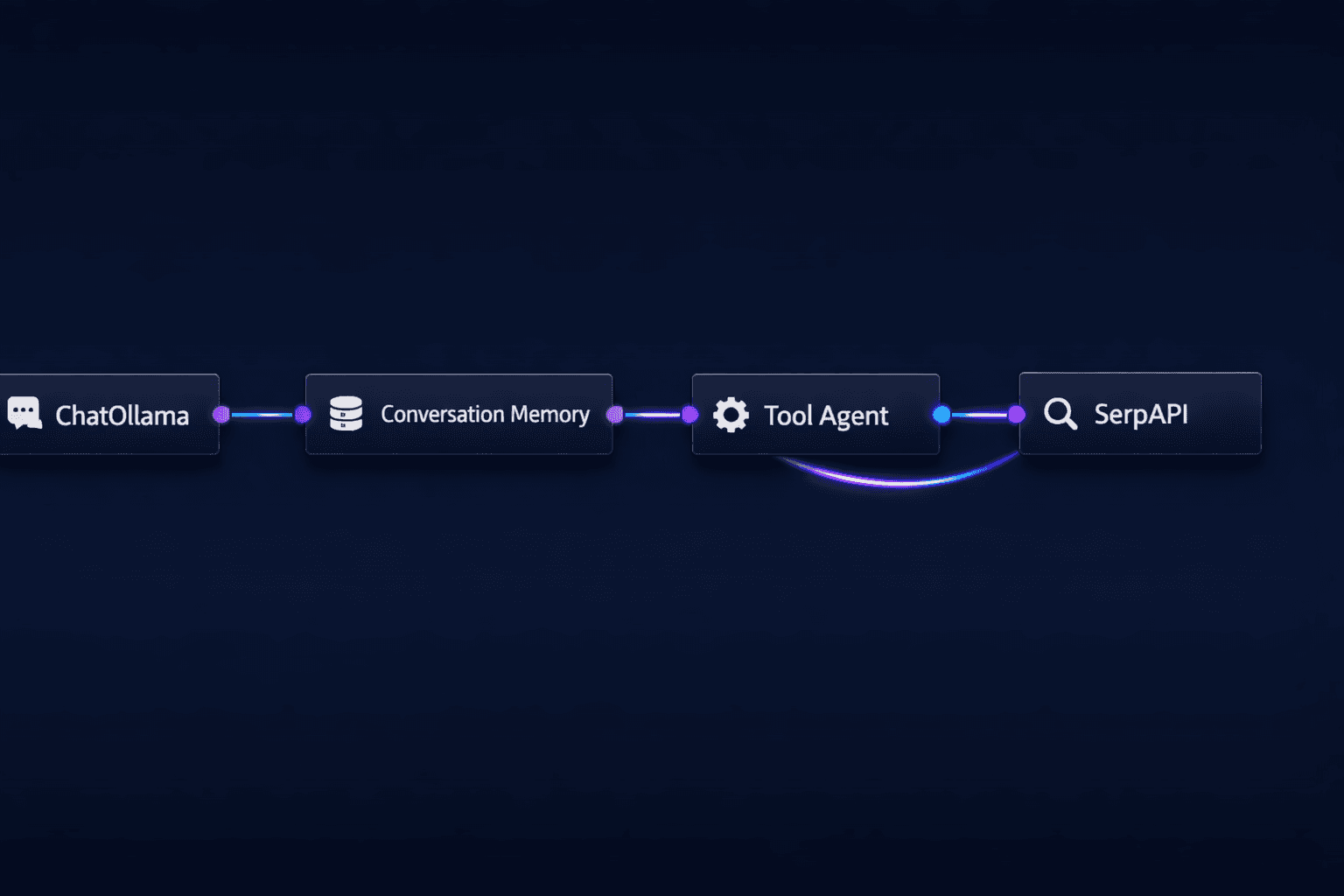
Flowise is a visual drag-and-drop builder for LLM applications, AI agents, and chatbots. Instead of writing orchestration code from scratch, you connect nodes on a canvas to build chains, retrieval-augmented generation (RAG) pipelines, and autonomous agents. The project has over 36,000 GitHub stars and supports every major model provider including OpenAI, Anthropic, Ollama, Groq, and local GGUF models.
Docker is the cleanest installation method. The Flowise Docker image bundles the Node.js server, the LangChain integrations, and the web UI into a single container. The entire setup takes under 10 minutes and runs on any Linux VPS, macOS machine, or Windows system with Docker Desktop. If you want a server without managing infrastructure yourself, a Contabo Cloud VPS with 4 vCPUs and 8 GB RAM handles Flowise and several concurrent chatbot sessions comfortably.
This guide covers the single-container Docker setup, Docker Compose with persistent storage, connecting Flowise to a local Ollama instance, and securing the instance with a username and password.
Prerequisites
- Docker Engine 24.x+ installed (or Docker Desktop on Windows/macOS)
- Port 3001 free on your machine (Flowise default)
- 2 GB free RAM (4 GB recommended for running agents with Ollama)
- An API key for at least one LLM provider (OpenAI, Anthropic, or Groq) OR local Ollama installed
- (Optional) A domain name for public deployment with HTTPS
Need a VPS?
Run this on a Contabo Cloud VPS 20 starting at €8.95/mo. Reliable Linux VPS with NVMe storage, ideal for self-hosted AI workloads.
In This Guide
Quick Install with Docker
The fastest way to run Flowise is a single Docker command. This starts Flowise on port 3001 with an in-memory SQLite database.
docker run -d \
  -p 3001:3001 \
  --name flowise \
  -v ~/.flowise:/root/.flowise \
flowiseai/flowiseWhat each flag does:
- `-d` — runs the container in the background (detached mode)
- `-p 3001:3001` — maps Flowise's port to your machine
- `-v ~/.flowise:/root/.flowise` — persists your flows, credentials, and chat history to your home directory
- `flowiseai/flowise` — the official Docker Hub image
Wait 30 seconds for the container to start, then open your browser at:
http://localhost:3001You should see the Flowise canvas with an empty chatflows list.
Add Basic Authentication
By default Flowise has no login protection. Anyone who can reach port 3001 can access and modify your flows. Add a username and password with environment variables:
docker run -d \
  -p 3001:3001 \
  --name flowise \
  -v ~/.flowise:/root/.flowise \
  -e FLOWISE_USERNAME=admin \
  -e FLOWISE_PASSWORD=changeme123 \
flowiseai/flowiseDocker Compose Setup with Persistent Storage
Docker Compose is the recommended approach for a stable Flowise deployment. It gives you persistent SQLite storage, easy environment variable management, and a configuration file you can version-control.
Create a project directory:
mkdir -p ~/flowise && cd ~/flowise
nano docker-compose.ymlPaste the following compose file:
version: '3.8'

services:
  flowise:
    image: flowiseai/flowise
    container_name: flowise
    restart: unless-stopped
    ports:
      - "3001:3001"
    volumes:
      - flowise_data:/root/.flowise
    environment:
      - PORT=3001
      - FLOWISE_USERNAME=admin
      - FLOWISE_PASSWORD=strongpasswordhere
      - DATABASE_PATH=/root/.flowise
      - SECRETKEY_PATH=/root/.flowise
      - LOG_PATH=/root/.flowise/logs
      - BLOB_STORAGE_PATH=/root/.flowise/storage
      # Uncomment to connect to a local Ollama instance
      # - OLLAMA_BASE_URL=http://host.docker.internal:11434

volumes:
flowise_data:Start Flowise:
docker compose up -dCheck it is running:
docker compose logs -f flowiseYou should see output similar to:
flowise | Ready on port 3001Stop with `docker compose down`. Restart with `docker compose up -d`. The `flowise_data` volume persists your flows and credentials across container restarts and image upgrades.
Connect Flowise to Local Ollama Models
Flowise connects to Ollama through a dedicated ChatOllama or OllamaEmbeddings node. This lets you build AI agents and RAG pipelines that run entirely offline with no API costs.
Step 1: Ensure Ollama is Accessible
If Ollama is running natively on the same host as Flowise, the container reaches it via the `host.docker.internal` DNS name:
# Test from inside the Flowise container
docker exec flowise curl -s http://host.docker.internal:11434
# Expected: Ollama is runningIf Ollama is in its own Docker container, use the container's service name instead of `host.docker.internal`. Add Ollama to your compose file and reference it as `http://ollama:11434`.
Step 2: Add a ChatOllama Node in Flowise
1. Open Flowise at `http://localhost:3001` 2. Click **Add New** to create a chatflow 3. In the nodes panel (left sidebar), search for **ChatOllama** 4. Drag the ChatOllama node onto the canvas 5. In the node configuration: - **Base URL**: `http://host.docker.internal:11434` - **Model Name**: type `llama3.3` or any model you have pulled with `ollama list`
Step 3: Build a Simple Chain
Connect the ChatOllama node to a **Chat Prompt Template** node and a **Conversation Chain** node:
[Chat Prompt Template] → [ChatOllama] → [Conversation Chain]Click **Save** at the top right, then **Upsert** to activate the flow. Open the chatbot preview to test a conversation.
Build Your First AI Agent
Flowise's agent nodes use LangChain's agent framework to let your LLM call tools, search the web, query databases, or run code. This example builds a simple ReAct agent with web search capability.
Step 1: Create a New Agentflow
Click **Agentflows** in the top navigation (not Chatflows). Agentflows are designed specifically for agent architectures with tool use.
Step 2: Add the Required Nodes
| Node | Purpose | Configuration |
|---|---|---|
| ChatOpenAI | LLM brain of the agent | API key, model: gpt-4o-mini |
| Calculator | Math tool | No config needed |
| SerpAPI | Web search tool | SerpAPI key required |
| OpenAI Tool Agent | Orchestrates tool use | Connect LLM + tools |
| Start | Entry point | Default config |
Connect the nodes:
[Start] → [OpenAI Tool Agent] → output
[ChatOpenAI] → [OpenAI Tool Agent] (LLM input)
[Calculator] → [OpenAI Tool Agent] (tool)
[SerpAPI] → [OpenAI Tool Agent] (tool)Step 3: Test the Agent
Save and open the chatbot preview. Ask a question that requires web search:
What is the current price of Nvidia stock and what is 523 * 47?The agent should use SerpAPI for the stock price and Calculator for the math. You will see the tool calls logged in the chat panel on the right.
Expose Flowise as an API or Embed a Chatbot
Every Flowise chatflow automatically generates an API endpoint and an embeddable chatbot widget. This is how you deploy Flowise-built chatbots on your own website or call them from your application.
API Endpoint
After saving a chatflow, click the **API Endpoint** button (top right, looks like ``). Flowise shows:
# Example API call to your Flowise chatflow
curl http://localhost:3001/api/v1/prediction/YOUR_CHATFLOW_ID \
  -H "Content-Type: application/json" \
-d '{"question": "What is Flowise?"}'Replace `YOUR_CHATFLOW_ID` with the UUID shown in the API endpoint panel. Add an API key for authentication:
# With API key authentication
curl http://localhost:3001/api/v1/prediction/YOUR_CHATFLOW_ID \
  -H "Content-Type: application/json" \
  -H "Authorization: Bearer YOUR_API_KEY" \
-d '{"question": "What is Flowise?"}'Generate API keys in Flowise under **Settings > API Keys**.
Embeddable Chat Widget
Click **Embed** (next to API Endpoint). Flowise provides a JavaScript snippet you paste into any HTML page:
<script type="module">
  import Chatbot from "https://cdn.jsdelivr.net/npm/flowise-embed/dist/web.js"
  Chatbot.init({
    chatflowid: "YOUR_CHATFLOW_ID",
    apiHost: "https://your-flowise-domain.com",
  })
</script>The widget renders a floating chat button in the bottom-right corner. It connects directly to your Flowise instance, so keep Flowise running and publicly accessible for the widget to work.
Troubleshooting
Container exits immediately after starting
Cause: Port 3001 already in use, or volume permission error
Fix: Check what is using port 3001: `sudo lsof -i :3001`. Kill the conflicting process or change the port: `-p 3002:3001`. For permission errors: `sudo chown -R $USER ~/.flowise`.
Ollama connection refused in Flowise nodes
Cause: Flowise container cannot reach the Ollama API at host.docker.internal:11434
Fix: Test connectivity: `docker exec flowise curl -s http://host.docker.internal:11434`. If it fails, add `--add-host=host.docker.internal:host-gateway` to your docker run command. On Linux, host.docker.internal is not always available by default.
API keys saved in Flowise are not persisting after container restart
Cause: Container was started without a volume mount or SECRETKEY_PATH is not set
Fix: Ensure the volume flag `-v ~/.flowise:/root/.flowise` is included in your docker run command. Set `SECRETKEY_PATH=/root/.flowise` in your environment variables. Remove the old container and restart with the correct flags.
Flowise UI loads but shows "Error fetching chatflows"
Cause: DATABASE_PATH is set to a location inside the container with no volume mount
Fix: Set `DATABASE_PATH=/root/.flowise` and mount that path as a volume. The SQLite database must be in a persisted location.
Agent keeps looping without producing an answer
Cause: The LLM is calling tools in an infinite loop — common with smaller models
Fix: Set a max iterations limit in the agent node configuration (default is often unlimited). Upgrade to a more capable model (GPT-5.2 or Claude Sonnet). Add a system prompt instructing the agent to stop after finding an answer.
Alternatives to Consider
| Tool | Type | Price | Best For |
|---|---|---|---|
| LangFlow | Self-hosted (Docker) | Free / $49/mo cloud | Developers who prefer DataStax integration and a slightly different visual style |
| Dify | Self-hosted (Docker) | Free / $59/mo cloud | Teams that need built-in RAG, prompt engineering studio, and user access management |
| n8n | Self-hosted (Docker) | Free / $20/mo cloud | General workflow automation that includes some AI steps — not exclusively LLM chains |
| LangChain (code) | Python/JS library | Free (open source) | Developers who want full code control over agent logic without a visual builder |
Frequently Asked Questions
Is Flowise free to self-host?
Yes. Flowise is open-source under the Apache 2.0 license. Self-hosting is completely free with no flow limits, no user limits, and no execution caps. You only pay for your server hosting and the API costs of any commercial LLM provider you connect to it.
Flowise Cloud (their managed hosting) starts at $35/month if you prefer not to manage the infrastructure. For most users, self-hosting on a small VPS is the better option and costs a fraction of that.
What is the difference between a Chatflow and an Agentflow in Flowise?
A Chatflow is a predefined LLM chain where the path of execution is fixed. The user input goes through the nodes in a fixed sequence — useful for RAG pipelines, document Q&A, and structured chatbots where you control every step.
An Agentflow uses an LLM with tool-calling capability. The agent decides at runtime which tools to call and in what order based on the user's input. Use Agentflows when you want the LLM to search the web, run calculations, query a database, or take actions autonomously.
Can Flowise connect to local models without an OpenAI API key?
Yes. Flowise includes ChatOllama, LlamaCpp, and HuggingFace nodes that run entirely on local hardware with no API key required. Pull a model with Ollama, set the base URL to `http://host.docker.internal:11434`, and build flows that never send data to external servers.
Performance depends on your hardware. A 7B or 8B model runs smoothly on machines with 8 GB RAM. For production agents with faster response times, a GPU with 8+ GB VRAM significantly improves inference speed.
How do I add memory so Flowise remembers previous messages?
Add a memory node to your chatflow. Flowise supports several memory types:
- **Buffer Memory** — stores the full conversation history in RAM (simple, no setup)
- **Redis Memory** — persists history across server restarts (requires a Redis container)
- **Zep Memory** — vector-based long-term memory for very long conversations
For most chatbots, Buffer Memory is sufficient. Drag it onto the canvas and connect it to your Conversation Chain or LLM Chain node. The memory window size controls how many previous messages the LLM can see.
What port does Flowise use and how do I change it?
Flowise defaults to port 3001. Change it with the `PORT` environment variable: `-e PORT=3002` in your docker run command (and update the port mapping to `-p 3002:3002`).
If you are running Flowise behind an Nginx reverse proxy, keep the internal port at 3001 and let Nginx handle the external port 80/443 mapping. See the deployment section for a complete Nginx config.
Does Flowise support RAG (Retrieval-Augmented Generation)?
Yes. Flowise has dedicated vector store nodes for Pinecone, Qdrant, Weaviate, Chroma, and a local in-memory vector store. The Document Loader nodes support PDF, DOCX, CSV, web pages, and Notion pages.
The typical RAG setup: Document Loader → Text Splitter → Embeddings node → Vector Store → Conversational Retrieval QA Chain. This lets your chatbot answer questions using the content from your own documents.