
How to Set Up LiteLLM Proxy with Docker (2026)
Set up LiteLLM proxy with Docker to use 100+ LLMs via a single OpenAI-compatible API. Covers config file, virtual keys, cost tracking, and load balancing.

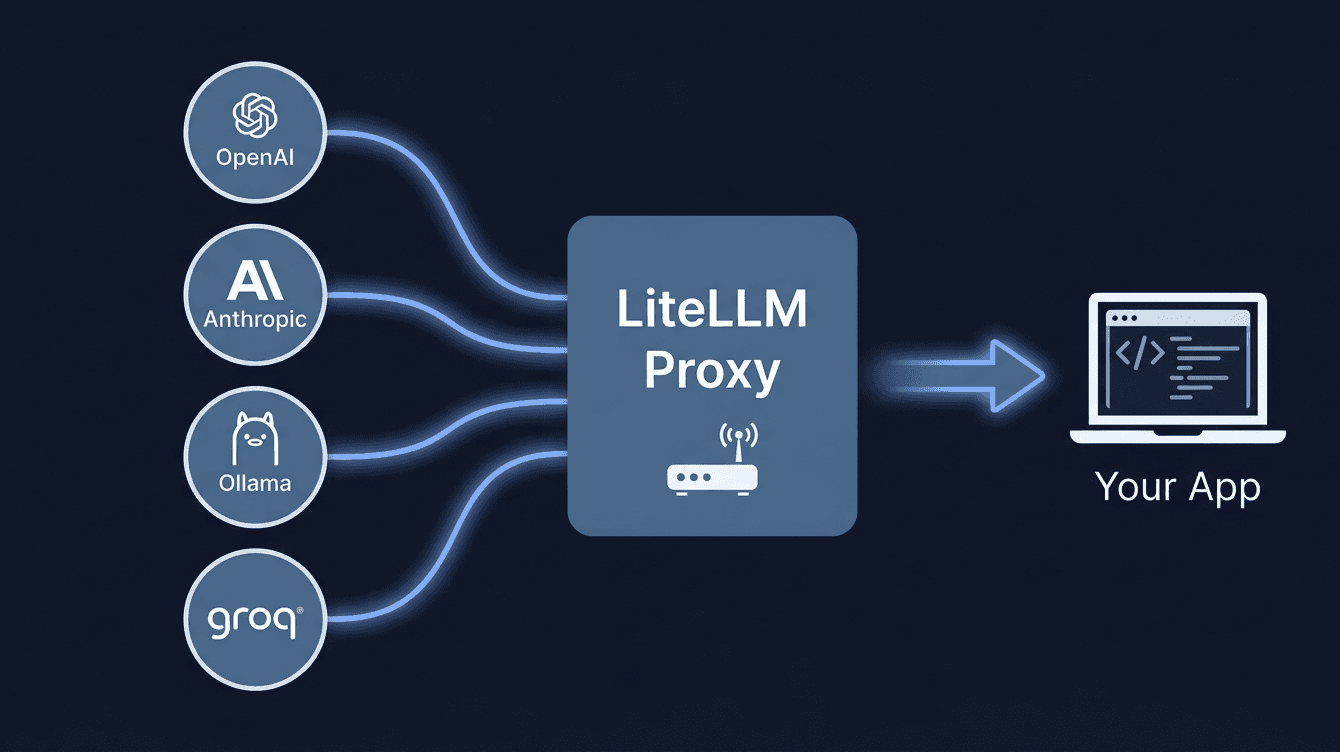
LiteLLM is an open-source proxy that sits between your application and whatever LLM you're calling. Send it an OpenAI-format chat completions request, tell it which model you want, and it handles provider authentication and request translation itself. GPT-4o, Claude Sonnet, Gemini 1.5 Pro, Groq-hosted Llama, a local Ollama instance. Same request format for all of them, different model name in the payload.
The project had 26,000+ GitHub stars by mid-2026. Teams use it mostly for two things: keeping API keys out of application code, and setting per-developer spend limits through virtual keys. The third use case, provider fallback, is less common but genuinely useful when your primary provider starts rate-limiting you mid-run.
This guide covers the full Docker-based setup. You'll start with a single-provider config, add multiple providers including a local Ollama model, generate budget-capped virtual keys, connect PostgreSQL for persistent cost tracking, and finish with load balancing and fallback routing. All examples use LiteLLM v1.40.x and Docker Compose v2.
Prerequisites
- Docker 24.x or later with Docker Compose v2 (run `docker compose version` to confirm)
- At least one LLM API key (OpenAI, Anthropic, Groq, or similar) OR Ollama running locally on port 11434
- 1 GB free RAM minimum for the proxy process (2 GB recommended for concurrent team usage)
- Basic familiarity with YAML config files
- (Optional) PostgreSQL 14+ for persistent cost tracking across restarts
- (Optional) A VPS for deploying LiteLLM as a shared team gateway accessible outside your machine
Need a VPS?
Run this on a Contabo Cloud VPS 10 starting at €5.45/mo. Reliable Linux VPS with NVMe storage, ideal for self-hosted AI workloads.
In This Guide
- 1What is LiteLLM?
- 2Step 1: Create the Configuration File
- 3Step 2: Start LiteLLM with Docker Compose
- 4Step 3: Test the Proxy and Send Your First Request
- 5Step 4: Add Multiple LLM Providers
- 6Step 5: Generate and Use Virtual API Keys
- 7Step 6: Enable Cost Tracking with PostgreSQL
- 8Step 7: Configure Load Balancing and Fallbacks
- 9Configuration Reference
- 10Troubleshooting
- 11FAQ
What is LiteLLM?
LiteLLM (github.com/BerriAI/litellm, MIT license) is a Python proxy that accepts OpenAI-format API requests and routes them to the right provider SDK. When your code calls `http://localhost:4000/v1/chat/completions` with model `claude-sonnet`, LiteLLM intercepts it, translates the request to Anthropic's Messages API format, adds your Anthropic API key, and returns the response in the OpenAI format your application expects.
Every provider uses the same config syntax. Switching from GPT-4o to Gemini 1.5 Pro means changing one field in `litellm_config.yaml`. No SDK calls to update, no auth logic to rewrite.
Where LiteLLM fits in a typical AI stack
Without LiteLLM, your application carries direct dependencies on multiple provider SDKs. Each has its own auth format, rate limit behavior, and error structure. With LiteLLM, your application calls one local endpoint. Provider credentials, model routing, retry logic, and error normalization all live in the proxy config. Your application code doesn't need to know which provider it's talking to.
| Feature | LiteLLM (self-hosted) | OpenRouter (cloud) | Direct API calls |
|---|---|---|---|
| Unified OpenAI-format endpoint | Yes | Yes | No |
| Cost tracking per virtual key | Yes | Limited | No |
| Budget caps per key or team | Yes | No | No |
| Load balancing across providers | Yes | No | No |
| Ollama / local model support | Yes | No | Yes |
| Data leaves your network | No | Yes | Yes |
| Setup required | Docker | None | None |
The setup makes most sense in a few situations: when a team shares API keys across developers, when you need automatic failover if a provider starts returning 429s, or when you're mixing cloud APIs with a local Ollama instance and want one endpoint for both.
Step 1: Create the Configuration File
The `litellm_config.yaml` file defines which models LiteLLM exposes and which provider credentials to use for each. It is the only required configuration file.
Create the project directory
mkdir litellm-proxy
cd litellm-proxyWrite the minimal config
Create `litellm_config.yaml` with one model entry to start:
model_list:
  - model_name: gpt-5.2
    litellm_params:
      model: openai/gpt-5.2
      api_key: os.environ/OPENAI_API_KEY

general_settings:
master_key: os.environ/LITELLM_MASTER_KEYThe `model_name` field is what your application sends in the `model` parameter. The `litellm_params.model` value uses the provider-prefix format: `provider/model-id`. The `os.environ/VARIABLE_NAME` syntax tells LiteLLM to read the value from an environment variable at runtime instead of hardcoding it in the YAML.
The `master_key` is the admin key required on every API request. It also lets you generate budget-capped virtual keys for team members. Use a long random string.
Create the environment file
Store secrets in a `.env` file in the same directory:
# .env
OPENAI_API_KEY=sk-your-actual-openai-key
LITELLM_MASTER_KEY=sk-your-chosen-master-keyecho ".env" >> .gitignoreMore how-to guides like this
Step-by-step AI guides and tool walkthroughs, straight to your inbox, twice a week.
Step 2: Start LiteLLM with Docker Compose
Create `docker-compose.yaml` in the same directory as `litellm_config.yaml`:
version: "3.8"

services:
  litellm:
    image: ghcr.io/berriai/litellm:main-stable
    ports:
      - "4000:4000"
    volumes:
      - ./litellm_config.yaml:/app/config.yaml
    environment:
      - OPENAI_API_KEY=${OPENAI_API_KEY}
      - LITELLM_MASTER_KEY=${LITELLM_MASTER_KEY}
    command: ["--config", "/app/config.yaml", "--port", "4000", "--num_workers", "8"]
    restart: unless-stopped
    healthcheck:
      test: ["CMD", "curl", "-f", "http://localhost:4000/health/liveliness"]
      interval: 30s
      timeout: 10s
retries: 3The `main-stable` tag pulls the latest stable LiteLLM release. The `--num_workers 8` flag sets the number of Gunicorn workers. For a single developer, 4 workers is enough. For a team gateway handling concurrent requests, 8 to 16 workers handles load more cleanly.
Start the proxy:
docker compose up -dCheck the startup logs:
docker compose logs litellm
# Expected:
# INFO: Application startup complete.
# Uvicorn running on http://0.0.0.0:4000 (Press CTRL+C to quit)The first run pulls the LiteLLM Docker image, which is approximately 2 GB. On a standard 100 Mbps connection, this takes 2 to 4 minutes. Subsequent starts are instant since the image is cached locally.
Step 3: Test the Proxy and Send Your First Request
Confirm the proxy is healthy before making model calls:
curl http://localhost:4000/health
# Expected:
# {"status":"healthy","litellm_version":"1.40.x","environment_variables":{...}}Send a test chat completion. Replace the master key with what you set in `.env`:
curl -X POST http://localhost:4000/v1/chat/completions \
  -H "Authorization: Bearer sk-your-master-key" \
  -H "Content-Type: application/json" \
  -d '{
    "model": "gpt-5.2",
    "messages": [{"role": "user", "content": "Reply with the word OK only."}],
    "max_tokens": 5
}'A working proxy returns a standard OpenAI-format JSON response with a `choices` array. The `model` field in the response shows which provider model handled the request.
Using the Python OpenAI SDK
Because LiteLLM is OpenAI-compatible, any code that uses the OpenAI Python SDK works unchanged. Swap only `base_url` and `api_key`:
from openai import OpenAI

client = OpenAI(
    base_url="http://localhost:4000/v1",
    api_key="sk-your-master-key"
)

response = client.chat.completions.create(
    model="gpt-5.2",
    messages=[{"role": "user", "content": "Reply with OK only."}]
)
print(response.choices[0].message.content)
# Output: OKThis pattern works with any library that accepts an OpenAI client: LangChain, LlamaIndex, Instructor, the Vercel AI SDK, and the raw `openai` package in Python, Node.js, or TypeScript. Nothing in the calling code needs to change when you add, remove, or swap providers in the LiteLLM config.
If you prefer using Ollama's native Python library without a proxy layer, see the Ollama Python API guide.
Step 4: Add Multiple LLM Providers
Extend `litellm_config.yaml` with additional providers. Each entry uses the same structure; only the provider prefix and API key variable change.
Add OpenAI, Anthropic, and Groq
model_list:
  - model_name: gpt-5.2
    litellm_params:
      model: openai/gpt-5.2
      api_key: os.environ/OPENAI_API_KEY

  - model_name: claude-sonnet
    litellm_params:
      model: anthropic/claude-sonnet-4-6
      api_key: os.environ/ANTHROPIC_API_KEY

  - model_name: llama-groq
    litellm_params:
      model: groq/llama-3.3-70b-versatile
      api_key: os.environ/GROQ_API_KEY

general_settings:
master_key: os.environ/LITELLM_MASTER_KEYAdd the new keys to `.env`:
ANTHROPIC_API_KEY=sk-ant-your-key
GROQ_API_KEY=gsk_your-groq-keyUpdate the `environment` block in `docker-compose.yaml`:
    environment:
      - OPENAI_API_KEY=${OPENAI_API_KEY}
      - ANTHROPIC_API_KEY=${ANTHROPIC_API_KEY}
      - GROQ_API_KEY=${GROQ_API_KEY}
- LITELLM_MASTER_KEY=${LITELLM_MASTER_KEY}Restart to apply the config change:
docker compose restart litellmAdd a local Ollama model
If Ollama is running on the same machine, use `host.docker.internal` so the container can reach the host's port 11434:
  - model_name: llama-local
    litellm_params:
      model: ollama/llama3.3:8b
api_base: http://host.docker.internal:11434On Linux, `host.docker.internal` is not automatically available. Add this to the `litellm` service block in `docker-compose.yaml`:
    extra_hosts:
- "host.docker.internal:host-gateway"After restarting, the `llama-local` model is accessible through the proxy at no API cost. Requests to it never leave your machine.
Step 5: Generate and Use Virtual API Keys
Virtual keys let each developer or application use their own API key with independent budget caps and model restrictions. The master key creates and manages virtual keys. Virtual keys are what end users and CI systems use for day-to-day requests.
Generate a virtual key with a budget cap
curl -X POST http://localhost:4000/key/generate \
  -H "Authorization: Bearer sk-your-master-key" \
  -H "Content-Type: application/json" \
  -d '{
    "models": ["gpt-5.2", "claude-sonnet", "llama-local"],
    "max_budget": 20.0,
    "budget_duration": "30d",
    "key_alias": "dev-alice"
}'The response includes a `key` field with the new virtual key:
{
  "key": "sk-abc123generated...",
  "models": ["gpt-5.2", "claude-sonnet", "llama-local"],
  "max_budget": 20.0,
  "budget_duration": "30d",
  "key_alias": "dev-alice"
}Give `sk-abc123generated...` to the developer. They use it exactly like an OpenAI API key, pointed at `http://localhost:4000/v1`. When the key reaches the $20 budget, subsequent requests return a 429 until the 30-day period resets.
Key parameters
| Parameter | Type | Purpose |
|---|---|---|
| `models` | string[] | Whitelist of model names this key can access |
| `max_budget` | number | Maximum USD spend before the key is blocked |
| `budget_duration` | string | Reset period: `1d`, `7d`, `30d`, `1mo` |
| `key_alias` | string | Human-readable label in the dashboard |
| `team_id` | string | Group keys under a team for aggregate spend reporting |
| `rpm_limit` | number | Maximum requests per minute for this key |
List and revoke keys
# List all active keys
curl http://localhost:4000/key/list \
  -H "Authorization: Bearer sk-your-master-key"

# Revoke a specific key
curl -X DELETE http://localhost:4000/key/delete \
  -H "Authorization: Bearer sk-your-master-key" \
  -H "Content-Type: application/json" \
-d '{"keys": ["sk-abc123generated..."]}'Step 6: Enable Cost Tracking with PostgreSQL
By default, LiteLLM tracks spend in an in-memory SQLite database that resets when the container restarts. Connect PostgreSQL to persist spend data across restarts and deployments.
Update docker-compose.yaml to add PostgreSQL
version: "3.8"

services:
  litellm:
    image: ghcr.io/berriai/litellm:main-stable
    ports:
      - "4000:4000"
    volumes:
      - ./litellm_config.yaml:/app/config.yaml
    environment:
      - OPENAI_API_KEY=${OPENAI_API_KEY}
      - ANTHROPIC_API_KEY=${ANTHROPIC_API_KEY}
      - LITELLM_MASTER_KEY=${LITELLM_MASTER_KEY}
      - DATABASE_URL=postgresql://litellm:${DB_PASSWORD}@db:5432/litellm
    command: ["--config", "/app/config.yaml", "--port", "4000", "--num_workers", "8"]
    depends_on:
      db:
        condition: service_healthy
    restart: unless-stopped

  db:
    image: postgres:16
    environment:
      - POSTGRES_DB=litellm
      - POSTGRES_USER=litellm
      - POSTGRES_PASSWORD=${DB_PASSWORD}
    volumes:
      - postgres_data:/var/lib/postgresql/data
    healthcheck:
      test: ["CMD-SHELL", "pg_isready -U litellm"]
      interval: 10s
      timeout: 5s
      retries: 5

volumes:
postgres_data:Add `DB_PASSWORD` to `.env`:
DB_PASSWORD=a-strong-random-password-hereStart the full stack:
docker compose down
docker compose up -dLiteLLM runs its own database migrations on first startup with a new PostgreSQL URL. Check the logs to confirm migration completed:
docker compose logs litellm | grep -i "migration"
# Expected: INFO: Running migrations...
# Expected: INFO: Migration completeQuery spend data
# Spend summary for a specific virtual key
curl "http://localhost:4000/key/info?key=sk-abc123" \
  -H "Authorization: Bearer sk-your-master-key"

# Global spend by model (specify date range)
curl "http://localhost:4000/global/spend/models?start_date=2026-06-01&end_date=2026-06-30" \
-H "Authorization: Bearer sk-your-master-key"Step 7: Configure Load Balancing and Fallbacks
LiteLLM load-balances automatically when multiple config entries share the same `model_name`. Requests to `gpt-5.2` distribute across all `gpt-5.2` entries using the routing strategy you set.
Load balance across multiple API keys
Use this to spread requests across several OpenAI API keys and stay within per-key rate limits:
model_list:
  - model_name: gpt-5.2
    litellm_params:
      model: openai/gpt-5.2
      api_key: os.environ/OPENAI_API_KEY_1

  - model_name: gpt-5.2
    litellm_params:
      model: openai/gpt-5.2
      api_key: os.environ/OPENAI_API_KEY_2

router_settings:
  routing_strategy: least-busy
  num_retries: 3
retry_after: 5The `least-busy` strategy sends each request to the entry with the fewest active in-flight requests. Other available strategies:
| Strategy | Behavior |
|---|---|
| `simple-shuffle` | Random selection across entries |
| `latency-based-routing` | Routes to the historically fastest entry |
| `usage-based-routing` | Routes to the entry with the most remaining budget |
Fallback to a backup provider
Fallbacks automatically retry failed requests using a different model or provider:
router_settings:
  routing_strategy: least-busy
  num_retries: 3
  retry_after: 5
  fallbacks:
    - {"gpt-5.2": ["claude-sonnet"]}
- {"claude-sonnet": ["llama-groq"]}With this config, a 429 rate limit or 500 error from `gpt-5.2` after 3 retries automatically escalates to `claude-sonnet`. If that also fails, the request goes to `llama-groq`. Your application sees a normal successful response in all cases.
Context window fallbacks
For document processing where input length is unpredictable, fall back to a model with a larger context window:
router_settings:
  context_window_fallbacks:
- {"gpt-5.2": ["claude-sonnet"]}When a request exceeds GPT-5.2's context limit, LiteLLM automatically retries with Claude Sonnet, which supports a 200,000-token context window. The fallback model must already exist in your `model_list`.
Apply any config change by restarting the proxy:
docker compose restart litellmConfiguration Reference
Key environment variables
| Variable | Default | Purpose |
|---|---|---|
| `LITELLM_MASTER_KEY` | None (required) | Admin key for all API requests and key management |
| `DATABASE_URL` | SQLite in-memory | PostgreSQL URL for persistent storage: `postgresql://user:pass@host/db` |
| `LITELLM_LOG` | `INFO` | Log level: `DEBUG`, `INFO`, `WARNING`, `ERROR` |
| `PORT` | `4000` | Listening port (also set via `--port` CLI flag) |
Provider-specific keys (`OPENAI_API_KEY`, `ANTHROPIC_API_KEY`, `GROQ_API_KEY`, etc.) are read from environment variables by the `os.environ/VARIABLE_NAME` syntax in `litellm_config.yaml`.
Key config.yaml settings
general_settings:
  master_key: os.environ/LITELLM_MASTER_KEY

  # Disable auth for local-only development (never use in production)
  no_auth: false

  # Global maximum spend across all keys
  max_budget: 100.0

  # Rate limit for all requests (requests per minute)
  rpm_limit: 200

litellm_settings:
  # Retries on provider errors before declaring failure
  num_retries: 3

  # Request timeout in seconds per provider call
  request_timeout: 120

  # Drop unsupported parameters instead of erroring (useful when mixing providers)
  drop_params: true

  # Enable verbose logging for request/response debugging
set_verbose: falseAvailable provider prefixes (selected)
| Provider | Config prefix | Example model value |
|---|---|---|
| OpenAI | `openai/` | `openai/gpt-5.2` |
| Anthropic | `anthropic/` | `anthropic/claude-sonnet-4-6` |
| Google Gemini | `gemini/` | `gemini/gemini-1.5-pro` |
| Groq | `groq/` | `groq/llama-3.3-70b-versatile` |
| Mistral | `mistral/` | `mistral/mistral-large-latest` |
| Ollama | `ollama/` | `ollama/llama3.3:8b` |
| Azure OpenAI | `azure/` | `azure/gpt-5.2` |
| AWS Bedrock | `bedrock/` | `bedrock/anthropic.claude-3-5-sonnet-20241022-v2:0` |
Full provider list and config options are at docs.litellm.ai/docs/providers.
Troubleshooting
AuthenticationError: 401 on every request
Cause: The Bearer token in the Authorization header does not match the LITELLM_MASTER_KEY or any active virtual key
Fix: Verify the request uses `Authorization: Bearer sk-your-key` with no extra spaces. Confirm LITELLM_MASTER_KEY in .env matches what the container received: run `docker compose exec litellm env | grep LITELLM_MASTER_KEY` to inspect the container's environment.
`NotFoundError`: model not found after adding it to config
Cause: The container was not restarted after editing config.yaml, or the model_name in the request does not exactly match the entry in model_list
Fix: Run `docker compose restart litellm`. Then call `GET http://localhost:4000/v1/models` with your master key to list all loaded model names and confirm the exact string your application should send.
Ollama requests fail with connection refused or timeout
Cause: `host.docker.internal` does not resolve on Linux, so the Docker container cannot reach Ollama on the host machine's port 11434
Fix: Add `extra_hosts: ["host.docker.internal:host-gateway"]` to the litellm service block in docker-compose.yaml. Restart the stack. Confirm Ollama is running on the host: `curl http://localhost:11434/api/tags`.
Config changes have no effect after `docker compose restart`
Cause: The volume mount path in docker-compose.yaml does not match the `--config` flag path, or there is a YAML syntax error in litellm_config.yaml silently ignored at startup
Fix: Confirm the volume line reads `./litellm_config.yaml:/app/config.yaml` and the command includes `--config /app/config.yaml`. Validate the YAML file with `python -c "import yaml; yaml.safe_load(open('litellm_config.yaml'))"` before restarting.
Virtual key returns 429 BudgetExceededError
Cause: The key has consumed its max_budget for the current billing period
Fix: Check remaining budget: `GET /key/info?key=sk-abc123` with the master key. Raise the limit: `POST /key/update` with `{"key": "sk-abc123", "max_budget": 50.0}`. Budget resets automatically at the end of the budget_duration period.
`No healthy deployments available` under concurrent load
Cause: All entries in a load-balancing group are simultaneously rate-limited or failing, and num_retries was exhausted
Fix: Add a fallback model from a different provider in router_settings. Increase num_retries to 5. Check OpenAI (status.openai.com) and Anthropic (status.anthropic.com) status pages for active incidents. Reduce --num_workers if the proxy is overwhelming providers with parallel requests.
Alternatives to Consider
| Tool | Type | Price | Best For |
|---|---|---|---|
| OpenRouter | Cloud | Pay-per-token (no base fee) | Teams that want access to 100+ models through one API without running any infrastructure. OpenRouter handles routing, provider failover, and billing. No server required. All requests go through OpenRouter's cloud rather than your own network, which matters for data privacy requirements. |
| PortKey | Cloud | Free tier, $49/month for teams | Teams who want LiteLLM-style features (fallbacks, budgets, logging) managed as a SaaS product. PortKey has a polished observability dashboard and zero self-hosting overhead. All traffic routes through PortKey servers. Self-hosting is possible but less commonly used. |
| Helicone | Cloud | Free tier (10k requests/month), $25/month | Teams focused on LLM observability: logging every request with latency, cost, and user-level tracking. Less capable at routing and load balancing than LiteLLM, but the analytics dashboard and prompt version tracking are more developed. Open-source self-hosting option available. |
| Cloudflare AI Gateway | Cloud | Free tier available | Projects already using Cloudflare infrastructure. The AI Gateway proxies OpenAI and Anthropic requests through Cloudflare's network with caching and request logging. No Docker setup needed, but it supports fewer providers than LiteLLM and has no virtual key management or team budget controls. |
Frequently Asked Questions
Is LiteLLM free to self-host?
Yes. The proxy is MIT-licensed. You pay for the LLM API calls it routes, billed directly by OpenAI, Anthropic, Groq, or whichever provider you use, and the server it runs on.
BerriAI also offers managed LiteLLM Cloud with enterprise features. The self-hosted version has no restrictions on proxy and routing functionality versus the cloud offering. For most teams, a Contabo Cloud VPS 10 at €5.45/month (4 vCPU, 8 GB RAM) handles the proxy, PostgreSQL, and 8 Gunicorn workers without needing a larger plan.
Can LiteLLM proxy local Ollama models alongside cloud APIs?
Yes. Add any Ollama model using the `ollama/` prefix and set `api_base: http://host.docker.internal:11434` in the model entry. On Linux, also add `extra_hosts: ["host.docker.internal:host-gateway"]` to the Docker Compose service definition.
You can mix Ollama entries and cloud API entries in the same model list freely. For example, your application can route creative writing tasks to `claude-sonnet`, coding tasks to a local `llama-local` Ollama model, and fast summarization to `llama-groq` on Groq's inference API, all through one LiteLLM endpoint with the model name as the only differentiator.
See the Ollama setup guide if Ollama is not yet running on your machine.
How do I add Anthropic Claude models to LiteLLM?
Add a model entry with the `anthropic/` prefix:
- model_name: claude-sonnet
  litellm_params:
    model: anthropic/claude-sonnet-4-6
api_key: os.environ/ANTHROPIC_API_KEYGet an Anthropic API key at console.anthropic.com. Add `ANTHROPIC_API_KEY=sk-ant-your-key` to `.env` and add `- ANTHROPIC_API_KEY=${ANTHROPIC_API_KEY}` to the environment section of `docker-compose.yaml`. Restart the proxy.
For Claude's 200,000-token context window, no additional config is needed. LiteLLM passes the full messages array to the Anthropic API as-is after translating the format.
Does LiteLLM work with LangChain, LlamaIndex, and other AI frameworks?
Yes. Any framework that accepts an OpenAI-compatible endpoint works with LiteLLM. Change only the `base_url` and `api_key` when initializing the OpenAI client:
LangChain:
from langchain_openai import ChatOpenAI
llm = ChatOpenAI(
    base_url="http://localhost:4000/v1",
    api_key="sk-your-master-key",
    model="gpt-5.2"
)LlamaIndex:
from llama_index.llms.openai import OpenAI
llm = OpenAI(base_url="http://localhost:4000/v1", api_key="sk-your-master-key", model="gpt-5.2")All chains, agents, memory classes, and retrieval pipelines work without modification. This is the core benefit of the OpenAI-compatible API design.
Can I run LiteLLM with only Ollama and no cloud API keys?
Yes. A minimal Ollama-only config requires no cloud credentials:
model_list:
  - model_name: llama3
    litellm_params:
      model: ollama/llama3.3:8b
      api_base: http://host.docker.internal:11434

general_settings:
master_key: sk-local-dev-keyWith this config, no request leaves your network. The proxy accepts OpenAI-format requests, routes them to Ollama, and returns standard responses. Useful for local development, privacy-sensitive applications, and air-gapped environments. The master key is still required for LiteLLM's internal authentication even in local-only setups.
What is the latency overhead added by the LiteLLM proxy?
The proxy adds 2 to 10 milliseconds per request for parsing, routing, and response formatting. Most LLM calls take 500 ms to 30 seconds of inference time, so that overhead is not the thing you'll be measuring.
Under high concurrency, the real bottleneck is `--num_workers` and RAM. Each Gunicorn worker uses roughly 200 to 400 MB. With 2 GB dedicated to LiteLLM, you're looking at 4 to 6 workers before memory pressure kicks in. A Contabo VPS 10 (8 GB total) comfortably runs 8 workers alongside PostgreSQL.
For streaming at 20+ concurrent users, set `--num_workers 16` and make sure the server has at least 6 GB free.
How do I update LiteLLM to a newer version?
Pull the latest stable image and recreate the container:
docker compose pull litellm
docker compose up -d --force-recreate litellmThe `main-stable` tag always points to the latest stable release. LiteLLM ships multiple releases per week, so the image may update frequently if you pull regularly. Review the changelog at github.com/BerriAI/litellm/releases before updating production deployments. Breaking config changes appear occasionally in minor versions, particularly around the `router_settings` and `general_settings` keys.
If you pin to a specific version tag (e.g., `ghcr.io/berriai/litellm:v1.40.5`), update the tag in `docker-compose.yaml` and run `docker compose up -d`.
How do I view per-model and per-key spend in LiteLLM?
With PostgreSQL configured, LiteLLM persists spend data and exposes it through the API:
# Spend for a specific virtual key
curl "http://localhost:4000/key/info?key=sk-abc123" \
  -H "Authorization: Bearer sk-your-master-key"

# Global spend broken down by model over a date range
curl "http://localhost:4000/global/spend/models?start_date=2026-06-01&end_date=2026-06-30" \
-H "Authorization: Bearer sk-your-master-key"The UI dashboard at `http://localhost:4000/ui` shows the same data visually per key, model, and time period. Log in with your master key. Without PostgreSQL, spend data is in-memory only and resets when the container stops. In-memory tracking is fine for single-session testing but not for ongoing production monitoring.