
How to Build an AI Agent with n8n (2026 Guide)
Build a working AI agent in n8n using the AI Agent node, memory, tools, and custom logic. Covers OpenAI, Ollama local models, and real-world automation examples.

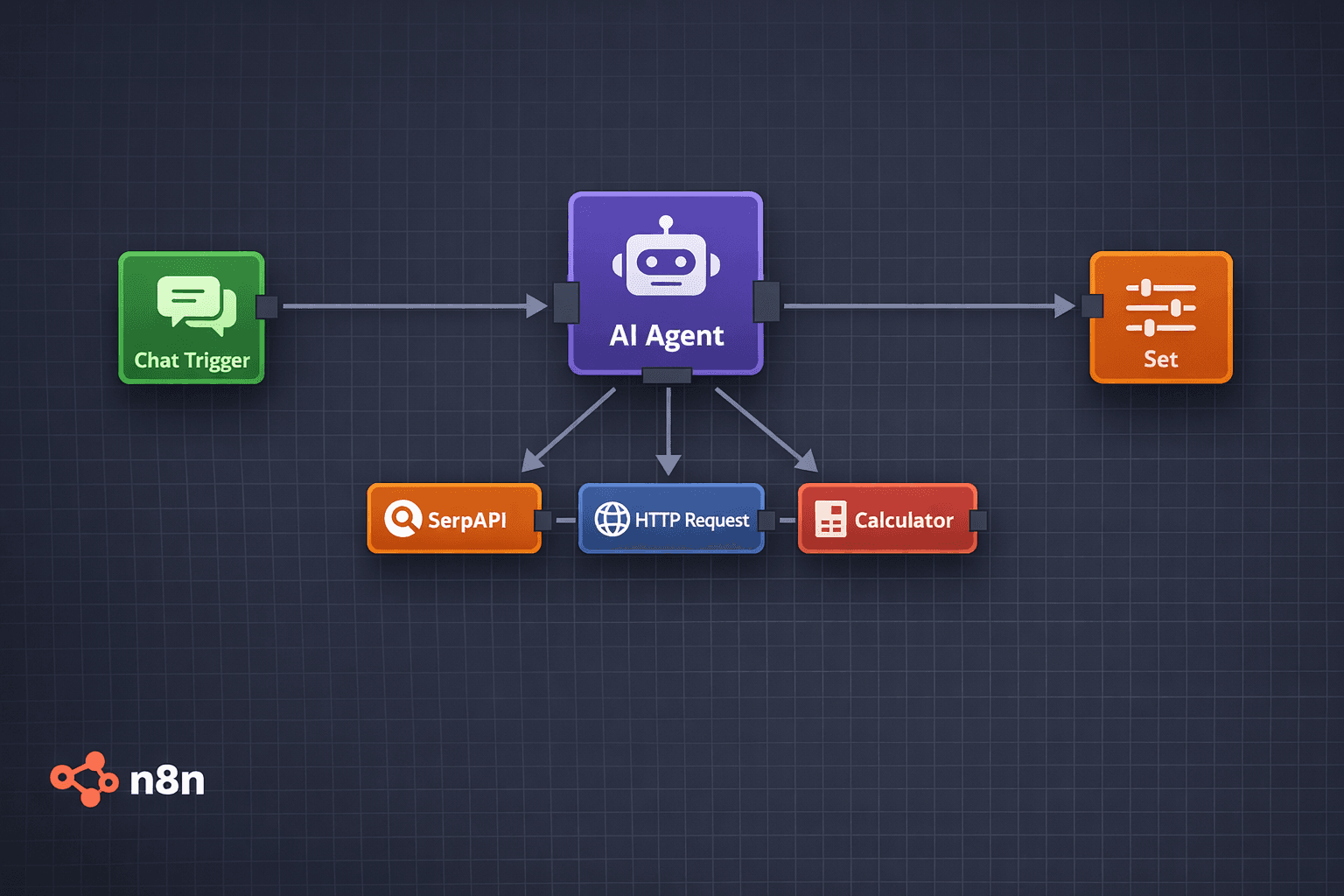
n8n's AI Agent node, introduced in n8n 1.19.0 (August 2024), lets you build autonomous agents that reason over input, select tools, call external APIs, and loop until a task is complete. Unlike a simple LLM node that takes input and returns output once, the AI Agent node gives the model a list of tools and lets it decide which ones to call and in what order.
This guide builds three progressively complex AI agents: a research agent that searches the web and summarises findings, a data processing agent that reads spreadsheet rows and decides how to categorise them, and a customer support agent with memory that handles multi-turn conversations. Each example is a complete n8n workflow you can import and adapt.
You do not need to write code to follow this guide. All agents use n8n's visual node editor. For the LLM backend, the guide covers both OpenAI (GPT-4o) and Ollama local models — you can use either. If you want to run the agent workflows on a self-hosted n8n server, Contabo offers pre-installed n8n VPS plans starting at €4.50/month with n8n ready to use immediately.
Prerequisites
- n8n 1.19.0 or higher (self-hosted or n8n Cloud)
- An OpenAI API key (for GPT-4o backend) or Ollama running locally with a model pulled
- Basic familiarity with n8n — you should know how to create a workflow and add nodes
- A free n8n account or a self-hosted instance accessible via browser
Need a VPS?
Run this on a Contabo Cloud VPS 10 starting at €5.45/mo. Reliable Linux VPS with NVMe storage, ideal for self-hosted AI workloads.
In This Guide
How AI Agents Differ from Standard LLM Nodes in n8n
n8n has two separate nodes for AI work: the Basic LLM Chain node and the AI Agent node. Understanding the difference determines which one to use.
Basic LLM Chain node:
- Takes input, sends it to an LLM, returns the response
- Single round-trip: one prompt in, one response out
- No tool use, no iteration, no decision-making
- Use for: text transformation, summarisation, classification, content generation
AI Agent node:
- Gives the LLM a list of tools and a task description
- The LLM decides which tools to call and in what sequence
- Loops internally until the task is complete or the step limit is reached
- Use for: research tasks, multi-step data processing, customer support bots, autonomous workflows
The AI Agent node uses the ReAct (Reasoning and Acting) framework internally. The model produces a Thought, selects an Action (a tool), observes the Action Result, and repeats until it has enough information to produce a Final Answer.
[Thought] I need to search for current pricing on this product.
[Action] web_search("product name pricing 2026")
[Observation] Search returned 3 results with pricing data...
[Thought] I have enough data. I can now summarise.
[Final Answer] Based on the search results, the current price is...This loop runs inside the AI Agent node — you do not need to wire up the loop manually in n8n.
When to Use Each Node
| Scenario | Use |
|---|---|
| Summarise a document | Basic LLM Chain |
| Classify email as spam/not spam | Basic LLM Chain |
| Search web + summarise + save to Airtable | AI Agent |
| Answer customer questions with access to your knowledge base | AI Agent |
| Read rows from a sheet and decide next action per row | AI Agent |
| Generate a product description from a name | Basic LLM Chain |
Set Up LLM Credentials
Option A: OpenAI (GPT-4o)
1. In n8n, go to Settings > Credentials > New Credential 2. Search for "OpenAI" 3. Paste your OpenAI API key 4. Name it "OpenAI account" and save
GPT-4o is the recommended model for complex agents — it has strong tool-calling performance and handles multi-step reasoning well.
Option B: Ollama (Local Models)
If you prefer local inference with no API costs, n8n supports Ollama via the "Ollama" credential type.
1. In n8n Settings > Credentials > New Credential, search for "Ollama" 2. Set the Base URL to your Ollama endpoint: - Local n8n instance: `http://localhost:11434` - n8n in Docker on the same machine as Ollama: `http://host.docker.internal:11434` - n8n on a different server: `http://[your-ollama-server-ip]:11434` 3. Save the credential
Verify the Connection
Create a temporary workflow with a single "OpenAI" or "Ollama" node, send a simple prompt ("Say hello"), and confirm you get a response. Delete the test workflow once confirmed.
Agent 1: Web Research Agent
This agent accepts a topic, searches the web, and returns a structured summary with sources. It uses two tools: a web search tool and a webpage reader.
Step 1: Create a New Workflow
Open n8n, click "New Workflow", and name it "Web Research Agent".
Step 2: Add a Manual Trigger (for testing)
Add a "Manual Trigger" node. This lets you test the workflow by clicking "Test Workflow" without needing an external trigger.
Step 3: Add the AI Agent Node
1. Click the "+" button to add a node after the trigger 2. Search for "AI Agent" and select it 3. In the node settings: - Chat Model: Select your OpenAI or Ollama credential - Model: `gpt-4o` or `llama3.3:8b` - System Message: Add the agent's role and instructions
Use this system message:
You are a research assistant. When given a topic, search the web for recent and relevant information, read the most relevant pages, and provide a structured summary with:
1. A 2-3 sentence overview of the topic
2. 3-5 key findings or data points
3. The sources you used

Always cite your sources with URLs. Be specific and factual. Do not include information you did not find in your search results.Step 4: Add the SerpAPI Tool (Web Search)
1. Inside the AI Agent node, click "Add Tool" 2. Select "SerpAPI" (requires a free SerpAPI account — 100 searches/month free) 3. Add your SerpAPI credential 4. Set the description: "Use this tool to search the web for current information on any topic"
Alternative: Use the "Brave Search" tool if you have a Brave Search API key, or the "Tavily" tool for AI-optimised search results.
Step 5: Add the HTTP Request Tool (Webpage Reader)
1. Add another tool inside the AI Agent node 2. Select "HTTP Request Tool" 3. Configure it to fetch webpage content: - Method: GET - Description: "Use this tool to read the full content of a webpage when you have its URL" - The agent passes the URL parameter automatically
Step 6: Add an Output Node
Add a "Set" node after the AI Agent node to extract the agent's final output and format it for downstream use.
Step 7: Test the Workflow
Click "Test Workflow". In the Manual Trigger, add test data:
{
  "input": "What are the most popular AI coding tools in 2026 and how much do they cost?"
}The AI Agent node shows each step in its output panel: the tool calls it made, the intermediate results, and the final answer.
Agent 2: Customer Support Agent with Memory
This agent handles multi-turn conversations, remembering what was said in previous messages. It uses n8n's Window Buffer Memory node to maintain context across turns.
Memory Node Types in n8n
| Memory Type | What It Does | Best For |
|---|---|---|
| Window Buffer Memory | Stores last N messages in RAM | Single-session chatbots |
| Postgres Chat Memory | Stores history in a database | Persistent multi-session agents |
| Redis Chat Memory | Stores history in Redis | High-traffic, low-latency setups |
| Simple Memory | Stores context in workflow execution | Quick testing |
For a customer support bot, Postgres Chat Memory is best — it persists across server restarts and keeps each user's conversation separate via a session ID.
Step 1: Set Up the Chat Trigger
1. Add a "Chat Trigger" node (instead of Manual Trigger) 2. Enable "Public" so the chat interface is accessible via a URL 3. The Chat Trigger automatically provides a `sessionId` for each user
Step 2: Add the AI Agent Node
1. Add an AI Agent node 2. Set the system message for a support agent persona:
You are a helpful customer support agent for AI Tool Discovery (aitooldiscovery.com). You help users find the right AI tools for their needs.

When a user describes what they want to do, ask clarifying questions to understand their specific use case, budget, and technical skill level. Then recommend 2-3 specific tools with brief explanations of why each fits their needs.

You remember previous messages in this conversation and refer back to them when relevant.Step 3: Add Postgres Chat Memory
1. Click "Add Memory" inside the AI Agent node 2. Select "Postgres Chat Memory" 3. Connect your Postgres credential (the same database n8n uses works fine) 4. Set "Session ID" to: `{{ $('Chat Trigger').item.json.sessionId }}` 5. Set "Context Window Length" to 10 (remembers last 10 message pairs)
Step 4: Wire Up and Test
Connect Chat Trigger > AI Agent. Open the chat URL from the Chat Trigger node. Send several messages in sequence:
User: I want to automate my social media posting
Agent: [asks about platforms, frequency, content type]
User: Instagram and LinkedIn, once a day, mostly marketing content
Agent: [recommends specific tools, remembers Instagram + LinkedIn preference]
User: What was the first thing I told you?
Agent: [correctly recalls "automate my social media posting"]The memory node stores and retrieves context automatically. The agent does not lose the conversation thread between turns.
Agent 3: Spreadsheet Data Processing Agent
This agent reads rows from a Google Sheet and decides what to do with each one based on its content. It demonstrates agents handling structured data with conditional decision-making.
Use case: A Google Sheet contains customer inquiry emails (copied in as text). The agent reads each row, classifies the inquiry type (refund, technical support, sales, general), and writes the classification back to the sheet.
Step 1: Schedule Trigger
Add a "Schedule Trigger" node set to run every hour (or on-demand for testing).
Step 2: Google Sheets Read
Add a "Google Sheets" node:
- Operation: Get Many Rows
- Spreadsheet: your target sheet
- Sheet: "Inquiries"
- Filters: rows where "Status" column is empty (unprocessed rows only)
Step 3: Loop Over Items
Add an "Item Lists" > "Split In Batches" node to process one row at a time. Set batch size to 1.
Step 4: AI Agent Node
Add the AI Agent node with this system message:
You are a customer inquiry classifier. You will receive the text of a customer inquiry.

Classify it into exactly one of these categories:
- REFUND: Customer wants a refund or money back
- TECHNICAL: Customer has a technical problem or bug report
- SALES: Customer is asking about pricing, upgrades, or new features
- GENERAL: Everything else

Respond with only the category name in capitals. No explanation, no punctuation, just the category.Set "Input" to: `{{ $json.inquiry_text }}`
For this classification task, a smaller, faster model is appropriate. Use `gpt-4o-mini` (OpenAI) or `qwen2.5:7b` (Ollama) — classification does not need the full reasoning capability of the largest models.
Step 5: Google Sheets Write Back
Add a second "Google Sheets" node:
- Operation: Update Row
- Update the "Category" column with the AI Agent's output
- Update the "Status" column to "Processed"
- Match row by ID from the trigger data
Step 6: Error Handling
Add an "Error Trigger" node to catch failures. If the AI returns an unexpected value (anything other than the four categories), route it to a Slack or email notification for manual review.
AI Agent Tools Available in n8n
n8n's AI Agent node supports these built-in tool types as of n8n 1.25.x:
| Tool | What It Does | Requires |
|---|---|---|
| Calculator | Evaluates math expressions | Nothing |
| SerpAPI | Google Search results | SerpAPI key (free tier: 100/month) |
| Brave Search | Web search via Brave | Brave Search API key |
| Tavily | AI-optimised web search | Tavily API key |
| Wikipedia | Searches Wikipedia | Nothing |
| HTTP Request | Fetches any URL or calls any API | Nothing (configure per-use) |
| Code (JavaScript) | Runs JavaScript in the agent loop | Nothing |
| Webhook | Calls an n8n webhook | Nothing |
| Think | Internal scratchpad for reasoning | Nothing (native n8n tool) |
| Vector Store (retrieval) | Searches a vector store | Vector store credential |
Custom Tools via HTTP Request
The HTTP Request tool is the most flexible. Configure it to call any external API — your CRM, your database API, your company's internal endpoints. The agent passes parameters you define, and you control the response format.
Example: a tool that checks order status by order ID:
Tool Name: check_order_status
Description: Use this tool to look up the current status of a customer order. Input: order_id (string)
URL: https://your-api.com/orders/{{ $fromAI('order_id') }}
Method: GET
Authentication: Header Auth (your API key)The `$fromAI('parameter_name')` expression tells n8n to let the AI agent fill in that value based on what it knows from the conversation.
Limiting Token Usage
Agent loops consume more tokens than single LLM calls. To control costs:
- Set Max Iterations to the minimum needed (5-8 for simple tasks, 10-15 for research)
- Use smaller models for classification tasks (gpt-4o-mini instead of gpt-4o)
- Set a token budget in the system message: "Use a maximum of 3 tool calls total"
- Monitor usage in OpenAI's usage dashboard or your Ollama logsUsing Ollama Local Models as the Agent Backend
Swapping OpenAI for Ollama in an n8n AI Agent requires one credential change — everything else stays the same.
Recommended Models for n8n Agents
| Model | Ollama Pull | Tool Calling | Agent Quality | RAM |
|---|---|---|---|---|
| llama3.3:8b | `ollama pull llama3.3:8b` | Good | Good | 8 GB |
| qwen2.5:14b | `ollama pull qwen2.5:14b` | Excellent | Excellent | 16 GB |
| qwen2.5:7b | `ollama pull qwen2.5:7b` | Good | Good | 6 GB |
| mistral-small | `ollama pull mistral-small` | Good | Very good | 24 GB |
Changing the Backend in an Existing Agent
1. Open the AI Agent node 2. Click the Chat Model field 3. Switch the credential from "OpenAI account" to your "Ollama" credential 4. Change the model name to the Ollama model (e.g. `qwen2.5:14b`) 5. Save and re-test
No other changes are needed. The agent logic, tools, and memory configuration are model-agnostic.
Known Limitations with Ollama
Models smaller than 7B parameters frequently fail to output valid tool-call JSON, causing the agent loop to stall. If the agent stops responding mid-task or produces raw JSON in its output instead of calling a tool, switch to a larger model.
Ollama does not support streaming in n8n's Ollama Chat Model node as of n8n 1.25.x — responses appear all at once after the agent finishes processing. This is normal behaviour, not an error.
Troubleshooting
AI Agent node returns "Max iterations reached" without a final answer
Cause: The agent ran out of steps before completing the task. Default max iterations is 10.
Fix: In the AI Agent node settings, increase "Max Iterations" to 15 or 20. Also review the system message — if the task description is vague, the agent may loop unnecessarily. Be specific about what the final answer should look like.
Ollama agent stops mid-task and outputs raw JSON instead of calling a tool
Cause: The model is too small for reliable tool-calling. Sub-7B models fail to produce valid tool-call format consistently.
Fix: Switch to llama3.3:8b or qwen2.5:14b. Both produce valid tool-call JSON reliably. Check the AI Agent node output panel — it shows each step, so you can see where the format broke down.
Memory node does not retain context between workflow executions
Cause: Window Buffer Memory stores context in RAM and loses it when n8n restarts. Simple Memory is per-execution only.
Fix: Switch to Postgres Chat Memory or Redis Chat Memory. Both persist data to an external store that survives n8n restarts. Use the same session ID field to tie messages to the correct user conversation.
SerpAPI tool returns no results or an authentication error
Cause: Invalid or expired SerpAPI key, or the free tier monthly limit (100 searches) has been reached.
Fix: Verify the API key in your SerpAPI dashboard. If the monthly limit is reached, switch to Brave Search or Tavily as the search tool — both have free tiers. Alternatively, use the HTTP Request tool to call any search API directly.
Agent calls the wrong tool or ignores available tools
Cause: Tool descriptions are too vague or overlapping, causing the model to pick incorrectly.
Fix: Rewrite each tool description to be specific about when to use it. Start descriptions with "Use this tool when..." and include the expected input format. Distinct, clear descriptions reduce tool selection errors significantly.
Chat Trigger memory mixes conversations between different users
Cause: Session ID not set correctly in the memory node, causing all conversations to share the same memory key.
Fix: In the memory node, set Session ID to `{{ $("Chat Trigger").item.json.sessionId }}`. This ties memory to the individual session, not the workflow. Verify by opening two separate browser tabs and confirming each has independent memory.
Alternatives to Consider
| Tool | Type | Price | Best For |
|---|---|---|---|
| Flowise | Self-hosted | Free / open-source | Visual drag-and-drop agent building without n8n's general automation features. Better for building pure chatbot and RAG applications. Less suited for integrating agents into broader business automation pipelines. |
| LangChain (Python) | Code library | Free / open-source | Developers who want full programmatic control over agent logic. More flexible than n8n but requires Python knowledge and significantly more code to achieve the same results. |
| Agno | Python framework | Free / open-source | Building multi-agent systems where agents collaborate and hand off tasks to each other. More suited to complex agent architectures than n8n's single-agent model. |
| Make.com (Integromat) | Cloud | Free tier / $9/month | Users who prefer a fully managed cloud alternative to self-hosted n8n. Has AI modules but no native AI Agent node — automation logic is explicit rather than model-driven. |
Frequently Asked Questions
Does building AI agents in n8n require coding?
No. The AI Agent node, memory nodes, and all built-in tools configure through n8n's visual interface without writing code. The only exception is the "Code" tool, which lets the agent run JavaScript — but this tool is optional and not needed for most agent workflows.
For advanced use cases like custom tool APIs or response parsing, n8n's "Code" node (separate from the agent's Code tool) uses JavaScript and runs outside the agent loop. This is optional and only needed when built-in nodes do not cover your specific requirement.
How much does running an AI agent in n8n cost?
Cost depends on the LLM backend and your usage volume.
With OpenAI GPT-4o: approximately $0.005 per 1,000 input tokens and $0.015 per 1,000 output tokens. A research agent that runs 5 tool calls and produces a 500-word summary costs roughly $0.05-0.10 per run. Running 100 such tasks per month costs $5-10 in API fees, plus your n8n hosting costs.
With Ollama local models: zero per-agent-run cost. You pay only for the server running Ollama. A Contabo Cloud VPS 10 at €5.45/month handles n8n plus Ollama with a 7B model.
n8n Cloud pricing adds $24/month (Starter plan) for managed hosting. Self-hosted n8n is free.
Can an n8n AI agent browse the web?
Yes. Add the SerpAPI, Brave Search, or Tavily tool to the AI Agent node. The agent calls the search tool when it needs current information, receives the results, and can then use the HTTP Request tool to read full webpage content from URLs in the results.
This combination gives the agent full web research capability: it searches, selects the most relevant results, reads the pages, and synthesises the information into a final answer. The agent decides how many search calls to make based on the complexity of the question.
What is the difference between n8n AI Agent and Basic LLM Chain nodes?
The Basic LLM Chain node sends one prompt to an LLM and returns one response. It is a single-step operation with no tool use and no iteration.
The AI Agent node gives the LLM a set of tools (web search, API calls, calculators, etc.) and a task. The model then decides which tools to call, in what order, and loops until the task is complete. It can make 5-15 tool calls in a single agent run.
Use Basic LLM Chain for text transformation tasks (summarise this, classify this, rewrite this). Use AI Agent for tasks that require gathering information, making decisions, or taking actions across multiple services.
Can I run multiple AI agents in the same n8n workflow?
Yes. You can chain AI Agent nodes so one agent hands off its output to another. Common pattern: a "router" agent reads incoming requests and decides which specialist agent to invoke (refund agent, technical support agent, or sales agent), then routes the conversation accordingly.
You can also run agents in parallel using n8n's "Parallel Branches" feature — split the input, run two agents simultaneously, then merge their outputs. This is useful for tasks like comparing two sources of information or running validation and generation simultaneously.
How do I give an n8n AI agent access to my own data?
Several approaches work depending on your data type:
For structured data (databases, spreadsheets): add the Google Sheets, Postgres, or MySQL tool to the agent. The agent queries the data source directly when it needs information.
For document-based knowledge (PDFs, docs): set up a vector store (Pinecone, Qdrant, or the built-in Simple Vector Store) and add the Vector Store Retrieval tool to the agent. The agent searches your document embeddings to find relevant content.
For real-time data: use the HTTP Request tool configured with your internal API endpoint. The agent calls your API with the relevant query parameters and receives structured data back.
Does the n8n AI Agent work with self-hosted Ollama models?
Yes. Add an Ollama credential in n8n Settings > Credentials with your Ollama server URL. In the AI Agent node, switch the Chat Model to your Ollama credential and select the model name.
For reliable tool-calling, use llama3.3:8b or qwen2.5:14b — both handle the structured JSON output that the agent loop requires. Models smaller than 7B parameters often fail to produce valid tool-call format.
If n8n and Ollama run on the same server, use `http://localhost:11434` as the Ollama URL. If they are on separate servers, use the Ollama server's IP address with port 11434.
How do I stop an n8n AI agent from running indefinitely?
The AI Agent node has a "Max Iterations" setting (default: 10). When the agent reaches this limit, it stops and returns whatever partial answer it has, along with a note that the limit was reached.
You can also add a timeout at the workflow level: in n8n workflow settings, set an execution timeout. If the workflow runs longer than the timeout, n8n terminates it.
For production agents, set Max Iterations to the minimum needed for your task — a classification agent needs 1-2 iterations, a research agent needs 5-10. Lower limits reduce both cost and the chance of runaway loops from an unusual input.
Related Guides
How to Install n8n with Docker Compose (Self-Hosted Setup)
How to Deploy n8n on a VPS: Production Setup with Nginx and SSL (2026)
How to Install Flowise with Docker: AI Agent Builder Setup Guide
How to Run OpenClaw with Ollama Local Models (2026 Guide)