
How to Run a Local LLM with Home Assistant (Ollama Setup, 2026)
Connect Ollama to Home Assistant for private, offline smart home control. Step-by-step Assist pipeline setup, model picks, entity exposure, and fixes.

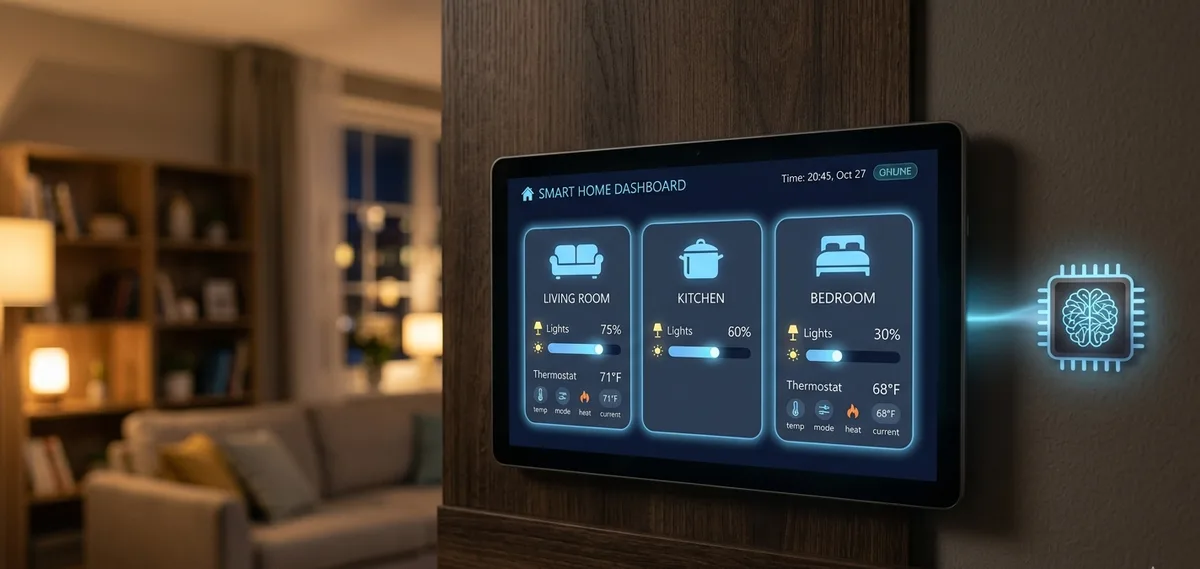
Home Assistant connects to a local LLM through its Assist pipeline, using either a dedicated Ollama integration or the Local LLM Conversation integration pointed at an OpenAI-compatible endpoint, the two most common forms of Home Assistant AI integration in 2026. Both paths run entirely on hardware you control, so voice and text commands never leave your network. Home Assistant formalized this approach in the 2025.9 release, described in its own blog post on building the AI-powered local smart home, and the pattern has held steady through 2026: install Ollama, register it as a conversation agent, then wire that agent into an Assist pipeline alongside wake word, speech-to-text, and text-to-speech.
The main hardware constraint is GPU memory, not the Home Assistant box itself. A 7B to 8B parameter model at 4-bit quantization needs roughly 8 GB of VRAM to respond quickly enough for real-time commands, and the model matters more than raw size: a Qwen3 model with native tool calling will reliably turn off the right light, while a larger general-purpose model without tool calling support may just describe what it would do. If you are shopping for a card to run this on, our best GPU for AI training breakdown covers which options hit that 8 GB VRAM mark without overspending on a card built for much larger workloads.
This guide covers the full setup: installing Ollama, adding it as a Home Assistant integration, building an Assist pipeline, exposing the right entities, and picking a model that actually follows instructions instead of just chatting. A troubleshooting section near the end covers the network and entity-exposure issues that come up most often, and the alternatives section compares Ollama against the Home-LLM project for people who want a model trained specifically on Home Assistant's entity structure.
Prerequisites
- Home Assistant OS, Supervised, or Container, version 2025.9 or later, for native Assist and entity-exposure support
- A separate machine or the same host to run Ollama, with at least 8 GB VRAM (or 16 GB system RAM for CPU-only inference)
- A static IP or DHCP reservation for whichever machine runs Ollama, so Home Assistant does not lose the connection after a router restart
- Wyoming add-ons (faster-whisper for speech-to-text, Piper for text-to-speech, openWakeWord for wake word) if you want voice control rather than text-only commands
- Basic familiarity with Home Assistant's Settings menu and entity exposure
- (Optional) A rented GPU if your own hardware does not have 8 GB VRAM and you want to test before buying
Need more GPU power?
Rent a RTX 3060 on Vast.ai from $0.08/hr. On-demand GPU rentals by the hour, useful for running larger models without buying hardware.
In This Guide
How Home Assistant Connects to a Local LLM
Home Assistant's voice and text AI runs through what it calls the Assist pipeline: wake word detection, speech-to-text, a conversation agent, then text-to-speech. The conversation agent is the part that actually understands a command and decides what to do, and that is where a local LLM plugs in.
There are two ways to wire a local model into that slot:
| Approach | Setup | Best for |
|---|---|---|
| Ollama integration | Settings > Devices & Services > Add Integration > Ollama, point it at your Ollama host and port | Anyone already running Ollama for other local AI tools |
| Local LLM Conversation (Home-LLM) | HACS install, then configure a generic OpenAI-compatible endpoint with a chosen prompt format | People who want a model fine-tuned specifically on Home Assistant entities |
Both register a conversation agent that shows up as an option when you build an Assist pipeline. Neither requires Home Assistant Cloud or an external API key. The Home-LLM project on GitHub packages its own small models trained to map natural language onto Home Assistant's entity and service calls, while the plain Ollama route lets you run any model Ollama supports, including general-purpose ones like Llama or Qwen.
This guide uses the Ollama integration as the primary path since it reuses the same Ollama install covered in our guide to running Ollama locally, and the Home-LLM alternative is covered in the alternatives section below.
Install Ollama and Pull a Model
Install Ollama on whichever machine has the GPU, whether that is the Home Assistant host itself or a separate box on the same network.
# Linux and macOS
curl -fsSL https://ollama.com/install.sh | shOn Windows, download the installer from ollama.com/download. Verify the install:
ollama --version
# Expected: ollama version 0.6.x or higherPull a model with tool-calling support. Qwen3 8B is the strongest fit for Home Assistant control as of 2026, since it follows structured function-calling schemas more reliably than general chat models:
ollama pull qwen3:8bIf Home Assistant runs on a different machine than Ollama, which is common when Home Assistant lives on a Raspberry Pi and the GPU is in a desktop, Ollama needs to listen on the network instead of just localhost. On Linux with systemd:
sudo systemctl edit ollamaAdd these lines in the override file that opens:
[Service]
Environment="OLLAMA_HOST=0.0.0.0"Then restart Ollama:
sudo systemctl daemon-reload
sudo systemctl restart ollamaConfirm it is reachable from the Home Assistant machine:
curl http://<OLLAMA-HOST-IP>:11434/api/tagsA response listing `qwen3:8b` confirms the connection works before you touch the Home Assistant side.
Add the Ollama Integration in Home Assistant
With Ollama running and reachable, register it inside Home Assistant.
1. Go to Settings > Devices & Services. 2. Click Add Integration and search for Ollama. 3. Enter the URL of your Ollama host, for example `http://192.168.1.50:11434`. 4. Select `qwen3:8b` as the model once Home Assistant lists the models it found on that host. 5. Save the integration.
Home Assistant now has an Ollama conversation agent available, but it is not doing anything yet. The next step is building an Assist pipeline that actually uses it.
Create an Assist Voice Pipeline
An Assist pipeline ties the Ollama conversation agent to wake word, speech-to-text, and text-to-speech, or runs text-only if you only want to type commands.
1. Go to Settings > Voice assistants. 2. Click Add Assistant. 3. Name it something identifiable, like Ollama Assistant. 4. Set Conversation agent to the Ollama agent created in the previous step. 5. For voice control, set Speech-to-text to the faster-whisper Wyoming provider and Text-to-speech to Piper. Set Wake word to your installed openWakeWord instance. 6. Click Create, then open the new pipeline and set it as the default assistant.
For text-only testing, skip the wake word and STT and TTS fields entirely. You can type commands directly into the Assist chat window from the sidebar, which is the fastest way to confirm the LLM is responding before adding voice hardware.
You: Turn on the kitchen light
Assistant: Turned on kitchen lightIf you get a generic reply instead of an action, the entity the command refers to is probably not exposed to Assist yet, which is the next step.
Expose Entities to Assist
The LLM can only control entities that are explicitly exposed to Assist. By default, nothing is exposed, so a fresh pipeline will chat but never flip a switch.
1. Go to Settings > Voice assistants > Exposed entities (or the Entities tab inside Voice assistants, depending on your Home Assistant version). 2. Toggle on the lights, switches, climate entities, and scenes you want the assistant to control. 3. Leave sensors and entities you do not want touched unexposed.
Be deliberate about how many entities you expose. Home Assistant's own setup guidance for local LLMs notes that roughly 30 exposed entities already cost about 1,300 tokens of context on every single request, before the model has even read your command. Exposing your entire smart home, hundreds of entities, both slows down every response and gives the model more surface area to pick the wrong device. Start with the rooms and device types you actually want to control by voice, then add more once you see how the model performs.
Test with a few different phrasings once entities are exposed:
Turn off the living room lights
Set the thermostat to 70 degrees
What is the temperature in the bedroomIf commands work but feel slow, the model is likely running on CPU instead of GPU, or the Ollama host does not have enough VRAM for `qwen3:8b` and is swapping to system RAM. Check `nvidia-smi` (or the equivalent for your GPU) on the Ollama host while a command runs to confirm GPU usage.
Choosing the Right Model for Home Assistant Control
Home Assistant commands are short and structured, which makes model choice less about raw intelligence and more about reliable tool calling and low latency.
| Model | VRAM (Q4) | Tool calling | Best for |
|---|---|---|---|
| Qwen3 8B | ~6 GB | Native function calling | Most setups in 2026, the default recommendation |
| Llama 3.3 8B Instruct | ~6 GB | Limited without prompt tuning | General-purpose fallback if Qwen3 underperforms |
| Mistral 7B Instruct v0.3 | ~5 GB | Via Home-LLM's Mistral prompt format | Specifically for the Home-LLM integration path |
| Home-LLM fine-tune | 4-6 GB | Purpose-trained on HA entities | Smallest model footprint, narrowest scope |
Skip "thinking" or reasoning-mode variants of any model family for this use case. They add several seconds of visible deliberation before responding, which feels broken when you are standing in a room waiting for a light to turn on. A plain instruct model that calls the right function immediately beats a reasoning model that explains its thought process first.
For a broader comparison of which local models fit which hardware, see our best local LLM models guide.
Troubleshooting
The Ollama integration setup cannot find any models
Cause: Home Assistant cannot reach the Ollama host, or the URL is missing the port
Fix: Confirm the URL includes :11434 and run curl http://
Commands work in the Assist text chat but voice commands never trigger the wake word
Cause: openWakeWord is not running, or the wake word add-on is not registered as a Wyoming provider
Fix: Check that the openWakeWord add-on is started and confirm it shows up as an option when editing the pipeline's Wake word field in Settings > Voice assistants.
The assistant responds conversationally but never actually controls a device
Cause: The target entity is not exposed to Assist
Fix: Go to Settings > Voice assistants > Exposed entities and toggle on the specific lights, switches, or climate entities you want controlled.
Responses take 10 seconds or longer
Cause: The model is running on CPU, or too many entities are exposed and inflating the context size
Fix: Confirm GPU usage with nvidia-smi during a command, and reduce the number of exposed entities. Roughly 30 entities already adds about 1,300 tokens of context to every request.
OLLAMA_HOST=0.0.0.0 does not seem to apply after editing the systemd override
Cause: The override file was edited but the service was not reloaded
Fix: Run sudo systemctl daemon-reload followed by sudo systemctl restart ollama, then re-test with curl from another machine on the network.
The model occasionally controls the wrong entity (e.g. the wrong light)
Cause: Ambiguous or duplicate entity names confuse the model, not a model quality problem
Fix: Rename entities in Home Assistant to specific, unambiguous names (e.g. "Office Desk Lamp" instead of "Lamp 2") rather than switching to a larger model.
Home Assistant loses the connection to Ollama after a router restart
Cause: The Ollama host's IP address changed because it was assigned by DHCP
Fix: Set a static IP or a DHCP reservation for the Ollama host in your router settings, then update the integration if the address changed.
Alternatives to Consider
| Tool | Type | Price | Best For |
|---|---|---|---|
| Home-LLM (Local LLM Conversation) | Self-hosted (HACS integration) | Free | Users who want a model trained specifically on Home Assistant entity structures rather than a general-purpose chat model adapted for tool calling. |
| Home Assistant Cloud conversation agents | Cloud (subscription) | $6.50/month (Nabu Casa) | Users who want zero local hardware and do not mind commands and audio leaving the home network. |
| LocalAI / LM Studio (generic OpenAI-compatible backend) | Self-hosted | Free | Running models Ollama does not package, or reusing an existing LocalAI/LM Studio setup already serving other apps. |
| Ollama integration (this guide) | Self-hosted | Free | Anyone already running Ollama for other local AI tools who wants the simplest path to a Home Assistant conversation agent. |
Frequently Asked Questions
Can I really control Home Assistant with a local LLM instead of ChatGPT?
Yes. Home Assistant's Assist pipeline treats a local Ollama model and a cloud model like ChatGPT as interchangeable conversation agents. Once Ollama is registered as an integration and attached to a pipeline, it understands the same natural language commands and calls the same Home Assistant services, just without sending anything outside your network.
The trade-off is capability versus privacy. A local 7B-8B model is less broadly capable than GPT-4 class models, but for short, structured commands like "turn on the kitchen light," a tool-calling model like Qwen3 8B handles the task just as reliably.
Do I need a GPU to run a local LLM for Home Assistant?
Not strictly, but it changes response time significantly. A GPU with at least 8 GB VRAM runs a 7B-8B model fast enough to feel instant, typically under 2 seconds per command. CPU-only inference on the same model class takes considerably longer, often 5-10 seconds or more depending on the processor, which feels slow for a voice assistant standing in a room waiting on a light switch.
If your existing hardware has no GPU, renting one by the hour to test the setup before buying is the cheaper option. See the prerequisites section for a rented GPU option.
Which local model works best for Home Assistant voice control?
Qwen3 8B is the strongest fit as of 2026 because it has native tool-calling support, meaning it reliably maps a spoken command onto the correct Home Assistant service call rather than just describing what it would do. Pull it with `ollama pull qwen3:8b`.
Llama 3.3 8B Instruct works as a general-purpose fallback. Mistral 7B Instruct v0.3 is specifically used by the Home-LLM integration's prompt format. Avoid "thinking" or reasoning-mode model variants, since the extra deliberation adds latency without improving accuracy on short commands.
How do I connect Ollama to Home Assistant?
Install Ollama on a machine with at least 8 GB VRAM, pull a tool-calling model like `qwen3:8b`, then in Home Assistant go to Settings > Devices & Services > Add Integration and search for Ollama. Enter the host URL including the port, for example `http://192.168.1.50:11434`, and select the model once Home Assistant detects it.
If Ollama runs on a different machine than Home Assistant, set `OLLAMA_HOST=0.0.0.0` in Ollama's service configuration first, or Home Assistant will not be able to reach it over the network.
Why is Home Assistant not finding my Ollama server?
The most common cause is a missing port in the URL, or Ollama only listening on localhost when Home Assistant is on a different machine. Confirm the URL format includes `:11434`, and test connectivity directly with `curl http://
If that curl command fails, the fix is on the Ollama side: set `OLLAMA_HOST=0.0.0.0` in its systemd override (or equivalent for your OS), then restart the Ollama service.
How many entities can I expose to Assist before performance drops?
There is no hard limit, but context size grows with every exposed entity. Home Assistant's own local LLM guidance notes that roughly 30 exposed entities already costs about 1,300 tokens of context on every request, before the actual command is processed.
Expose only the rooms and device types you want to control by voice rather than your entire smart home. This keeps responses fast and reduces the chance the model picks the wrong device when names are similar.
Is Home-LLM different from the Ollama integration?
Yes. The plain Ollama integration lets you run any general-purpose model Ollama supports, like Qwen3 or Llama, and adapt it to Home Assistant through tool calling. Home-LLM is a separate HACS integration paired with its own smaller models trained specifically on Home Assistant's entity and service structure.
Home-LLM can run on less VRAM since its models are purpose-built and smaller, but it is a narrower tool: it does what Home Assistant control needs and not much beyond that. The plain Ollama route is more flexible if you already use Ollama for other local AI projects.
Can I use a local LLM for both voice and text commands?
Yes, the same Assist pipeline handles both. Voice requires the Wyoming add-ons (faster-whisper for speech-to-text, Piper for text-to-speech, openWakeWord for wake word) in addition to the Ollama conversation agent. Text-only works the moment the conversation agent is attached to a pipeline, through the Assist chat window in the sidebar.
Testing with text first is faster for debugging, since you remove the wake word and audio pipeline as variables and can confirm the model itself is calling the right entities before adding voice hardware.
What hardware do I need for the full Assist voice pipeline, not just the LLM?
Home Assistant itself plus the Wyoming voice add-ons (faster-whisper, Piper, openWakeWord) run comfortably on a Raspberry Pi 5 with 16 GB RAM. The LLM is the heavier piece and is better run separately, on a machine with at least 8 GB VRAM. Voice satellites for additional rooms, ESP32-based microphone and speaker boards, cost around $15 each.
Running Home Assistant, the voice add-ons, and Ollama all on one box works for testing, but splitting the LLM onto its own GPU machine avoids the Pi becoming the bottleneck once you have more than one or two satellites talking to it.
Is running a local LLM with Home Assistant free?
The software is free. Home Assistant, Ollama, the Wyoming add-ons, and the Home-LLM integration are all open source with no subscription. Your only cost is hardware: a GPU with 8 GB VRAM if you do not already own one, or renting one by the hour to test before buying.
This compares to Home Assistant Cloud's Nabu Casa subscription, which costs $6.50 a month and includes a cloud conversation agent, but sends commands and audio outside your network.