
How to Run Stable Diffusion Locally: ComfyUI and AUTOMATIC1111 Guide
Run Stable Diffusion locally with ComfyUI or AUTOMATIC1111. Complete setup guide for Windows, Linux, and macOS with NVIDIA, AMD, and Apple Silicon GPUs.

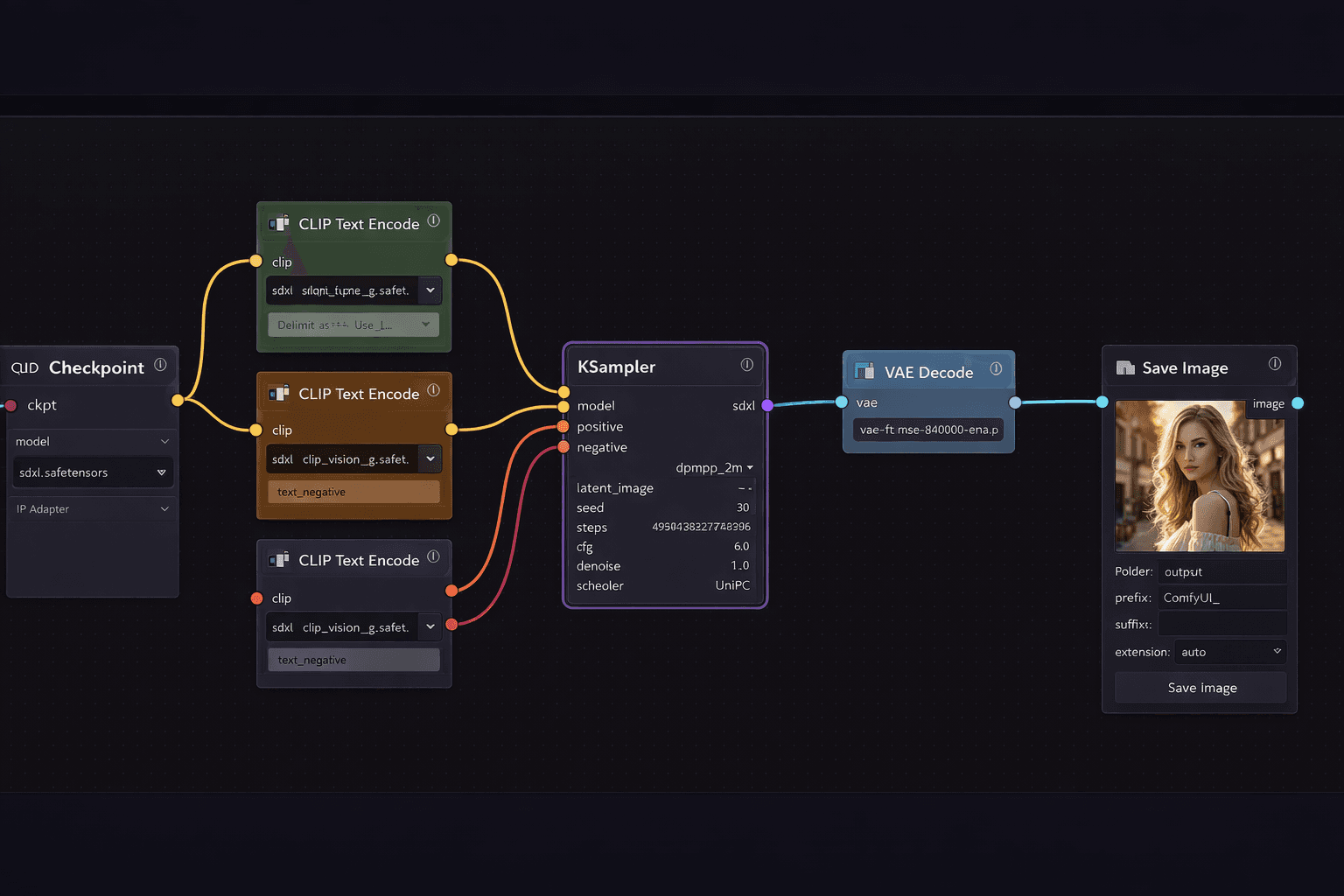
Stable Diffusion is an open-source image generation model you can run on your own GPU without sending prompts or images to an external server. Unlike Midjourney or DALL-E 3, local Stable Diffusion has no usage fees, no content filters, and no rate limits. You can generate thousands of images per day at zero marginal cost once the hardware is set up.
Two frontends dominate local Stable Diffusion setups in 2026: **ComfyUI** and **AUTOMATIC1111 (A1111)**. ComfyUI uses a node-based workflow canvas similar to visual programming tools. A1111 uses a traditional web form interface that is easier for beginners but less flexible. This guide covers both so you can choose based on your workflow.
Hardware requirements vary by model size. A GPU with 6 GB VRAM runs Stable Diffusion XL comfortably. 4 GB VRAM works with SD 1.5 models using optimisations. CPU-only generation is possible but takes 5-10 minutes per image compared to 2-15 seconds on a mid-range GPU.
Prerequisites
- NVIDIA GPU with 4+ GB VRAM (recommended), AMD GPU with ROCm support, or Apple Silicon Mac
- Python 3.10 or 3.11 installed (3.12 has compatibility issues with some extensions)
- Git installed
- 20-30 GB free disk space (models are 2-7 GB each)
- NVIDIA CUDA Toolkit 11.8+ installed (Windows/Linux NVIDIA GPU setups)
Need a VPS?
Run this on a Contabo Cloud VPS 40 with GPU starting at €32.95/mo. Reliable Linux VPS with NVMe storage, ideal for self-hosted AI workloads.
In This Guide
Hardware Requirements and GPU Compatibility
Before installing, verify your GPU meets the minimum requirements. Generation speed scales significantly with VRAM.
| GPU VRAM | Compatible Models | Generation Speed | Notes |
|---|---|---|---|
| 4 GB | SD 1.5, SDXL with medvram | 10-30 sec/image | Enable `--medvram` flag |
| 6 GB | SD 1.5, SDXL, Flux (lite) | 4-15 sec/image | Comfortable for most use |
| 8 GB | SDXL, Flux Dev | 2-8 sec/image | Recommended minimum for SDXL |
| 12 GB+ | All models including Flux Pro | 1-4 sec/image | Optimal for production |
| CPU only | SD 1.5 (slow) | 5-15 min/image | Only for testing — not practical |
Check Your GPU
# NVIDIA
nvidia-smi

# AMD Linux
rocm-smi

# Apple Silicon (just run the macOS installer — Metal support is built in)
system_profiler SPDisplaysDataType | grep VRAMOperating System Compatibility
| OS | NVIDIA | AMD | Apple Silicon |
|---|---|---|---|
| Windows 10/11 | Full CUDA support | DirectML (slower) | N/A |
| Ubuntu 20.04+ | Full CUDA support | ROCm support | N/A |
| macOS 12.3+ | N/A | N/A | Metal (MPS) support |
Install ComfyUI (Recommended)
ComfyUI is a node-based workflow editor for Stable Diffusion. It has a steeper initial learning curve but is more powerful and resource-efficient than A1111. Most advanced users and professionals use ComfyUI for production workflows.
Step 1: Clone the ComfyUI Repository
git clone https://github.com/comfyanonymous/ComfyUI
cd ComfyUIStep 2: Create a Python Virtual Environment
python -m venv venv

# Activate on Linux/macOS
source venv/bin/activate

# Activate on Windows
venv\Scripts\activateStep 3: Install PyTorch
Install the correct PyTorch version for your hardware. Go to pytorch.org/get-started for the exact command for your system, or use one of these:
# NVIDIA GPU (CUDA 12.1)
pip install torch torchvision torchaudio --index-url https://download.pytorch.org/whl/cu121

# AMD GPU (ROCm 6.0 — Linux only)
pip install torch torchvision torchaudio --index-url https://download.pytorch.org/whl/rocm6.0

# Apple Silicon / CPU
pip install torch torchvision torchaudioStep 4: Install ComfyUI Dependencies
pip install -r requirements.txtStep 5: Download a Model
ComfyUI reads models from the `models/checkpoints/` directory. Download a base model:
# Create checkpoints directory
mkdir -p models/checkpoints

# Download SDXL base model (~6.5 GB) -- replace with your preferred download method
# Option 1: Using wget
wget -O models/checkpoints/sd_xl_base_1.0.safetensors \
  https://huggingface.co/stabilityai/stable-diffusion-xl-base-1.0/resolve/main/sd_xl_base_1.0.safetensors

# Option 2: Using the Hugging Face CLI (pip install huggingface_hub)
huggingface-cli download stabilityai/stable-diffusion-xl-base-1.0 \
sd_xl_base_1.0.safetensors --local-dir models/checkpoints/Step 6: Start ComfyUI
python main.pyOpen your browser at `http://127.0.0.1:8188`. You should see the ComfyUI canvas with a default text-to-image workflow already loaded.
More local-AI guides like this
Step-by-step guides for running AI on your own hardware, every Wednesday and Saturday.
Install AUTOMATIC1111 (WebUI)
AUTOMATIC1111 (A1111) provides a traditional web form interface for Stable Diffusion. It has a large extension ecosystem and is easier for beginners who prefer settings panels over node graphs.
Step 1: Clone the Repository
git clone https://github.com/AUTOMATIC1111/stable-diffusion-webui
cd stable-diffusion-webuiStep 2: Place Your Model
Copy or move your `.safetensors` or `.ckpt` model file into:
stable-diffusion-webui/models/Stable-diffusion/Step 3: Run the WebUI
**Linux/macOS:**
./webui.sh**Windows:**
webui-user.batThe first launch takes 5-15 minutes to download dependencies and set up the virtual environment automatically. Subsequent launches are much faster.
Once started, open: `http://127.0.0.1:7860`
Step 4: Generate Your First Image
1. Type a prompt in the "Positive prompt" box: `a photorealistic cat sitting on a wooden table, natural light, 4k` 2. Type a negative prompt: `blurry, low quality, cartoon, watermark` 3. Set Width and Height to 1024x1024 for SDXL models 4. Click **Generate**
| Setting | SDXL Recommended | SD 1.5 Recommended |
|---|---|---|
| Width x Height | 1024 x 1024 | 512 x 512 |
| Sampling Steps | 20-30 | 20-30 |
| CFG Scale | 7-9 | 7-9 |
| Sampler | DPM++ 2M | Euler a |
Finding and Downloading Models
Stable Diffusion models are checkpoint files (.safetensors) that define the visual style and capabilities of the generated images. The main repositories are Hugging Face and CivitAI.
Recommended Base Models
| Model | Size | Best For | Download |
|---|---|---|---|
| SDXL Base 1.0 | 6.5 GB | High-quality photorealistic images, 1024px | Hugging Face |
| SD 1.5 | 2.1 GB | Faster generation, more fine-tuned models available | Hugging Face |
| Flux.1 Dev | 23 GB | Highest quality (requires 16+ GB VRAM) | Hugging Face |
| Juggernaut XL | 6.7 GB | Photorealistic portraits and scenes | CivitAI |
| DreamShaper XL | 6.6 GB | Versatile: photos, art, fantasy | CivitAI |
Where to Put Downloaded Models
For ComfyUI, place models in these directories by type:
ComfyUI/
  models/
    checkpoints/   ← main model files (.safetensors)
    loras/         ← LoRA fine-tuning weights
    vae/           ← VAE files
    controlnet/    ← ControlNet models
embeddings/ ← textual inversion filesFor A1111:
stable-diffusion-webui/
  models/
    Stable-diffusion/  ← checkpoint files
    Lora/              ← LoRA files
VAE/ ← VAE filesLoRA Models (Style Modifiers)
LoRA models are small weight files (50-300 MB) that apply a specific style on top of a base model. Popular uses: specific artistic styles, consistent character faces, product photography styles.
In A1111, add a LoRA by including its trigger keyword in your prompt with a weight: `
Writing Effective Prompts
Stable Diffusion prompts follow a different structure than conversational AI tools. The model responds to weighted keyword phrases, not natural sentences.
Positive Prompt Structure
A good positive prompt layers descriptors from general to specific:
[subject], [medium/style], [lighting], [composition], [quality keywords]Example for a portrait:
a young woman with red hair, professional headshot photography, soft studio lighting, shallow depth of field, 85mm lens, sharp focus, 8k resolutionNegative Prompt — What to Exclude
Negative prompts tell the model what to avoid. A standard negative prompt for photorealistic images:
blurry, out of focus, low quality, jpeg artifacts, watermark, signature, text, ugly, deformed, bad anatomy, extra limbs, missing fingers, croppedPrompt Weighting
Both ComfyUI and A1111 support weight adjustments:
| Syntax | Effect |
|---|---|
| `(keyword)` | Increases weight by 1.1x |
| `(keyword:1.5)` | Sets weight to 1.5x |
| `[keyword]` | Decreases weight by 0.9x |
| `(keyword:0.5)` | Sets weight to 0.5x (deprioritise) |
Example: `(photorealistic:1.3), (sharp focus:1.2), woman, garden, [cartoon:0.3]`
Troubleshooting
CUDA out of memory error when generating
Cause: The model or image resolution requires more VRAM than available
Fix: Reduce image resolution to 768x768 (SDXL) or 512x512 (SD 1.5). Start ComfyUI with `--lowvram` or `--medvram` flags. In A1111, enable Settings > Optimizations > medvram. Close other GPU-intensive applications before generating.
Black image output with no error message
Cause: Wrong VAE file, or the base model requires a specific VAE that is not loaded
Fix: Download the correct VAE for your model. For SDXL: `sdxl_vae.safetensors` from Stability AI on Hugging Face. In A1111: Settings > Stable Diffusion > SD VAE. In ComfyUI, add a VAE Loader node and connect it to the KSampler.
Very slow generation (5+ minutes per image) on GPU
Cause: PyTorch is using CPU instead of GPU due to a driver or installation issue
Fix: Verify PyTorch sees the GPU: `python -c "import torch; print(torch.cuda.is_available())"`. Should print `True`. If `False`, reinstall PyTorch with the correct CUDA version for your GPU. Check `nvidia-smi` to confirm the driver is working.
ComfyUI shows "model not found" when loading a workflow
Cause: The workflow references a model filename that does not match what you have in models/checkpoints/
Fix: Open the checkpoint node in ComfyUI and click the model selector dropdown. It shows all models in the checkpoints folder. Select the model you have downloaded. The workflow filename must exactly match the file on disk.
A1111 webui.sh fails with Python version errors
Cause: Python 3.12 has compatibility issues with some A1111 dependencies
Fix: Use Python 3.10 or 3.11. Install pyenv to manage Python versions: `pyenv install 3.10.14 && pyenv local 3.10.14`. Then re-run webui.sh.
Alternatives to Consider
| Tool | Type | Price | Best For |
|---|---|---|---|
| Midjourney | Cloud SaaS | $10/mo (200 images) to $60/mo (unlimited) | High quality without setup — best results for artistic and commercial images with minimal prompting |
| Fooocus | Self-hosted (Python) | Free (open source) | Simplest local Stable Diffusion setup — minimal UI, auto-optimises settings, no manual configuration |
| InvokeAI | Self-hosted (Docker/Python) | Free (open source) | Professional local workflow with a polished UI, built-in canvas, and team features |
| Replicate | Cloud API | $0.0046 per image (SDXL) | Developers who want Stable Diffusion via API without managing local infrastructure |
Frequently Asked Questions
What GPU do I need to run Stable Diffusion locally?
The minimum practical GPU for Stable Diffusion is one with 6 GB VRAM. An NVIDIA RTX 3060 (12 GB VRAM) or RTX 4060 (8 GB VRAM) handles SDXL at 1024px resolution in 3-8 seconds per image and costs under $300.
For 4 GB VRAM GPUs (GTX 1650, RTX 3050), SD 1.5 models work with the `--medvram` flag. SDXL is possible but slow. AMD GPUs with 8+ GB VRAM work on Linux with ROCm. Apple Silicon Macs use the Metal backend and achieve good speeds even without a dedicated GPU.
What is the difference between ComfyUI and AUTOMATIC1111?
AUTOMATIC1111 uses a traditional web form interface with sliders, dropdowns, and buttons. It is easier to learn for new users and has a massive extension library built up since 2022.
ComfyUI uses a node-based canvas where you connect nodes representing each step of the generation pipeline. It is harder to learn initially but much more flexible. Advanced techniques like multi-pass generation, ControlNet workflows, and custom pipelines are easier to build and share in ComfyUI. Most professional Stable Diffusion users have moved to ComfyUI.
Can I run Stable Diffusion without a GPU?
Yes, but it is extremely slow. CPU-only generation on Stable Diffusion XL takes 5-15 minutes per image on a modern desktop CPU. SD 1.5 takes 2-5 minutes per image.
For CPU users, use Fooocus which is optimised for low-resource setups. Apple Silicon Macs are the exception — they use the Metal Performance Shaders (MPS) backend which gives GPU-like speeds through the unified memory architecture.
Where do I download Stable Diffusion models?
The two main sources are Hugging Face and CivitAI. Hugging Face hosts official base models (SDXL Base 1.0, SD 1.5, Flux.1). CivitAI has thousands of community fine-tuned models for specific styles, characters, and use cases.
Always download `.safetensors` format rather than `.ckpt`. Safetensors cannot execute code during loading, making it safer. Check model ratings and comments on CivitAI before downloading — community feedback indicates whether a model actually works as advertised.
What is a LoRA model in Stable Diffusion?
LoRA (Low-Rank Adaptation) models are small weight files (50-300 MB) that modify a base model to add a specific style, subject, or concept without replacing the entire checkpoint. You load a LoRA alongside your base model and control its influence with a weight value between 0 and 1.
Common uses: consistent character faces across multiple images, specific artistic styles (watercolor, oil painting, anime), product photography styles, and architectural rendering styles. LoRAs are additive — you can combine multiple LoRAs in one generation, though stacking too many (3+) often causes visual artifacts.
How do I use Stable Diffusion for inpainting (editing parts of an image)?
Both ComfyUI and A1111 support inpainting. In A1111, switch to the img2img tab, upload your image, click "Inpaint", paint over the area you want to change, describe the replacement in the prompt, and click Generate.
In ComfyUI, use the InpaintModelConditioning node with a mask. Draw the mask in the Load Image node's mask editor or use the WAS Suite's mask tools. The model fills only the masked region while preserving the rest of the image.
Use a denoising strength of 0.7-0.85 for inpainting — lower values preserve more of the original, higher values allow more creative deviation.