
n8n AI Workflow Examples: 5 Practical Automations to Build in 2026
Five practical n8n AI workflows you can build today: AI email responder, web scraper, chatbot with memory, document analyser, and social content agent. JSON configs included.

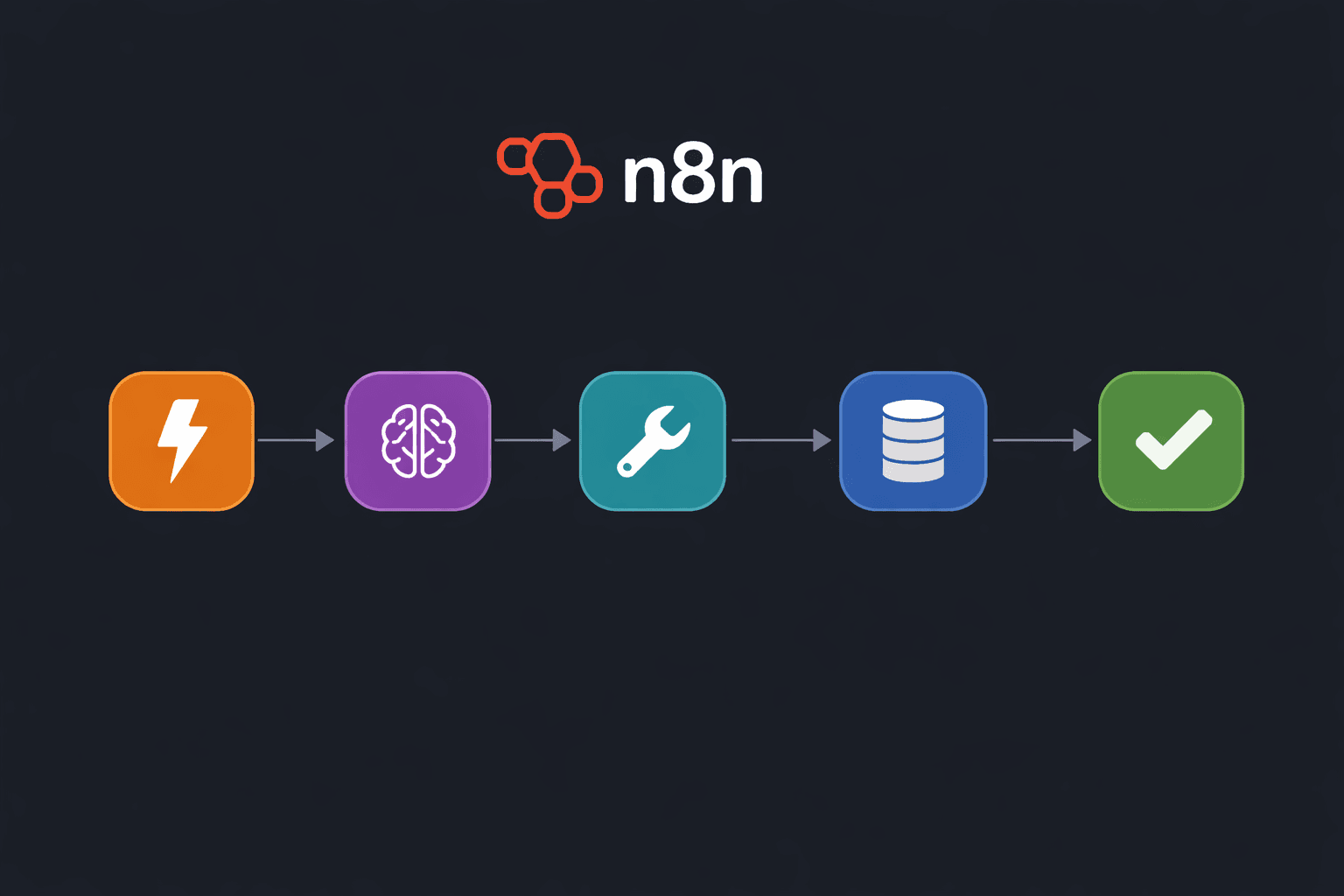
n8n's AI Agent node, released in stable form in late 2024, turns n8n from a pure automation tool into a platform where LLMs can call tools, access memory, and execute multi-step reasoning inside your existing workflows. As of March 2026, the AI Agent node supports OpenAI, Anthropic, Ollama, Groq, Mistral, and Google Gemini as backends, and provides 15 built-in tools including web search, code execution, HTTP requests, and Wikipedia lookups.
This guide covers five production-ready AI workflow patterns. Each pattern includes the node configuration, a JSON snippet you can import directly into n8n, and notes on where each design can fail and how to prevent it. If you do not have n8n running yet, the n8n Docker installation guide covers the complete setup. For a VPS deployment with PostgreSQL and SSL, see the n8n VPS deployment guide.
All five workflows use GPT-5.2 as the default model but include notes on switching to Ollama local models for zero API cost. GPT-5.2 models work equally well and offer improved reasoning for complex agent tasks. The build AI agent with n8n guide covers the fundamentals of the AI Agent node if you are new to it.
Prerequisites
- n8n 1.30+ running (self-hosted or cloud)
- At least one LLM API key: OpenAI, Anthropic, Groq, or a local Ollama instance
- Basic n8n knowledge: creating workflows, adding nodes, setting credentials
- For Workflow 1 (email): Gmail or SMTP credentials configured in n8n
- For Workflow 3 (web scraper): a SerpAPI or Brave Search API key (both have free tiers)
Need a VPS?
Run this on a Contabo Cloud VPS 10 starting at €5.45/mo. Reliable Linux VPS with NVMe storage, ideal for self-hosted AI workloads.
In This Guide
How n8n AI Workflows Are Structured
Every n8n AI workflow follows the same node architecture. Understanding this structure once makes all five workflow patterns immediately readable.
| Layer | Node Type | Function |
|---|---|---|
| Trigger | Webhook, Schedule, Email, Gmail | Starts the workflow on an event |
| Input Processing | Set, Code, Extract from File | Prepares data before the agent sees it |
| AI Agent | AI Agent (Tools Agent) | LLM reasoning loop with tool access |
| Chat Model | OpenAI Chat Model, Ollama | The LLM backend for the agent |
| Memory | Buffer Memory, Postgres Chat Memory | Stores conversation context |
| Tools | HTTP Request, SerpAPI, Wikipedia, Code | What the agent can call |
| Output | Gmail, Slack, Google Docs, Webhook | Where the agent's response goes |
The AI Agent node is the orchestrator. It receives a prompt (from the trigger data), reasons about what tools to call, executes tool calls, and produces a final response. The Chat Model node provides the LLM backend. Memory nodes (optional) give the agent access to prior conversation turns.
For Ollama local models, replace the OpenAI Chat Model node with the Ollama Chat Model node and set your Ollama URL. Use `llama3.3:8b` or `qwen2.5:14b` for reliable tool-calling. Models below 7B parameters frequently produce malformed tool-call JSON.
Workflow 1: AI Email Responder
This workflow monitors a Gmail inbox, classifies incoming emails, and drafts a response using GPT-5. A human approval step before sending makes it safe to deploy without worrying about the agent sending incorrect replies.
Node Layout
Gmail Trigger → Set (extract subject + body) → AI Agent → IF (confidence >= 0.8) → Gmail (send draft) → Slack (notify)Gmail Trigger Configuration
Set the trigger to poll every 5 minutes for unread emails in a specific label (e.g., "AI-Handle"):
{
  "resource": "message",
  "operation": "getAll",
  "filters": {
    "labelIds": ["Label_AI-Handle"],
    "q": "is:unread"
  },
  "pollTimes": {
    "item": [{ "mode": "everyX", "value": 5, "unit": "minutes" }]
  }
}AI Agent System Prompt
In the AI Agent node's "System Message" field:
You are an email assistant for a software company. Your job is to draft professional, concise email replies.

Given the subject and body of an incoming email, produce:
1. A classification: support_request | sales_inquiry | partnership | spam | other
2. A confidence score between 0 and 1 for your classification
3. A draft reply (if not spam)

Rules:
- Keep replies under 150 words
- Never promise specific timelines
- Sign off as "The Support Team"
- Format your response as JSON: {"classification": "...", "confidence": 0.0, "draft": "..."}Set Node, Extract Email Fields
{
  "subject": "={{ $json.subject }}",
  "body": "={{ $json.snippet }}",
  "from": "={{ $json.from }}",
  "threadId": "={{ $json.threadId }}"
}Output and Approval Gate
Add an IF node after the AI Agent: if `confidence >= 0.8`, send the draft directly via Gmail. If `confidence < 0.8`, post to Slack for human review:
{
  "conditions": {
    "number": [{
      "value1": "={{ JSON.parse($json.output).confidence }}",
      "operation": "largerEqual",
      "value2": 0.8
    }]
  }
}Workflow 2: AI Web Scraper and Summariser
This workflow takes a topic or URL as input, searches the web for recent information, reads the full page content, and produces a structured summary. It is the foundation for competitive monitoring, news digests, and research automation.
Node Layout
Webhook (POST with topic) → AI Agent [tools: SerpAPI + HTTP Request] → Set (format output) → Respond to WebhookWebhook Input Format
Send a POST request to trigger the workflow:
curl -X POST https://your-n8n.com/webhook/research \
  -H "Content-Type: application/json" \
-d '{"topic": "Anthropic Claude 4 release news", "max_sources": 3}'AI Agent Configuration
Add two tools to the AI Agent node:
1. SerpAPI tool (built-in), set your SerpAPI key in n8n credentials 2. HTTP Request tool, set to allow GET requests (the agent uses this to read full page content from URLs in search results)
System message:
You are a research assistant. Given a topic, you will:
1. Search the web for the 3 most relevant and recent results
2. Read the full content of each result using the HTTP Request tool
3. Produce a structured summary with: key findings, source URLs, and a one-sentence verdict

Be specific. Include dates, figures, and named entities. Do not speculate beyond what the sources say.Handling JavaScript-Heavy Pages
Some pages do not return content via a simple HTTP GET because they require JavaScript rendering. Add a filter in the agent's instructions:
If the HTTP Request tool returns less than 200 characters of readable text, skip that URL and move to the next search result.This prevents the agent from citing JavaScript error pages as sources.
Workflow 3: AI Chatbot with Conversation Memory
This workflow builds a persistent chatbot that remembers previous messages within a session. It uses n8n's built-in Postgres Chat Memory node to store conversation history in a database, so memory survives workflow restarts and server reboots.
Node Layout
Chat Trigger → AI Agent [memory: Postgres Chat Memory] → Chat ResponseWhy Postgres Memory over Buffer Memory
Buffer Memory stores conversation history in RAM. When n8n restarts or the workflow is deactivated, history is lost. Postgres Chat Memory persists to a PostgreSQL database and survives restarts. For any customer-facing chatbot, use Postgres memory.
Database Setup
Create a dedicated table in your PostgreSQL database:
CREATE TABLE IF NOT EXISTS n8n_chat_histories (
  id SERIAL PRIMARY KEY,
  session_id VARCHAR(255) NOT NULL,
  message JSONB NOT NULL,
  created_at TIMESTAMP DEFAULT NOW()
);

CREATE INDEX ON n8n_chat_histories(session_id);n8n's Postgres Chat Memory node creates this table automatically if you enable "Create Table If Not Exists" in the node settings. The SQL above is for manual creation or inspection.
Postgres Chat Memory Node Settings
{
  "sessionIdType": "customKey",
  "sessionKey": "={{ $json.sessionId }}",
  "contextWindowLength": 10
}Set `contextWindowLength` to 10 (the last 10 message pairs). Larger windows increase LLM token usage on every request. For GPT-5.2 at 10 message pairs, a typical conversation uses 2,000-5,000 tokens per turn, costing $0.01-0.05.
Chat Trigger Configuration
Enable the n8n Chat Trigger node with "Allow File Uploads" off (for text-only chatbots). The session ID is generated automatically per browser session, pass it to the memory node's sessionKey.
Workflow 4: Document Analysis and Data Extraction
This workflow accepts a PDF or document file, extracts its text, and uses an LLM to answer questions about it or extract structured data. Common use cases: invoice processing, contract review, research paper summarisation, and compliance document checking.
Node Layout
Webhook (file upload) → Extract from File → Split into Chunks → AI Agent → Respond to WebhookExtract from File Node
{
  "operation": "pdf",
  "options": {
    "joinPages": true
  }
}This extracts all text from the PDF into a single string. For large documents (50+ pages), enable "Join Pages" and expect the output to be 50,000-200,000 characters.
Chunking for Large Documents
GPT-5.2 has a 128,000 token context window. For documents under 80,000 words, you can pass the full text to the agent. For larger documents, add a "Recursive Character Text Splitter" node before the agent:
{
  "chunkSize": 2000,
  "chunkOverlap": 200,
  "separator": "\n\n"
}Then loop through chunks with a n8n "Loop Over Items" node and aggregate results.
Extraction System Prompt (Invoice Example)
Extract the following fields from this invoice document and return them as JSON:
- invoice_number (string)
- invoice_date (ISO 8601 date)
- vendor_name (string)
- total_amount (number, in the invoice currency)
- currency (3-letter ISO code)
- line_items (array of {description, quantity, unit_price, total})

If a field is not found, set its value to null. Return only the JSON object, no explanation.Output Validation
Add a Code node after the AI Agent to validate the extracted JSON:
const output = JSON.parse($input.first().json.output);
const required = ['invoice_number', 'invoice_date', 'vendor_name', 'total_amount'];
const missing = required.filter(f => output[f] === null);

return [{
  json: {
    ...output,
    extraction_complete: missing.length === 0,
    missing_fields: missing
  }
}];Troubleshooting
AI Agent node returns "Max iterations reached" without a useful answer
Cause: The agent is stuck in a tool-call loop, calling the same tool repeatedly without converging on an answer. Often caused by ambiguous tool descriptions or a system prompt that does not specify when to stop.
Fix: Add explicit stopping instructions to your system prompt: "Once you have gathered enough information, provide your final answer without calling any more tools." Also reduce Max Iterations from the default 10 to 5-7 for workflows where the task is bounded.
Postgres Chat Memory throws "relation does not exist" error
Cause: The n8n_chat_histories table does not exist in the configured PostgreSQL database
Fix: Enable "Create Table If Not Exists" in the Postgres Chat Memory node settings, or run the CREATE TABLE SQL manually in your database. Verify the PostgreSQL credentials in n8n Settings > Credentials point to the correct database and schema.
HTTP Request tool returns empty body from web pages
Cause: The target page requires JavaScript rendering (React, Next.js, etc.) and returns an empty shell when fetched with a plain GET request
Fix: Switch the HTTP Request tool to use a headless browser endpoint (e.g., Browserless.io or a self-hosted Playwright API). Alternatively, use the page's RSS feed or API if one exists, or a cached version from a service like r.jina.ai (prefix any URL with https://r.jina.ai/ to get clean markdown output).
Agent hallucinates tool call parameters
Cause: The LLM model being used does not reliably support structured function calling. Common with Ollama models under 7B parameters.
Fix: Switch to llama3.3:8b or qwen2.5:14b for Ollama. For cloud models, use GPT-5.2 or Claude 4 Sonnet, both have the highest tool-call reliability in n8n's implementation. Check the n8n community forum for model compatibility notes.
Gmail Trigger fires the same email multiple times
Cause: The trigger polls for unread emails but the workflow fails before marking the email as read, so it appears unread on the next poll
Fix: Add a Gmail "Modify Message" node as the very first step after the trigger (before any processing nodes) with operation "Mark as Read". This ensures the email is marked read immediately, even if the rest of the workflow fails.
Alternatives to Consider
| Tool | Type | Price | Best For |
|---|---|---|---|
| Make.com | Cloud | Free tier (1,000 ops/month) / $9/month | Teams that want managed AI automation without self-hosting. Make.com has native AI modules but no equivalent to n8n's AI Agent node with full tool-calling. Better for simpler automations; n8n is stronger for complex agent workflows. |
| Zapier | Cloud | Free tier (100 tasks/month) / $19.99/month | Non-technical teams who need plug-and-play automation with 6,000+ app integrations. Zapier AI features are limited compared to n8n's agent node. Pricing scales steeply with usage volume. |
| Flowise | Self-hosted | Free / open-source | Building pure LLM applications and chatbots without broader automation needs. Flowise is purpose-built for AI pipelines; n8n is better when AI is one step inside a larger business automation. See the Flowise vs Langflow comparison guide for details. |
| Activepieces | Self-hosted / Cloud | Free (open-source) / $99/month (cloud) | Teams who want a self-hosted Make.com alternative with a cleaner UI than n8n. Activepieces does not have an AI Agent node as of March 2026, but its AI integrations are sufficient for simpler prompt-in/response-out automations. |
Frequently Asked Questions
What LLM models work best for tool-calling in n8n?
For reliable tool-calling in n8n's AI Agent node, the top options as of March 2026 are:
- GPT-5.2: highest reliability, supports parallel tool calls, handles complex tool schemas
- Claude 4 Sonnet: matches GPT-5.2 for tool-calling, slightly lower cost
- Groq Llama 3.3 70B: fast inference, good tool-calling at lower cost than GPT-5.2
- Ollama llama3.3:8b: free local inference, reliable for simple single-tool calls
- Ollama qwen2.5:14b: better than llama3.3:8b for multi-tool workflows
Models to avoid for tool-calling: any model under 7B parameters, Mistral 7B v0.1 (v0.3+ works), and Phi-3 Mini.
How much do these AI workflows cost to run per month?
Cost depends on the workflow, frequency, and model. Rough estimates for GPT-5.2 (as of March 2026, $2.50 per million input tokens, $10 per million output tokens):
- Email responder (100 emails/month): $0.50-2 in API fees
- Web scraper (50 research runs/month): $1-5 in API fees
- Chatbot with memory (1,000 messages/month): $5-20 depending on conversation length
- Document analyser (200 PDFs/month): $2-10 depending on document length
- Social content agent (30 posts/month): $0.30-1 in API fees
Switching to Claude 4 Haiku reduces cost by 60-70% for most workflows. Using Ollama local models reduces API fees to $0, you pay only for server cost (Contabo Cloud VPS 10 at €5.45/month handles n8n plus Ollama with a 7B model).
Can n8n AI workflows run on a schedule without manual triggering?
Yes. Replace the Webhook trigger with a Schedule Trigger node. Set it to any cron expression: hourly, daily at a specific time, or every 15 minutes.
The Schedule Trigger supports cron syntax directly. For a daily 9 AM run: `0 9 * * *`. For every weekday at 8 AM: `0 8 * * 1-5`.
For workflows that process a queue (like the social content agent), combine the Schedule Trigger with a Google Sheets or PostgreSQL node to read the next item in the queue. The workflow runs on schedule, processes one (or a batch of) items, and updates the queue status.
How do I pass data between nodes in an n8n AI workflow?
n8n passes data between nodes as JSON items. Each node receives the output of the previous node as `$input` or `$json`. In expressions, reference previous node data with `{{ $json.fieldName }}` (current node input) or `{{ $('Node Name').item.json.fieldName }}` (specific node output).
For the AI Agent node, the agent's text output is in `$json.output`. If your agent returns JSON, parse it in the next Code node: `JSON.parse($json.output)`.
Common pattern for extracting structured agent output:
const result = JSON.parse($input.first().json.output);
return [{ json: result }];Does n8n support streaming responses from AI agents?
n8n's AI Agent node does not stream responses in background workflow executions. When triggered by a Webhook or Schedule, the agent completes its full reasoning loop and returns the final answer as a single response.
The n8n Chat Trigger supports streaming when used with the built-in chat interface. In the Chat Trigger settings, enable "Stream Output" and responses will stream token by token to the chat UI.
For custom streaming integrations (e.g., streaming to a frontend via Server-Sent Events), use n8n's HTTP Response node in combination with a Webhook trigger and implement SSE in your downstream application.
How do I give an n8n AI agent access to a custom knowledge base?
Use n8n's Vector Store nodes. The workflow has two phases:
1. Ingestion: Document Loader (PDF, Notion, website) → Text Splitter → Embeddings → Vector Store (insert) 2. Retrieval: Add a "Vector Store Retriever" tool to the AI Agent node. The agent calls this tool with a query and receives the most relevant chunks from your knowledge base.
Supported vector stores: Pinecone, Qdrant, Weaviate, Chroma, Supabase pgvector, and in-memory vector store (not persistent).
For a persistent local setup, run Qdrant alongside n8n via Docker Compose. Qdrant runs at `http://localhost:6333` and stores embeddings on disk.
Can I run multiple AI workflows in parallel in n8n?
Yes. n8n executes each workflow independently. Multiple workflow executions run concurrently up to the limit set in n8n's environment variable `N8N_EXECUTIONS_PROCESS` (default: `main` process, which handles all executions sequentially in a single process).
For true parallel execution, set `EXECUTIONS_MODE=queue` and configure n8n with a Redis-backed queue and worker processes. Each worker handles one execution at a time. Running 3 workers handles 3 concurrent AI workflow executions.
For the n8n Cloud, parallel execution is handled automatically based on your plan tier.
What is the difference between the AI Agent node and the Basic LLM node in n8n?
The Basic LLM node sends a single prompt to an LLM and returns the response. It is a one-shot call, no tool use, no reasoning loop, no memory. Use it when you need a simple text transformation, classification, or generation task with a fixed prompt.
The AI Agent node runs a reasoning loop. It can call tools multiple times, read the results, decide what to do next, and iterate until it reaches a final answer or hits the max iterations limit. Use it when the task requires gathering information, making decisions based on data, or coordinating multiple steps.
Rule of thumb: Basic LLM node for "generate/transform this text", AI Agent node for "figure out the answer to this question".
Related Guides
How to Install n8n with Docker Compose (Self-Hosted Setup)
How to Deploy n8n on a VPS: Production Setup with Nginx and SSL (2026)
How to Build an AI Agent with n8n (2026 Guide)
Flowise vs Langflow: Which AI Builder Should You Use in 2026?