
Ollama vs LM Studio: Which Local LLM Tool Should You Use in 2026?
Ollama vs LM Studio compared on ease of use, model support, API access, performance, and use cases. Find out which local LLM tool fits your workflow in 2026.

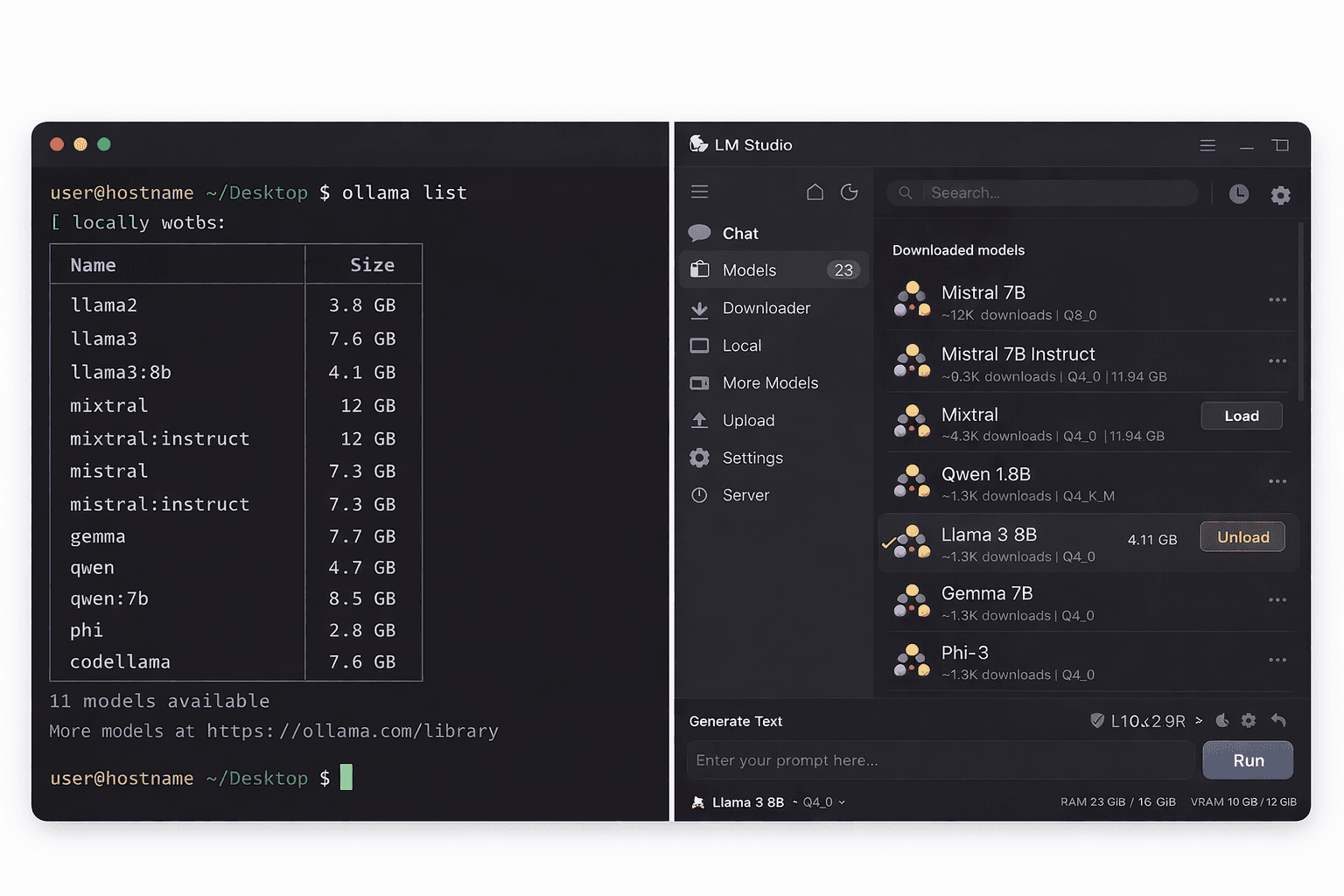
Ollama and LM Studio are the two most widely used tools for running large language models locally in 2026. They download the same underlying models and produce the same output quality — the differences are in how you interact with them and what you can build on top of them.
Ollama is a CLI-first tool designed for developers who want to integrate local LLMs into scripts, applications, and automation pipelines via a REST API. LM Studio is a desktop application built for non-technical users who want a chat interface similar to ChatGPT without any terminal use.
This guide covers every dimension that matters for making the choice: installation, model support, API access, GPU usage, resource consumption, and the specific workflows each tool handles better.
Prerequisites
- Computer with at least 8 GB RAM
- macOS, Windows 10/11, or Linux
- 5-15 GB free disk space for model downloads
In This Guide
Quick Comparison: Ollama vs LM Studio
The table below covers the most common decision points.
| Feature | Ollama | LM Studio |
|---|---|---|
| Interface | Terminal (CLI) + REST API | Desktop GUI + built-in chat |
| Best for | Developers, API integration, automation | Non-technical users, chat use |
| Installation | One command (curl installer) | Download and run .exe/.dmg |
| Model source | Ollama Library (100+ curated models) | Hugging Face (100,000+ models) |
| API | OpenAI-compatible REST API built in | Local server (OpenAI-compatible) |
| GPU support | NVIDIA, AMD (ROCm), Apple Metal | NVIDIA, AMD, Apple Metal |
| Runs headless | Yes (as a background service) | No (requires the app open) |
| Memory use | Very low (~50 MB idle) | Higher (~300-500 MB idle) |
| Windows support | Good (via installer, WSL for GPU) | Excellent (native app) |
| Price | Free, open source (MIT) | Free (personal use) |
| Docker support | Yes (official Docker image) | No |
| Multi-user API | Yes (bind to 0.0.0.0) | Limited |
**Quick verdict:** Use Ollama if you are a developer or want to integrate local AI into other tools. Use LM Studio if you want a no-setup chat interface and plan to run it manually on your desktop.
Installation Comparison
Both tools install in under 5 minutes on any supported platform.
Ollama Installation
# Linux and macOS (one command)
curl -fsSL https://ollama.com/install.sh | sh

# Verify
ollama --versionOn Windows, download the installer from ollama.com/download. Ollama installs as a background service and starts automatically.
After installation, pull and run a model:
ollama pull llama3.3:8b
ollama run llama3.3:8bLM Studio Installation
Download the installer for your OS from lmstudio.ai:
- Windows: `.exe` installer (~500 MB)
- macOS: `.dmg` (Apple Silicon or Intel builds available)
- Linux: `.AppImage`
After installing, open LM Studio and use the built-in model search to find and download models from Hugging Face. No terminal required at any point.
Model Support and Selection
This is the biggest practical difference between the two tools.
Ollama Model Library
Ollama maintains a curated library of pre-tested, quantised models at ollama.com/library. As of early 2026 this covers 100+ models including all major families.
- Models are pre-quantised to Q4_K_M by default (good balance of quality and size)
- Ollama handles model format conversion automatically
- You cannot pull arbitrary Hugging Face models without a conversion step
# See all available models
ollama list

# Pull a specific model
ollama pull qwen2.5:14bLM Studio Model Library
LM Studio connects directly to Hugging Face, giving access to 100,000+ models.
- Built-in search with compatibility filters (shows only models that run on your hardware)
- You can download any GGUF-format model from Hugging Face
- Access to niche, fine-tuned, and experimental models not available in Ollama's curated list
| Aspect | Ollama | LM Studio |
|---|---|---|
| Number of models | 100+ curated | 100,000+ (all Hugging Face GGUF) |
| Model quality | Consistently tested | Variable (community uploads) |
| Finding obscure models | Harder | Easy |
| Fine-tuned variants | Limited | Extensive |
| Update speed | New models added regularly | Immediately available on Hugging Face |
API Access and Developer Integration
This is where Ollama has a clear advantage for developers.
Ollama API
Ollama exposes a full REST API on `http://localhost:11434` that starts automatically with the Ollama service — no manual steps required.
# Check API is running
curl http://localhost:11434
# Ollama is running

# OpenAI-compatible endpoint
curl http://localhost:11434/v1/chat/completions \
  -H "Content-Type: application/json" \
  -d '{
    "model": "llama3.3:8b",
    "messages": [{"role": "user", "content": "Hello"}]
}'Any application built for the OpenAI API works with Ollama by changing the base URL to `http://localhost:11434/v1`.
LM Studio API
LM Studio includes a local server mode (under the "Local Server" tab). You start it manually within the app, then it exposes an OpenAI-compatible API on port 1234 by default.
curl http://localhost:1234/v1/chat/completions \
  -H "Content-Type: application/json" \
  -d '{
    "model": "lmstudio-community/Meta-Llama-3.1-8B-Instruct-GGUF",
    "messages": [{"role": "user", "content": "Hello"}]
}'| API Aspect | Ollama | LM Studio |
|---|---|---|
| Starts automatically | Yes (background service) | No (manual in app) |
| Requires app open | No | Yes |
| OpenAI-compatible | Yes | Yes |
| Docker-friendly | Yes | No |
| Headless server use | Yes | No |
For server deployments, scripts, n8n workflows, or any application that needs a persistent API endpoint, Ollama is the practical choice. LM Studio's API only works while the desktop app is running.
Performance and Resource Usage
Both tools use the same model formats (GGUF) and the same underlying inference engine (llama.cpp), so token generation speed is identical for the same model and quantisation. The differences are in overhead and GPU utilisation.
Idle Resource Usage
| Metric | Ollama | LM Studio |
|---|---|---|
| RAM (idle, no model loaded) | ~50 MB | ~300-500 MB |
| CPU (idle) | Near 0% | 0.5-2% |
| Background process | Yes (always running) | Only when app is open |
Ollama runs as a lean background service. LM Studio is a full Electron desktop app with a rendering engine, which explains the higher baseline memory use.
GPU Acceleration
Both tools support NVIDIA (CUDA), AMD (ROCm), and Apple Silicon (Metal). GPU detection is automatic for LM Studio. For Ollama, GPU usage is automatic on macOS and for Docker with the NVIDIA Container Toolkit.
# Verify Ollama is using GPU
# While a model is running, check the logs
tail -f ~/.ollama/logs/server.log | grep "n_gpu_layers"
# Look for n_gpu_layers = 33 (or total layer count for full offload)Which One Should You Choose?
The decision comes down to your primary use case.
Choose Ollama if:
- You want to integrate local LLMs into Python scripts, n8n workflows, or other applications
- You are building something that needs a persistent background API server
- You want to run models on a remote VPS or headless server
- You are comfortable with the terminal
- You want to use Open-WebUI for a chat interface on top of Ollama
Choose LM Studio if:
- You want a ChatGPT-like chat interface with zero terminal use
- You need access to fine-tuned models not in the Ollama library
- You are on Windows and want a polished native application experience
- You are evaluating models and want a GUI for side-by-side testing
Can you use both?
Yes. Many users run Ollama for API access and automation, and LM Studio occasionally for browsing the Hugging Face model catalogue. They do not conflict with each other, though they should not run the same model at the same time (RAM contention).
Troubleshooting
Ollama and LM Studio both running at the same time — out of memory
Cause: Both tools load the model into RAM independently when used simultaneously
Fix: Stop Ollama before starting LM Studio, or vice versa. On Linux/macOS: `sudo systemctl stop ollama` or `ollama stop`. Only run one tool at a time on systems with less than 32 GB RAM.
LM Studio local server not accessible from other apps
Cause: LM Studio binds to 127.0.0.1 by default. The app must be open and the local server tab must be running
Fix: In LM Studio, go to Local Server tab, ensure the server is started (green status). For access from other machines on the network, change the binding to 0.0.0.0 in the server settings.
Same model runs slower in LM Studio than Ollama
Cause: Different default context sizes or thread counts between the two tools
Fix: In LM Studio, check the context length setting in Model Parameters. Higher context = more RAM = slower initial load. Match the context length in both tools for a fair comparison. Both tools should produce the same token/s when settings are identical.
Ollama shows "model not found" for a model downloaded in LM Studio
Cause: The two tools use separate model storage directories and cannot share downloaded models
Fix: Models must be downloaded separately for each tool. Ollama stores models in ~/.ollama/models. LM Studio stores them in ~/LM Studio/models. You cannot point one tool at the other's model directory.
Alternatives to Consider
| Tool | Type | Price | Best For |
|---|---|---|---|
| Jan | Desktop app | Free | Open-source ChatGPT alternative combining chat UI and model management, similar to LM Studio |
| GPT4All | Desktop app | Free | Simple Windows installer, curated model list, good for first-time local LLM users |
| llama.cpp | CLI | Free | Maximum hardware optimisation and quantisation control without any abstraction layer |
| Open-WebUI | Self-hosted web app | Free | Browser-based ChatGPT-like interface on top of Ollama, with multi-user support and RAG |
Frequently Asked Questions
Is Ollama or LM Studio better for beginners?
LM Studio is better for beginners with no terminal experience. It has a graphical interface, a built-in model browser, and a chat window that works like ChatGPT. No commands required at any stage.
Ollama is better for beginners who are comfortable with a terminal and plan to use local AI in a practical way — for scripts, workflows, or as a backend for a chat interface like Open-WebUI. The learning curve is low if you know basic terminal commands.
Do Ollama and LM Studio run the same models?
Both tools run GGUF-format model files and use llama.cpp under the hood, so they produce identical output quality for the same model file. The major families (Llama 3.3, Mistral, Qwen 2.5, Phi-4, Gemma 3, DeepSeek) are available in both.
The difference is breadth: LM Studio connects to all of Hugging Face (100,000+ models), while Ollama maintains a curated library of 100+ well-tested models. For mainstream models, the distinction is irrelevant.
Can I use both Ollama and LM Studio on the same computer?
Yes, both can be installed simultaneously without conflict. Do not run them at the same time with the same model loaded — they would each load the model into RAM separately, using double the RAM.
A practical setup: use Ollama running in the background for API access and automation, and open LM Studio occasionally to browse for new models or fine-tunes. When you find something worth using regularly, pull it in Ollama too.
Which uses less RAM: Ollama or LM Studio?
Ollama uses significantly less RAM at idle — about 50 MB as a background service. LM Studio uses 300-500 MB just for the desktop application, before any model is loaded.
Once a model is loaded, RAM usage is identical because both tools use the same model files and llama.cpp inference engine. The difference matters most on machines with tight RAM budgets: Ollama's low idle footprint means more RAM is available for the model itself.
Does LM Studio have a free API like Ollama?
LM Studio includes a local server that exposes an OpenAI-compatible API on port 1234. It is free but requires the LM Studio desktop app to be open and the local server tab to be manually started.
Ollama's API starts automatically as a background service and does not require any GUI to be open. For server deployments or automated workflows that need the API to be always available, Ollama is the better choice.
Which tool supports GPU acceleration better?
Both support NVIDIA (CUDA), AMD (ROCm), and Apple Silicon (Metal) GPU acceleration and achieve identical inference speeds once properly configured.
Ollama has a slight setup advantage on Linux: GPU detection is automatic when the CUDA toolkit is installed. On Docker, the NVIDIA Container Toolkit enables GPU passthrough. LM Studio also auto-detects GPUs but lacks Docker support entirely, limiting server deployment options.
Related Guides
How to Set Up LM Studio: Complete Local LLM Guide (2026)
How to Run Ollama Locally: Complete Setup Guide (2026)
Best Ollama Alternatives in 2026: 5 Local LLM Apps Compared
Best Local LLM Models to Run in 2026 (Benchmarks + Use Cases)
How to Set Up Open-WebUI with Ollama (Docker Guide)