
How to Set Up Claude MCP Servers: Complete Configuration Guide (2026)
Set up Model Context Protocol servers with Claude Desktop. Configure filesystem, web search, PostgreSQL, GitHub, and custom MCP servers step by step.

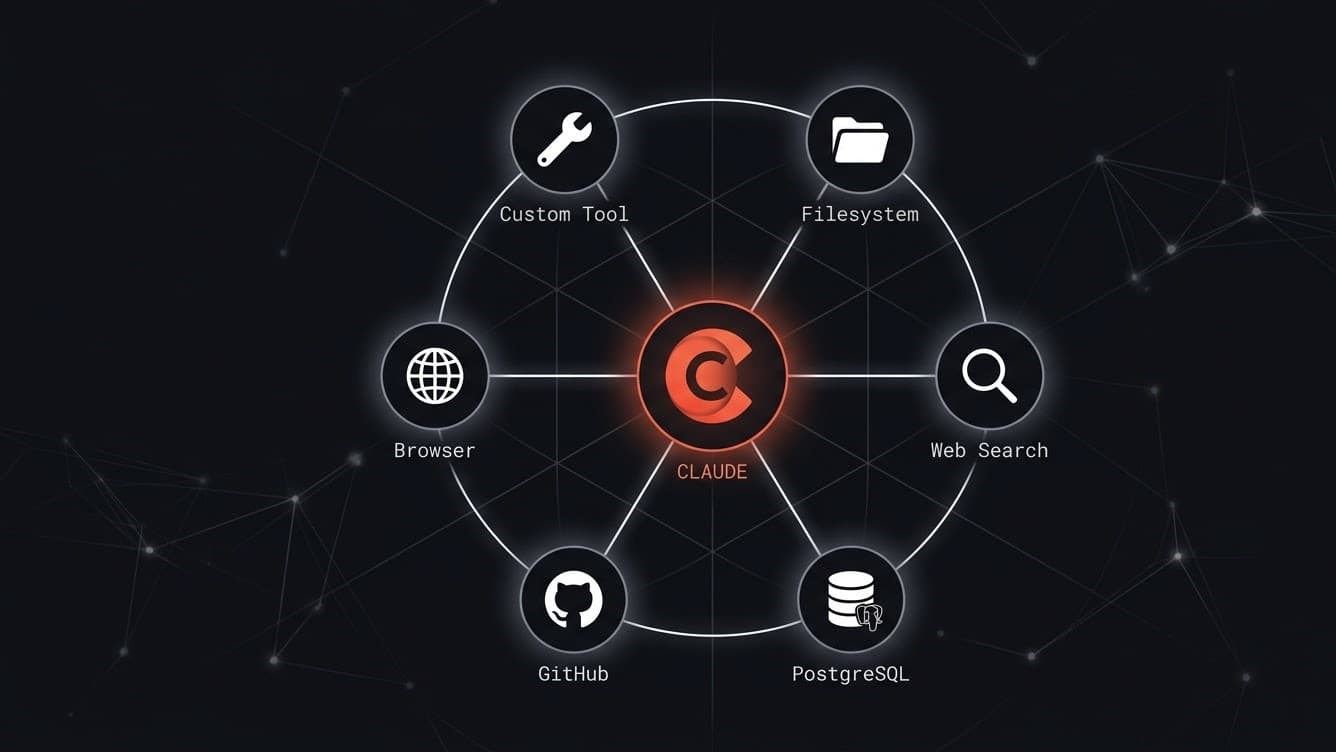
Model Context Protocol (MCP) is an open standard introduced by Anthropic in November 2024 that lets Claude connect to external data sources and tools. Instead of copy-pasting content into Claude's context window, MCP servers expose resources (files, database rows, API responses) and tools (write a file, run a query, make an HTTP request) that Claude can access directly during a conversation.
As of March 2026, MCP is supported in Claude Desktop (macOS and Windows), Claude.ai (for Pro subscribers), the Claude API, and a growing list of third-party apps. The MCP ecosystem has over 1,000 community-built servers listed in the official MCP registry. Anthropic ships six reference servers covering the most common integrations: filesystem, PostgreSQL, Brave Search, GitHub, Puppeteer (browser control), and Google Maps.
This guide covers the complete setup: installing Claude Desktop, editing the MCP configuration file, connecting the filesystem and web search servers, adding database and GitHub servers, and building a minimal custom MCP server in Python. The guide uses Claude Desktop on macOS as the primary example with Windows notes where the setup differs.
Prerequisites
- Claude Desktop installed (macOS 12+ or Windows 10+), download from claude.ai/download
- A Claude Pro subscription (required for MCP in Claude Desktop as of March 2026)
- Node.js 18+ installed (required for the official Anthropic MCP servers, which run as npx packages)
- Python 3.10+ (required only if building a custom MCP server)
- For the PostgreSQL server: a running PostgreSQL 14+ instance with connection credentials
- For the GitHub server: a GitHub personal access token with repo scope
- For the Brave Search server: a Brave Search API key (free tier: 2,000 queries/month)
In This Guide
What MCP Is and How It Works
MCP uses a client-server architecture. Claude Desktop is the client (the "MCP Host"). Each MCP server is a separate process running on your machine that exposes a defined set of resources and tools over a local stdio or HTTP transport.
| MCP Concept | What It Is | Example |
|---|---|---|
| Server | External process exposing tools/resources | Filesystem server, PostgreSQL server |
| Tool | Function Claude can call (has side effects) | write_file, run_query, search_web |
| Resource | Read-only data Claude can reference | file contents, database schema, API response |
| Transport | How Claude and the server communicate | stdio (default), HTTP+SSE |
| MCP Host | The app running Claude | Claude Desktop, Claude.ai, custom API app |
When you add an MCP server to Claude Desktop, Claude gains the ability to call that server's tools. For example, with the filesystem server connected, you can say "read my project's README" and Claude will call the `read_file` tool, receive the content, and respond with it without you manually pasting the file.
The protocol is model-agnostic by design. Servers built for Claude work with any LLM that implements the MCP client spec. As of March 2026, Claude 4, GPT-5.2 (via community adapters), and Gemini 3.1 Pro all have MCP client implementations.
Configuration File Location
MCP servers are configured in a JSON file. Claude Desktop reads this file on startup.
| Platform | Config File Path |
|---|---|
| macOS | `~/Library/Application Support/Claude/claude_desktop_config.json` |
| Windows | `%APPDATA%\Claude\claude_desktop_config.json` |
If the file does not exist, create it. Claude Desktop creates an empty config on first launch that you can edit.
Configure the Filesystem MCP Server
The filesystem server is the most broadly useful MCP server. It lets Claude read files, write files, list directories, and search for files within paths you explicitly allow. All access is restricted to the directories you specify, Claude cannot access paths outside your approved list.
Install and Configure
The filesystem server ships as an npx package. No separate installation is required, npx downloads and runs it on demand. Add it to your config file:
{
  "mcpServers": {
    "filesystem": {
      "command": "npx",
      "args": [
        "-y",
        "@modelcontextprotocol/server-filesystem",
        "/Users/yourname/Documents",
        "/Users/yourname/Projects"
      ]
    }
  }
}Replace the paths with the directories you want Claude to access. Add as many paths as needed, each additional path is another argument.
On Windows, use Windows-style paths with escaped backslashes:
{
  "mcpServers": {
    "filesystem": {
      "command": "npx",
      "args": [
        "-y",
        "@modelcontextprotocol/server-filesystem",
        "C:\\Users\\yourname\\Documents",
        "C:\\Users\\yourname\\Projects"
      ]
    }
  }
}Restart Claude Desktop
After saving the config file, quit and reopen Claude Desktop. Click the hammer icon (tools menu) in the chat input to confirm the filesystem server is listed. You should see tools including `read_file`, `write_file`, `list_directory`, `search_files`, and `get_file_info`.
Test the Connection
In a new Claude conversation, type:
List the files in my Documents folderClaude will call the `list_directory` tool and return the directory contents. If you see a permission error, verify the path in your config matches the exact path on your system (case-sensitive on macOS).
Add Web Search with Brave Search MCP
The Brave Search MCP server gives Claude real-time web search capability. It calls the Brave Search API and returns structured results including title, URL, and snippet for each result.
Get a Brave Search API Key
1. Go to the Brave Search API developer portal 2. Create an account and select the free tier (2,000 queries/month, no credit card required) 3. Copy your API key from the dashboard
Add to Config
{
  "mcpServers": {
    "filesystem": {
      "command": "npx",
      "args": ["-y", "@modelcontextprotocol/server-filesystem", "/Users/yourname/Documents"]
    },
    "brave-search": {
      "command": "npx",
      "args": ["-y", "@modelcontextprotocol/server-brave-search"],
      "env": {
        "BRAVE_API_KEY": "your_brave_api_key_here"
      }
    }
  }
}Verify the Server
Restart Claude Desktop and open the tools menu. You should see the `brave_web_search` tool listed. Test it:
Search the web for the latest Claude model release newsClaude will call `brave_web_search`, receive results, and synthesise an answer from the search snippets. Unlike asking Claude without tools, this returns information from after its training cutoff.
Connect PostgreSQL and GitHub MCP Servers
These two servers cover the most common developer integrations: database access and repository management.
PostgreSQL MCP Server
The PostgreSQL server gives Claude read-only access to your database. It exposes the schema as resources and supports SQL query execution as a tool.
{
  "mcpServers": {
    "postgres": {
      "command": "npx",
      "args": [
        "-y",
        "@modelcontextprotocol/server-postgres",
        "postgresql://username:password@localhost:5432/your_database"
      ]
    }
  }
}Replace the connection string with your database credentials. The server defaults to read-only mode, it cannot execute INSERT, UPDATE, DELETE, or DDL statements. This is intentional and cannot be changed in the official server.
Available tools: `query` (execute a SELECT statement), and resources exposing the database schema.
Test it: "Describe the structure of my database", Claude will call the schema resource and return table names, column definitions, and relationships.
GitHub MCP Server
The GitHub server lets Claude read repositories, files, issues, pull requests, and commits. With a write-scope token, it can also create files, branches, and pull requests.
{
  "mcpServers": {
    "github": {
      "command": "npx",
      "args": ["-y", "@modelcontextprotocol/server-github"],
      "env": {
        "GITHUB_PERSONAL_ACCESS_TOKEN": "ghp_your_token_here"
      }
    }
  }
}Generate a token at GitHub Settings > Developer Settings > Personal Access Tokens > Fine-grained tokens. For read-only use, grant: Contents (read), Issues (read), Pull requests (read), Metadata (read).
Available tools: `get_file_contents`, `list_issues`, `get_pull_request`, `search_repositories`, `create_or_update_file`, `create_pull_request`.
Test it: "Show me the open issues in my repo owner/repo-name", Claude will call `list_issues` and return a formatted list.
Full Config with All Four Servers
{
  "mcpServers": {
    "filesystem": {
      "command": "npx",
      "args": ["-y", "@modelcontextprotocol/server-filesystem", "/Users/yourname/Projects"]
    },
    "brave-search": {
      "command": "npx",
      "args": ["-y", "@modelcontextprotocol/server-brave-search"],
      "env": { "BRAVE_API_KEY": "your_brave_api_key" }
    },
    "postgres": {
      "command": "npx",
      "args": ["-y", "@modelcontextprotocol/server-postgres", "postgresql://user:pass@localhost:5432/mydb"]
    },
    "github": {
      "command": "npx",
      "args": ["-y", "@modelcontextprotocol/server-github"],
      "env": { "GITHUB_PERSONAL_ACCESS_TOKEN": "ghp_your_token" }
    }
  }
}Build a Simple Custom MCP Server in Python
The official MCP Python SDK (`mcp`) lets you build a custom server that exposes any tool or resource you need. This example builds a server that fetches live cryptocurrency prices from the CoinGecko public API.
Install the SDK
pip install mcpWrite the Server
Create a file `crypto_server.py`:
import asyncio
import httpx
from mcp.server import Server
from mcp.server.stdio import stdio_server
from mcp.types import Tool, TextContent

app = Server("crypto-prices")

@app.list_tools()
async def list_tools():
    return [
        Tool(
            name="get_crypto_price",
            description="Get the current USD price of a cryptocurrency by its CoinGecko ID (e.g. bitcoin, ethereum, solana)",
            inputSchema={
                "type": "object",
                "properties": {
                    "coin_id": {
                        "type": "string",
                        "description": "CoinGecko coin ID (lowercase, e.g. 'bitcoin')"
                    }
                },
                "required": ["coin_id"]
            }
        )
    ]

@app.call_tool()
async def call_tool(name: str, arguments: dict):
    if name == "get_crypto_price":
        coin_id = arguments["coin_id"]
        async with httpx.AsyncClient() as client:
            r = await client.get(
                f"https://api.coingecko.com/api/v3/simple/price",
                params={"ids": coin_id, "vs_currencies": "usd"},
                timeout=10
            )
            data = r.json()
            if coin_id in data:
                price = data[coin_id]["usd"]
                return [TextContent(type="text", text=f"{coin_id}: ${price:,.2f} USD")]
            return [TextContent(type="text", text=f"Coin '{coin_id}' not found")]

async def main():
    async with stdio_server() as (read, write):
        await app.run(read, write, app.create_initialization_options())

if __name__ == "__main__":
asyncio.run(main())Register in Claude Desktop Config
{
  "mcpServers": {
    "crypto-prices": {
      "command": "python",
      "args": ["/absolute/path/to/crypto_server.py"]
    }
  }
}Use the absolute path to the file. On Windows, use double backslashes: `C:\\Users\\yourname\\crypto_server.py`.
Test the Custom Server
Restart Claude Desktop and ask:
What is the current price of Bitcoin?Claude will call `get_crypto_price` with `coin_id: "bitcoin"`, receive the live price from CoinGecko, and report it.
This pattern extends to any HTTP API, file format, or local service. The tool `description` field is what Claude reads to decide when to call the tool, write it clearly and specifically.
Using MCP Servers with the Claude API
Claude Desktop is the primary interface for MCP, but you can also use MCP servers programmatically via the Claude API. As of the Anthropic SDK v0.25+, the API supports connecting to MCP servers in Python and TypeScript applications.
Python SDK MCP Connection
import anthropic

client = anthropic.Anthropic()

# Connect to an MCP server and list its tools
with client.beta.messages.mcp_servers(
    servers=[
        {
            "type": "stdio",
            "command": "npx",
            "args": ["-y", "@modelcontextprotocol/server-filesystem", "/tmp/data"]
        }
    ]
) as session:
    tools = session.list_tools()
    print(f"Available tools: {[t.name for t in tools]}")

    # Run a message with MCP tool access
    response = client.beta.messages.create(
        model="claude-opus-4-6",
        max_tokens=1024,
        messages=[{"role": "user", "content": "List the files in the data directory"}],
        mcp_servers=session.get_server_configs()
    )
print(response.content[0].text)When to Use API vs Claude Desktop
| Scenario | Use Claude Desktop | Use Claude API |
|---|---|---|
| Personal productivity | Yes | No |
| Automated pipelines | No | Yes |
| Team-shared tools | No | Yes (build a wrapper app) |
| One-off file analysis | Yes | No |
| Production application | No | Yes |
For building AI agents that use MCP tools in automated workflows, the Claude API with programmatic MCP connections is the correct approach. Claude Desktop is for interactive, human-in-the-loop use. The build AI agent with n8n guide shows an alternative approach using n8n's visual agent builder for automated MCP-like tool use without writing API code.
Troubleshooting
MCP server shows as "failed to connect" in Claude Desktop
Cause: Node.js is not installed, npx is not in PATH, or the config JSON has a syntax error
Fix: Run `node --version` in terminal to verify Node.js 18+ is installed. Run `npx --version` to confirm npx works. Validate your config JSON at jsonlint.com, a missing comma or extra brace is the most common cause. Check Claude Desktop logs at ~/Library/Logs/Claude/ (macOS) for the specific error.
Filesystem server returns "access denied" for a path I configured
Cause: Path casing mismatch (macOS is case-sensitive in some filesystem configurations) or the path does not exist
Fix: Verify the exact path with `ls -la /path/you/configured` in terminal. Copy the path from the Finder address bar (View > Show Path Bar) to avoid casing errors. Ensure the directory exists, the server does not create directories.
Brave Search tool returns no results
Cause: Invalid or expired Brave API key, or the key has exceeded the free tier monthly limit (2,000 queries)
Fix: Check your Brave Search API dashboard for quota usage. Generate a new key if needed. Test the key directly: `curl "https://api.search.brave.com/res/v1/web/search?q=test" -H "Accept: application/json" -H "X-Subscription-Token: YOUR_KEY"`, a 200 response confirms the key is valid.
PostgreSQL server connects but Claude cannot query the database
Cause: The database user in your connection string lacks SELECT permission on the tables
Fix: Grant read access: `GRANT SELECT ON ALL TABLES IN SCHEMA public TO your_mcp_user;` Run this in your PostgreSQL client as a superuser. Also grant schema usage: `GRANT USAGE ON SCHEMA public TO your_mcp_user;`
Custom Python MCP server exits immediately after Claude Desktop starts
Cause: Python exception during server startup, often a missing dependency or import error
Fix: Run the server manually in terminal: `python /path/to/your_server.py` and read the error output. Install missing packages with pip. Common issue: the `mcp` package requires Python 3.10+. Check with `python --version`.
GitHub MCP server returns 401 Unauthorized
Cause: The GitHub personal access token is invalid, expired, or lacks the required permissions
Fix: Generate a new fine-grained token at github.com/settings/tokens. For read-only access: Contents (read), Issues (read), Pull requests (read), Metadata (read). Verify the token has no expiration set if you want persistent access.
Alternatives to Consider
| Tool | Type | Price | Best For |
|---|---|---|---|
| OpenAI Function Calling | API feature | Included with OpenAI API | Teams building on GPT-5.2 who need tool use without adopting the MCP protocol. OpenAI function calling is more mature and has wider third-party library support than MCP as of March 2026. Not compatible with MCP servers. |
| LangChain Tools | Python library | Free / open-source | Python developers building agents with programmatic tool definitions. LangChain tools work with any model via LangChain's model abstractions. More code to write than MCP servers but more flexible for custom tool logic. |
| Flowise Tool Nodes | Self-hosted | Free / open-source | Visual drag-and-drop tool configuration without writing code. Flowise's tool nodes cover the same use cases as MCP servers (web search, HTTP requests, database queries) in a no-code canvas. See the Flowise vs Langflow comparison for details. |
| n8n AI Agent Tools | Self-hosted / Cloud | Free (self-hosted) / $24/month (cloud) | Teams who want tool use embedded in broader automation workflows. n8n's AI Agent node provides 15 built-in tools and 400+ integration nodes without needing separate MCP servers. Better choice for automated pipelines; MCP is better for interactive Claude Desktop use. |
Frequently Asked Questions
Is MCP only for Claude, or does it work with other AI models?
MCP is an open protocol, not Claude-specific. Anthropic published the specification under an open license and any LLM application can implement the MCP client spec. As of March 2026, Claude Desktop and Claude.ai are the primary MCP hosts, but community implementations exist for GPT-5.2 (via openai-mcp-adapter on GitHub) and Gemini 3.1 Pro.
The MCP server side is completely model-agnostic. A filesystem server or PostgreSQL server you build for Claude works with any other MCP host. The protocol defines the transport (stdio/HTTP) and message format (JSON-RPC 2.0), the LLM is not part of that specification.
Does Claude send my files or database contents to Anthropic when using MCP?
When Claude uses an MCP tool and receives data (e.g., file contents from the filesystem server), that data is included in the conversation context that is sent to Anthropic's API for processing. Anthropic's data handling policies apply to this content.
MCP does not create a separate data channel. The server runs locally, Claude calls the tool, the tool response goes into the conversation, and the conversation goes to the API as normal. If you are working with sensitive data (PII, confidential business data), review Anthropic's enterprise data privacy policies before connecting MCP servers to those data sources.
How many MCP servers can I connect to Claude Desktop at once?
There is no documented hard limit. In practice, the constraint is startup time, Claude Desktop launches all configured MCP servers when it starts, and each server is a separate process. Running 10+ servers simultaneously is unusual; most users configure 3-5 servers.
Each npx-based server consumes approximately 50-100 MB RAM for the Node.js runtime. A Python server consumes 30-60 MB. On a machine with 16 GB RAM, 10 servers in parallel is not a memory constraint. The practical limit is the number of tools Claude can track, with too many tools from too many servers, Claude has difficulty choosing the right tool for ambiguous requests.
Can MCP servers run on a remote server instead of my local machine?
Yes. MCP supports an HTTP+SSE transport in addition to the default stdio transport. With HTTP transport, the MCP server runs on a remote machine and Claude Desktop connects to it over the network.
Remote server config example:
{
  "mcpServers": {
    "remote-files": {
      "type": "sse",
      "url": "https://your-server.com/mcp/filesystem"
    }
  }
}The remote server must implement the MCP HTTP+SSE endpoint. Anthropic's reference servers support only stdio by default. To run them remotely, use a wrapper like `mcp-proxy` (available on GitHub) that bridges stdio to HTTP.
How is MCP different from giving Claude a tool via the Anthropic API?
The Anthropic API's tool use feature requires you to define tools in the API request payload and handle tool calls server-side in your application code. You write the tool execution logic and pass results back to the API manually.
MCP separates the tool definition and execution into a standalone server process. The server handles its own logic; Claude Desktop calls it via a standard protocol. The practical difference: API tool use requires you to write an application that sits between Claude and your tools. MCP servers connect directly to Claude Desktop with no middleware required.
For interactive use in Claude Desktop, MCP is simpler. For automated pipelines and production applications, the API's tool use is more flexible because you control the full execution context.
What is the difference between MCP tools and MCP resources?
Tools and resources are the two types of capabilities an MCP server exposes.
Resources are read-only data that Claude can reference. They have URIs (like file paths or database table identifiers) and return content when Claude reads them. Claude reads a resource to get context, for example, the database schema resource tells Claude what tables and columns exist before it writes a query.
Tools are functions Claude can call that may have side effects. They accept parameters, execute an action (read a file, run a query, make an HTTP request), and return a result. Most real-world use involves tools rather than resources, because tools are what allow Claude to interact with external systems.
Does MCP work with Claude.ai in the browser, or only Claude Desktop?
As of March 2026, MCP is available in Claude Desktop (macOS and Windows) for all Claude Pro subscribers. Claude.ai in the browser supports MCP for a subset of Pro subscribers in beta, check the Claude.ai settings panel for an "Integrations" or "MCP" section to see if your account has access.
The browser version of MCP has a different UX: instead of editing a config file, you add server connections through the Claude.ai interface. Only HTTP+SSE transport is supported in the browser (not stdio), which means local servers need to be exposed via a proxy for browser-based MCP.
How do I update MCP servers to the latest version?
For npx-based servers (the official Anthropic reference servers), add `@latest` to the package name in your config to always fetch the newest version:
{
  "args": ["-y", "@modelcontextprotocol/server-filesystem@latest", "/your/path"]
}Without `@latest`, npx uses the cached version if one exists. With `@latest`, it checks npm for a newer version on each Claude Desktop startup.
For custom Python servers, update the `mcp` SDK with `pip install --upgrade mcp`. Check the MCP Python SDK changelog on GitHub before upgrading, as breaking changes in the protocol version occasionally require server code updates.
Can I restrict which tools Claude uses from an MCP server?
Not at the protocol level, Claude has access to all tools the connected server exposes. You can restrict tool availability by running a more limited server (the official servers expose all their tools) or by building a custom server that only exposes the subset of tools you want.
In practice, you can guide Claude with your system prompt: "Only use the read_file tool from the filesystem server. Do not use write_file." Claude follows this instruction reliably, though it is not a hard technical restriction.
For hard restrictions in production, build a custom MCP server that proxies only the tools you allow rather than connecting directly to a server that exposes more capabilities than needed.