
How to Install ComfyUI with Docker (2026 Setup Guide)
Install ComfyUI with Docker in minutes. Step-by-step guide: Docker run, Docker Compose, model downloads, custom nodes, GPU setup, and troubleshooting.

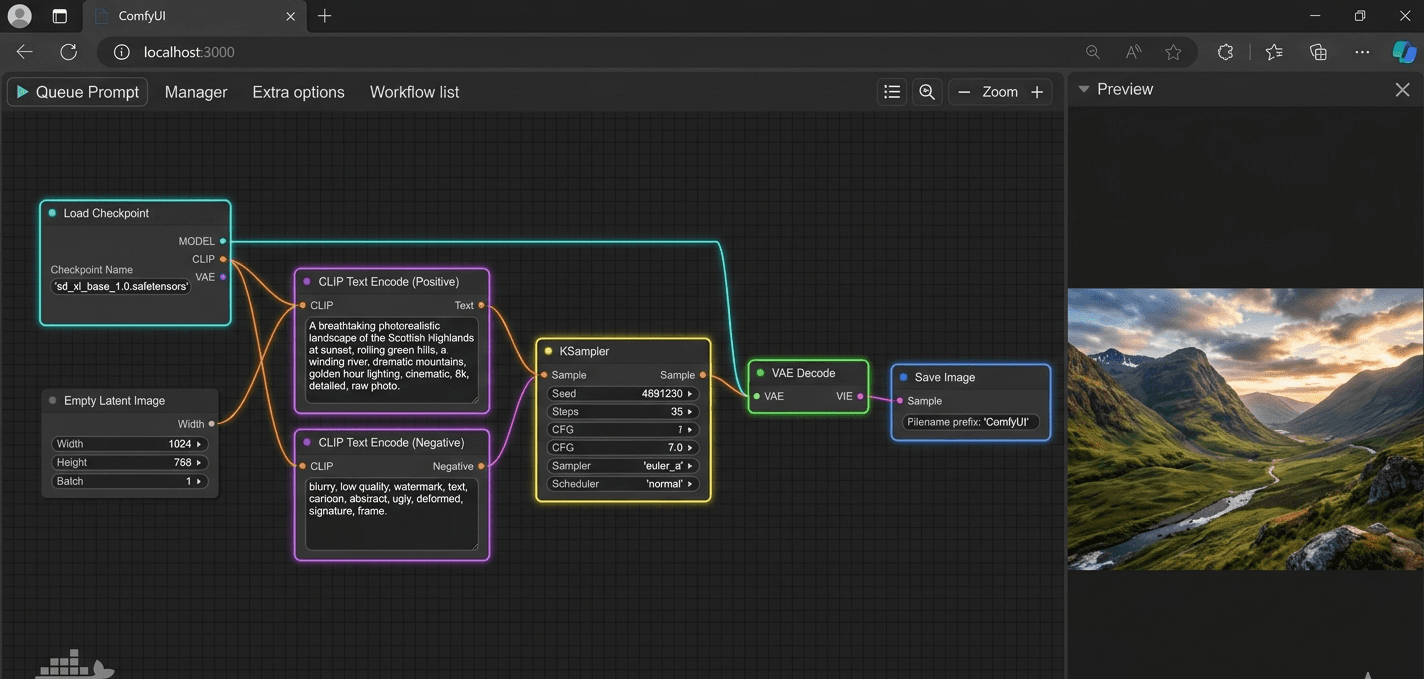
ComfyUI is a node-based interface for AI image generation that runs Stable Diffusion, SDXL, Flux, and SD3 models entirely on your hardware. It reached 65,000+ GitHub stars in early 2026, making it the most widely adopted open-source image generation frontend. All generation runs locally with no API keys, no usage fees, and no data sent to external servers.
Running ComfyUI in Docker eliminates Python dependency conflicts, keeps your host system clean, and lets you deploy it on a remote server without a local GPU. This guide uses the yanwk/comfyui-boot Docker image, one of the most actively maintained community images for ComfyUI. The image no longer uses a `:latest` tag — you pick the tag for your hardware: `cu126-slim` for NVIDIA GPUs, `cpu` for CPU-only, `rocm7` for AMD GPUs.
By the end you will have ComfyUI running at `http://localhost:8188`, models downloaded and selectable in the workflow, Docker Compose configured for automatic restarts, and ComfyUI Manager installed for one-click custom node installation. For server deployments without occupying your local machine, Contabo Cloud VPS starts at €5.45/month for CPU inference and €30.25/month for the Cloud VPS 40 with 48 GB RAM, which handles SDXL and most Flux workflows comfortably.
Prerequisites
- Docker Engine 24.x+ installed (verify with: docker --version)
- Docker Compose v2.x installed (verify with: docker compose version)
- NVIDIA GPU with 6+ GB VRAM for SDXL, 8+ GB for Flux (CPU inference works but is much slower)
- NVIDIA Container Toolkit installed if using GPU (see the GPU Acceleration section below)
- 20+ GB free disk space — SDXL base model is 6.9 GB, Flux Schnell is 23.8 GB
- Linux (Ubuntu 22.04+ recommended), macOS, or Windows 10 with WSL2
Need a VPS?
Run this on a Contabo Cloud VPS 40 starting at €30.25/mo. Reliable Linux VPS with NVMe storage, ideal for self-hosted AI workloads.
In This Guide
What is ComfyUI
ComfyUI is an open-source Stable Diffusion interface built around a node graph model. Instead of filling out a form with a prompt and clicking generate, you build a pipeline by connecting nodes: a model loader node feeds into a text encoder, which feeds into a sampler, which feeds into a VAE decoder, which outputs the image. Each node represents one discrete step in the generation process.
This design is more complex to learn than form-based interfaces, but it gives you precise control over every step. You can route the output of one pipeline into a second, add ControlNet conditioning at a specific point, or run multiple models in sequence without any external scripting.
| Interface | Type | Learning Curve | Flexibility | VRAM Efficiency |
|---|---|---|---|---|
| ComfyUI | Node graph | Steep | Very high | Efficient |
| AUTOMATIC1111 | Form-based | Easy | Moderate | Higher usage |
| Fooocus | Simplified form | Very easy | Low | Efficient |
| InvokeAI | Form + canvas | Moderate | High | Moderate |
| Forge (A1111 fork) | Form-based | Easy | Moderate | Better than A1111 |
ComfyUI is the standard format for sharing advanced workflows. The community publishes workflows as JSON files that load directly into the canvas. A technique that would take hours to configure manually loads in one drag-and-drop. This is why most professional Stable Diffusion users have moved to ComfyUI since 2024.
Install ComfyUI with Docker
The yanwk/comfyui-boot image handles the full ComfyUI installation inside the container. It sets up Python, installs PyTorch with CUDA support, installs all ComfyUI dependencies, and starts the server on port 8188 automatically.
Step 1: Pull the Docker Image
**NVIDIA GPU (most common):**
docker pull yanwk/comfyui-boot:cu126-slim**CPU only (no GPU):**
docker pull yanwk/comfyui-boot:cpuExpected output:
cu126-slim: Pulling from yanwk/comfyui-boot
a8b89c0a8fa5: Pull complete
...
Status: Downloaded newer image for yanwk/comfyui-boot:cu126-slimThe image is approximately 8 GB. A 200 Mbps connection takes about 6 minutes.
Step 2: Run ComfyUI with GPU Support
docker run -d \
  --gpus all \
  -p 8188:8188 \
  -v comfyui_models:/root/comfy/ComfyUI/models \
  -v comfyui_output:/root/comfy/ComfyUI/output \
  -v comfyui_custom_nodes:/root/comfy/ComfyUI/custom_nodes \
  --name comfyui \
  --restart unless-stopped \
yanwk/comfyui-boot:cu126-slimWhat each flag does:
- `--gpus all`: passes all available NVIDIA GPUs to the container
- `-p 8188:8188`: maps the ComfyUI web port to localhost
- `-v comfyui_models:/root/comfy/ComfyUI/models`: persists downloaded models to a named Docker volume so they survive container restarts and updates
- `--restart unless-stopped`: auto-starts ComfyUI when Docker starts
Step 2 (CPU only): Run without GPU
docker run -d \
  -p 8188:8188 \
  -v comfyui_models:/root/comfy/ComfyUI/models \
  -v comfyui_output:/root/comfy/ComfyUI/output \
  -v comfyui_custom_nodes:/root/comfy/ComfyUI/custom_nodes \
  -e CLI_ARGS="--cpu --lowvram" \
  --name comfyui \
  --restart unless-stopped \
yanwk/comfyui-boot:cpuCPU inference generates one 512x512 SD 1.5 image in roughly 5-10 minutes on a modern 4-core CPU. It is functional for testing workflows but not for regular use.
Step 3: Verify the Container is Running
docker psCONTAINER ID IMAGE COMMAND CREATED STATUS PORTS
a1b2c3d4e5f6 yanwk/comfyui-boot:cu126-slim "/entry.sh" 15 seconds ago Up 13 seconds 0.0.0.0:8188->8188/tcpStep 4: Open ComfyUI
Wait 30-60 seconds for the initial startup, then open `http://localhost:8188` in your browser. You should see the ComfyUI canvas with a default text-to-image workflow already loaded on it.
Production Setup with Docker Compose
Docker Compose makes the ComfyUI configuration reproducible and easier to manage. Create a project directory and a `docker-compose.yml` file:
mkdir comfyui && cd comfyui
nano docker-compose.ymlPaste this configuration for GPU deployments:
version: '3.8'

services:
  comfyui:
    image: yanwk/comfyui-boot:cu126-slim
    container_name: comfyui
    ports:
      - "8188:8188"
    volumes:
      - comfyui_models:/root/comfy/ComfyUI/models
      - comfyui_output:/root/comfy/ComfyUI/output
      - comfyui_custom_nodes:/root/comfy/ComfyUI/custom_nodes
    deploy:
      resources:
        reservations:
          devices:
            - driver: nvidia
              count: all
              capabilities: [gpu]
    restart: unless-stopped

volumes:
  comfyui_models:
  comfyui_output:
comfyui_custom_nodes:For CPU-only deployments, replace the entire `deploy:` block with:
    environment:
- CLI_ARGS=--cpu --lowvramStart ComfyUI:
docker compose up -dView logs:
docker compose logs -f comfyuiStop ComfyUI:
docker compose downUpdate ComfyUI to the Latest Version
docker compose pull
docker compose up -dDownload AI Models
ComfyUI is a frontend only. It does not include any AI models. You need to download models and place them in the correct subdirectory inside the models volume before you can generate images.
Model Directory Structure
ComfyUI reads models from these subdirectories inside `/root/comfy/ComfyUI/models`:
| Subdirectory | File Types | What Goes Here |
|---|---|---|
| `checkpoints/` | .safetensors, .ckpt | Main generation models (SD 1.5, SDXL, Flux) |
| `vae/` | .safetensors, .pt | VAE decoders (optional — most modern models include one) |
| `loras/` | .safetensors | LoRA fine-tuned weights for character or style transfer |
| `controlnet/` | .safetensors | ControlNet conditioning models |
| `upscale_models/` | .pth, .pt | ESRGAN and other upscaling models |
| `clip/` | .safetensors | CLIP and T5 text encoders (required for Flux models) |
Recommended Starting Models
| Model | Size | VRAM Needed | Best For | Source |
|---|---|---|---|---|
| Juggernaut XL v9 | 6.9 GB | 6 GB | Photorealistic images | Civitai |
| SDXL Base 1.0 | 6.9 GB | 6 GB | General purpose SDXL | Hugging Face |
| DreamShaper 8 (SD 1.5) | 2.1 GB | 4 GB | Artistic, lower VRAM | Civitai |
| Flux Schnell | 23.8 GB | 8 GB | High quality, 8-step | Hugging Face |
Download via Hugging Face CLI
Install the Hugging Face CLI on your host:
pip install huggingface-hubFind where Docker stores the models volume:
docker volume inspect comfyui_models
# Look for the "Mountpoint" field, e.g.:
# "Mountpoint": "/var/lib/docker/volumes/comfyui_models/_data"Download SDXL Base 1.0 into the checkpoints directory:
huggingface-cli download stabilityai/stable-diffusion-xl-base-1.0 \
  sd_xl_base_1.0.safetensors \
--local-dir /var/lib/docker/volumes/comfyui_models/_data/checkpointsDownload Directly into the Running Container
docker exec comfyui wget \
  -O /root/comfy/ComfyUI/models/checkpoints/sdxl_base_1.0.safetensors \
"https://huggingface.co/stabilityai/stable-diffusion-xl-base-1.0/resolve/main/sd_xl_base_1.0.safetensors"After downloading, refresh the model list in ComfyUI: click the gear icon in the top-right corner, then click Refresh. The new model appears in the Load Checkpoint node dropdown.
Run Your First Image Generation Workflow
When you open ComfyUI at `http://localhost:8188`, the default text-to-image workflow is already loaded on the canvas. This workflow generates one image from a text prompt using a standard Stable Diffusion pipeline.
Default Workflow Node Overview
| Node | Purpose | Key Setting to Change |
|---|---|---|
| Load Checkpoint | Loads the model file | Select your downloaded .safetensors file |
| CLIP Text Encode (Positive) | Encodes your prompt | Type your positive prompt here |
| CLIP Text Encode (Negative) | Encodes what to exclude | Common: "blurry, low quality, watermark" |
| Empty Latent Image | Sets output resolution | Change to 1024x1024 for SDXL |
| KSampler | Runs the diffusion process | Steps: 20, CFG: 7.0, Sampler: euler |
| VAE Decode | Converts latent space to pixels | Connected automatically |
| Save Image | Saves the result | Files saved to `/root/comfy/ComfyUI/output` |
Step 1: Select Your Model
Click the model name in the Load Checkpoint node. A dropdown lists all files in `models/checkpoints/`. Select the model you downloaded.
Step 2: Write a Prompt
Click the CLIP Text Encode node labeled as the positive prompt and type your text. A starting prompt for SDXL:
a photo of a mountain lake at sunset, golden hour light, reflections on still water, photorealistic, sharp focus, 8kIn the negative CLIP Text Encode node, add:
blurry, low quality, watermark, text, signature, oversaturated, cartoon, deformedStep 3: Set Resolution
Click the Empty Latent Image node. Change width and height to 1024 for SDXL models. Leave at 512 for SD 1.5 models.
Step 4: Generate
Click Queue Prompt (blue button, top-right) or press Ctrl+Enter. The progress bar on the KSampler node shows generation progress. On a 6 GB GPU running SDXL at 1024x1024 with 20 steps, generation takes 15-30 seconds.
Generated images save automatically to `/root/comfy/ComfyUI/output`. Copy them to your host:
docker cp comfyui:/root/comfy/ComfyUI/output/. ./output/Install Custom Nodes with ComfyUI Manager
Custom nodes extend ComfyUI with new node types: ControlNet preprocessing, face restoration, inpainting tools, workflow utilities, and model-specific samplers. ComfyUI Manager is the standard package manager for custom nodes, installed as a custom node itself.
Install ComfyUI Manager
Clone the ComfyUI Manager repository into the custom_nodes directory inside the container:
docker exec -it comfyui bash -c "cd /root/comfy/ComfyUI/custom_nodes && git clone https://github.com/ltdrdata/ComfyUI-Manager.git"Restart the container to load the new node:
docker restart comfyuiAfter restart, a Manager button appears in the top-right of the ComfyUI canvas.
Install Additional Custom Nodes via Manager
1. Click the Manager button 2. Click Install Custom Nodes 3. Search for the node pack you want 4. Click Install 5. Restart the container: `docker restart comfyui`
Popular Custom Node Packs
| Node Pack | Purpose | GitHub Stars |
|---|---|---|
| ComfyUI-Impact-Pack | Detection, face restoration, inpainting | 4,800+ |
| comfyui_controlnet_aux | ControlNet preprocessors (Canny, Depth, OpenPose) | 3,200+ |
| ComfyUI-WAS-Node-Suite | 200+ utility nodes for text, images, masks | 2,900+ |
| Ultimate SD Upscale | Tiled upscaling for large output images | 2,100+ |
| ComfyUI-AnimateDiff-Evolved | Video generation from SD models | 3,600+ |
GPU Acceleration with NVIDIA Container Toolkit
The `--gpus all` flag in the Docker run command requires the NVIDIA Container Toolkit installed on the host. Without it, Docker cannot access the GPU and ComfyUI falls back to CPU inference automatically.
Check if GPU Access is Working
docker exec comfyui nvidia-smiIf GPU access is working, you see the NVIDIA driver table showing your GPU model and CUDA version. If it returns "nvidia-smi: not found" or "Failed to initialize NVML", the toolkit is not installed.
Install NVIDIA Container Toolkit on Ubuntu 22.04
# Add the NVIDIA Container Toolkit repository
curl -fsSL https://nvidia.github.io/libnvidia-container/gpgkey | sudo gpg --dearmor -o /usr/share/keyrings/nvidia-container-toolkit-keyring.gpg

curl -s -L https://nvidia.github.io/libnvidia-container/stable/deb/nvidia-container-toolkit.list | \
  sed 's#deb https://#deb [signed-by=/usr/share/keyrings/nvidia-container-toolkit-keyring.gpg] https://#g' | \
  sudo tee /etc/apt/sources.list.d/nvidia-container-toolkit.list

sudo apt-get update
sudo apt-get install -y nvidia-container-toolkit

# Configure Docker to use the NVIDIA runtime
sudo nvidia-ctk runtime configure --runtime=docker
sudo systemctl restart dockerVerify with a test container:
docker run --rm --gpus all nvidia/cuda:12.1.1-base-ubuntu22.04 nvidia-smiExpected output includes your GPU name, driver version, and CUDA version in the standard NVIDIA table format.
VRAM Optimization Flags
If ComfyUI runs out of VRAM during generation, add optimization flags via the `CLI_ARGS` environment variable in your Docker Compose file:
| Flag | Effect | When to Use |
|---|---|---|
| `--lowvram` | Aggressively offloads to system RAM | 4-6 GB VRAM GPUs |
| `--medvram` | Moderate offloading | 6-8 GB VRAM GPUs |
| `--medvram-sdxl` | Offloads SDXL-specific components | Running SDXL on 6 GB |
| `--cpu` | Disables GPU entirely | No GPU or debugging |
| `--fp8_e4m3fn` | 8-bit float precision for weights | RTX 40xx series GPUs |
Add to your Docker Compose service:
    environment:
- CLI_ARGS=--medvram-sdxlTroubleshooting
ComfyUI shows "CUDA out of memory" error during generation
Cause: The model requires more VRAM than is available. SDXL at 1024x1024 needs 6+ GB VRAM without optimization flags.
Fix: Add --medvram-sdxl to CLI_ARGS in your Docker Compose environment section. Or reduce image resolution to 768x768. For Flux models, a minimum of 8 GB VRAM is required even with --medvram.
Port 8188 is already in use when starting the container
Cause: Another process or a stopped ComfyUI container is holding port 8188.
Fix: Run docker ps -a to list all containers including stopped ones. Remove the old container with docker rm comfyui. Alternatively, change the port mapping in your run command to -p 8189:8188 to use port 8189.
No models appear in the Load Checkpoint node dropdown
Cause: The model file is not in the checkpoints/ subdirectory of the models volume, or it was added after ComfyUI loaded.
Fix: Verify the file location: docker exec comfyui ls /root/comfy/ComfyUI/models/checkpoints/. Then click the gear icon in ComfyUI and click Refresh to reload the model list without restarting.
"--gpus all" throws an error on docker run
Cause: NVIDIA Container Toolkit is not installed, or Docker was not restarted after the toolkit was installed.
Fix: Install the NVIDIA Container Toolkit following the GPU Acceleration section. After installation run sudo systemctl restart docker, then re-run the docker run command.
Generated images are solid black or solid grey
Cause: The VAE included in the model is incompatible or failed to load. Common with older .ckpt checkpoint files.
Fix: Download the correct standalone VAE for your model. For SDXL, download sdxl_vae.safetensors from Stability AI on Hugging Face and place it in models/vae/. Then add a VAE Loader node to your workflow and connect it to the KSampler input.
Custom nodes not loading after docker restart
Cause: The custom_nodes volume is not mounted, or the node has Python dependencies that failed to install.
Fix: Confirm the custom_nodes volume mount is in your docker run command or docker-compose.yml. For missing dependency errors, check docker logs comfyui for the specific package name and run docker exec -it comfyui pip install
Alternatives to Consider
| Tool | Type | Price | Best For |
|---|---|---|---|
| AUTOMATIC1111 (Stable Diffusion WebUI) | Self-hosted | Free | Beginners who want a simpler form-based interface with a large one-click extensions library |
| Fooocus | Desktop app | Free | Users who want high-quality SDXL output with near-zero configuration and no node graph learning curve |
| InvokeAI | Self-hosted | Free | Users who want a polished UI with integrated canvas-based inpainting and outpainting tools |
| Forge (WebUI Forge) | Self-hosted | Free | AUTOMATIC1111 users who need better VRAM efficiency and Flux model support on the same familiar interface |
Frequently Asked Questions
Is ComfyUI free to use?
Yes. ComfyUI is open source under the GPL-3.0 license and completely free. The software, all built-in node types, and ComfyUI Manager are free to download and use. The only costs are the AI models themselves (most are free on Hugging Face and Civitai) and compute hardware or a VPS.
Hugging Face hosts SDXL, Flux Schnell, and hundreds of community fine-tuned models at no cost. Civitai hosts community-trained models and LoRAs, also free. A small number of commercial models require payment, but the standard workflow models used in this guide are all free.
Can I run ComfyUI without a GPU?
Yes. Pass the `--cpu` flag via the `CLI_ARGS` environment variable:
CLI_ARGS=--cpu --lowvramCPU inference is significantly slower than GPU inference. A 512x512 image with SD 1.5 at 20 steps takes 5-10 minutes on a modern 4-core CPU, compared to 5-10 seconds on a mid-range GPU. For SDXL at 1024x1024, CPU generation takes 30-60 minutes per image.
CPU mode is practical for testing and debugging workflows. It is not suitable for regular image generation work.
What is the difference between ComfyUI and AUTOMATIC1111?
AUTOMATIC1111 uses a traditional form-based interface: fill in a prompt, adjust sliders, click generate. It has a lower learning curve and a large extensions library.
ComfyUI uses a node graph where every step in the generation pipeline is a separate node you connect manually. This is harder to learn initially but gives you precise control over the entire process. You can build complex multi-step pipelines, run multiple models in sequence, and share workflows as JSON files that others can load directly.
In practice: A1111 is faster to start with. ComfyUI is more capable once you learn it. Most professional Stable Diffusion users have moved to ComfyUI since 2024 because community-shared JSON workflows let you reproduce complex techniques without manual configuration.
How much VRAM do I need for ComfyUI?
VRAM requirements by model type:
- SD 1.5 models (2 GB files): 4 GB VRAM minimum, 6 GB comfortable
- SDXL models (6.9 GB files): 6 GB VRAM with --medvram-sdxl, 8 GB comfortable
- Flux Schnell and Flux Dev (23.8 GB files): 8 GB VRAM with --medvram, 12 GB comfortable, 24 GB for full float16 precision
ComfyUI's --lowvram and --medvram flags offload model components to system RAM when VRAM is insufficient, at the cost of slower generation. On a 6 GB GPU you can run SDXL with --medvram-sdxl active.
How do I update ComfyUI in Docker?
Pull the latest image and restart the container. Named Docker volumes preserve your models, outputs, and custom nodes across updates.
With Docker Compose:
docker compose pull
docker compose up -dWithout Docker Compose:
docker stop comfyui
docker rm comfyui
docker pull yanwk/comfyui-boot:cu126-slim
docker run -d --gpus all -p 8188:8188 \
  -v comfyui_models:/root/comfy/ComfyUI/models \
  -v comfyui_output:/root/comfy/ComfyUI/output \
  -v comfyui_custom_nodes:/root/comfy/ComfyUI/custom_nodes \
  --name comfyui --restart unless-stopped \
yanwk/comfyui-boot:cu126-slimComfyUI Manager also includes an Update ComfyUI button that updates the application code inside the running container without a full image pull.
Can I access ComfyUI from another device on my network?
Yes. The yanwk/comfyui-boot image starts ComfyUI with the --listen flag, which binds it to `0.0.0.0` instead of `127.0.0.1`. This accepts connections from any IP that can reach the host machine.
From another device on the same network, open `http://
For access over the internet, add an Nginx reverse proxy with a Let's Encrypt SSL certificate. The setup process is the same as the n8n on VPS guide: point a domain at the server IP, install Nginx, configure a proxy pass to port 8188, and run Certbot for SSL.
What models does ComfyUI support?
ComfyUI supports any model using the Stable Diffusion architecture or compatible formats:
- SD 1.5 and fine-tuned variants (DreamShaper, Realistic Vision, Deliberate, etc.)
- SDXL and fine-tuned variants (Juggernaut XL, RealVisXL, SDXL Turbo, etc.)
- Flux Schnell and Flux Dev from Black Forest Labs
- Stable Diffusion 3 and SD 3.5
- ControlNet models for any of the above base models
- LoRA fine-tuned weights compatible with any base model
Models in .safetensors format load faster than older .ckpt files. Flux models require separate CLIP-L, CLIP-G, and T5-XXL text encoder files in addition to the main UNet weights, which adds to the total download size.
How do I back up my ComfyUI workflows?
Workflows are JSON files exported directly from the canvas. To save the current workflow:
1. Press Ctrl+S or click Save in the top menu 2. The workflow downloads as a `.json` file to your browser download folder
To load a saved workflow: drag and drop the JSON file onto the canvas, or use the Load button in the menu.
To back up models and custom nodes stored in Docker volumes:
# Back up the models volume
docker run --rm \
  -v comfyui_models:/source \
  -v $(pwd):/backup \
alpine tar czf /backup/comfyui_models_backup.tar.gz -C /source .Related Guides
How to Run Stable Diffusion Locally: ComfyUI and AUTOMATIC1111 Guide
How to Run Ollama Locally: Complete Setup Guide (2026)
Best Local LLM Models to Run in 2026 (Benchmarks + Use Cases)
How to Install Flowise with Docker: AI Agent Builder Setup Guide