
How to Run DeepSeek OCR on Ollama: Local Setup Guide (2026)
DeepSeek OCR runs locally on Ollama as a 3B vision model using optical context compression. Install it, run it on images, and convert documents to Markdown.

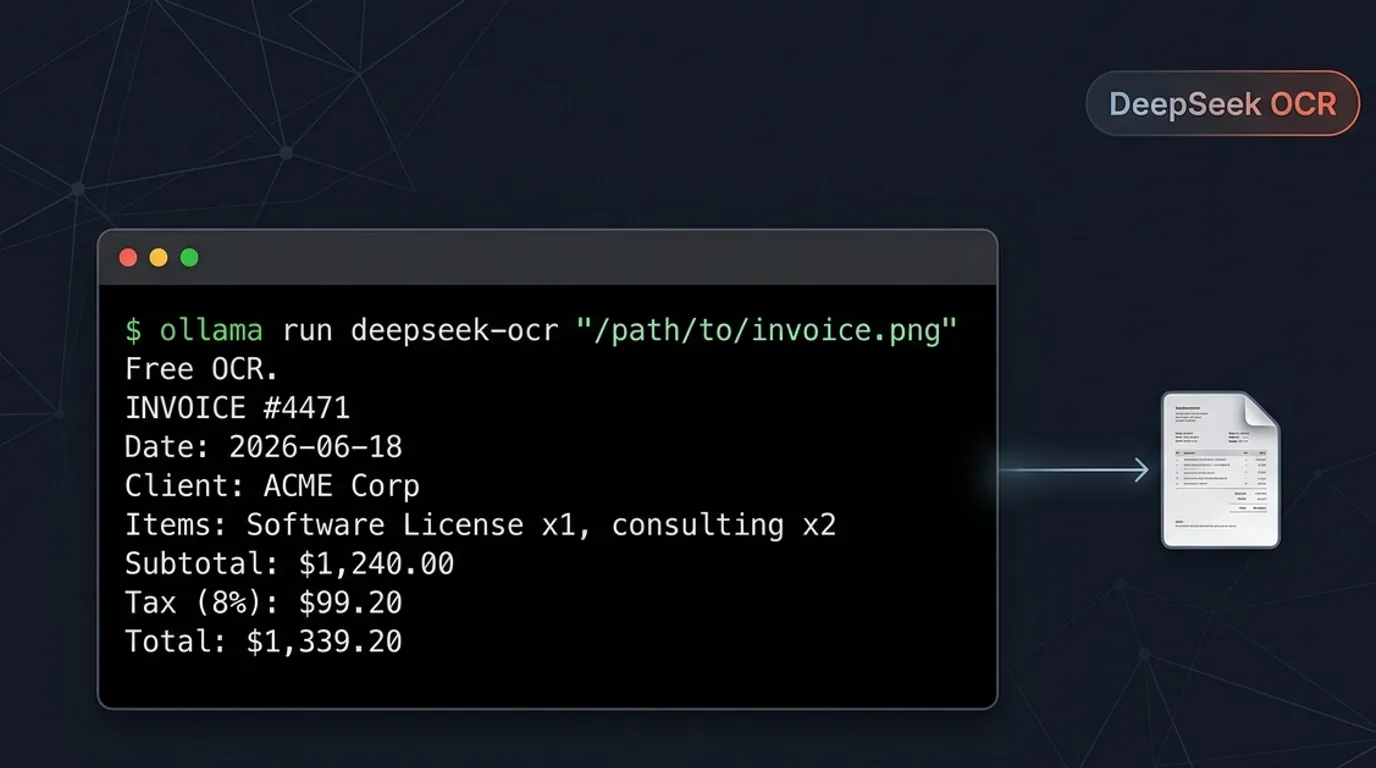
DeepSeek OCR is a vision-language model from DeepSeek AI that reads images and document pages and converts them into plain text or Markdown, and unlike the cloud-only flagships covered elsewhere on this site (Kimi K2.6, GLM 5.2, MiniMax M3), this one is a genuinely local model. At 3.34 billion parameters and a 6.7 GB download, it pulls and runs through Ollama's official library with a single command, no sign-in, no cloud account, and no licensing friction since it ships under MIT.
The model's core idea is what DeepSeek calls optical context compression. Most OCR and document-parsing tools turn a page into hundreds or thousands of text tokens before an LLM ever reads it. DeepSeek OCR instead renders the page as an image, compresses it through a vision encoder into a much smaller set of vision tokens, then decodes those tokens back into text. According to DeepSeek's research paper, when the ratio of original text tokens to vision tokens stays under 10x, decoding precision reaches about 97 percent, and even at a 20x compression ratio the model still recovers roughly 60 percent of the text correctly.
This guide covers installing Ollama, pulling and running deepseek-ocr, the specific prompt patterns the model expects (it is unusually sensitive to formatting), converting a document image to Markdown, and reaching the model from your own scripts through Ollama's API. The alternatives section near the end covers Tesseract, GOT-OCR2.0, and MinerU2.0 for anyone who needs a different tradeoff between speed, accuracy, and hardware.
Prerequisites
- Ollama 0.13.0 or later, installed on Linux, macOS, or Windows (earlier versions do not support DeepSeek OCR)
- 8 GB or more of free disk space for the 6.7 GB model download
- (Optional) An NVIDIA GPU with 8 GB or more of VRAM for faster inference; the model also runs on CPU, just more slowly
- A scanned document, PDF page exported as an image, or screenshot to test OCR on (PNG or JPEG)
- Basic terminal familiarity for running `ollama run` and `curl` commands
Need a VPS?
Run this on a Contabo Cloud VPS 10 starting at €5.45/mo. Reliable Linux VPS with NVMe storage, ideal for self-hosted AI workloads.
In This Guide
What DeepSeek OCR Is and How Optical Compression Works
DeepSeek OCR is built from two pieces: a DeepEncoder with roughly 380 million parameters that combines window attention (based on SAM-base) and global attention (based on CLIP-large) through a 16x convolutional compressor, and a DeepSeek3B-MoE-A570M decoder that turns the compressed vision tokens into text. The whole pipeline totals 3.34 billion parameters, small enough that Ollama distributes it as a single 6.7 GB F16 file rather than the multi-hundred-gigabyte downloads that cloud-only models like MiniMax M3 require.
The detail that makes DeepSeek OCR worth a dedicated guide is optical context compression. A typical page of dense text might run 6,000 or more tokens once it's parsed into raw text. DeepSeek OCR instead encodes the rendered page image into a much smaller number of vision tokens and reconstructs the text from those. On OmniDocBench, DeepSeek's own benchmark, the model matches GOT-OCR2.0's accuracy (which needs 256 tokens per page) using only about 100 vision tokens, and it outperforms MinerU2.0 (which averages over 6,000 tokens per page) while using fewer than 800 vision tokens. On the independent olmOCR-bench benchmark, DeepSeek OCR scores 75.7 overall, with 77.2 on Arxiv Math documents and 73.6 on old, lower-quality scans.
Here's how DeepSeek OCR compares to two of the document-parsing tools it benchmarks against:
| Tool | Vision Tokens per Page | Runs Locally on Ollama | License |
|---|---|---|---|
| DeepSeek OCR | ~100-800 (compression-based) | Yes (`deepseek-ocr`) | MIT |
| GOT-OCR2.0 | ~256 | No (Hugging Face transformers only) | Apache 2.0 |
| MinerU2.0 | 6,000+ | No (Python pipeline) | Not covered in this guide |
The model card on Hugging Face (`deepseek-ai/DeepSeek-OCR`) also documents five resolution presets, Tiny, Small, Base, Large, and Gundam, that trade accuracy for speed by changing how large the input image is and whether it gets cropped into tiles before encoding. Ollama's `deepseek-ocr` tag ships with a fixed default and does not expose these presets as a runtime option, which the next section covers in more detail.
Install Ollama and Run DeepSeek OCR
Step 1: Install Ollama
# Linux and macOS, one-command installer
curl -fsSL https://ollama.com/install.sh | shOn Windows, download the installer from ollama.com/download, or use winget:
winget install Ollama.OllamaStep 2: Confirm You're on Ollama 0.13.0 or Later
ollama --versionStep 3: Pull and Run DeepSeek OCR
ollama run deepseek-ocrThis downloads the 6.7 GB model file (tagged `deepseek-ocr:3b`, aliased to `latest`) the first time you run it, then drops you into an interactive prompt. Subsequent runs skip the download.
Step 4: Run OCR on an Image
Pass the image path and an instruction together, separated by a literal `\n`:
ollama run deepseek-ocr "/path/to/invoice.png\nFree OCR."Expected output is the plain text extracted from the image, printed directly to the terminal. For a scanned invoice, that might look like:
INVOICE #4471
Date: 2026-06-18
Bill To: Acme Corp
Subtotal: $1,240.00
Tax: $99.20
Total: $1,339.20OCR Prompts: Plain Text, Markdown, Layout, and Figures
DeepSeek OCR responds to a small set of documented prompt patterns, each suited to a different task. All of them follow the same structure: the image path, a literal `\n`, then the instruction.
| Task | Prompt | ||
|---|---|---|---|
| Extract plain text | `Free OCR.` | ||
| Extract text (alternate phrasing) | `Extract the text in the image.` | ||
| Convert to Markdown with structure preserved | `<\ | grounding\ | >Convert the document to markdown.` |
| Describe a chart, diagram, or figure | `Parse the figure.` | ||
| Get layout/bounding-box information | `<\ | grounding\ | >Given the layout of the image.` |
The `<|grounding|>` tag tells the model to track where text sits on the page, which is what makes the Markdown conversion preserve headings, lists, and table structure instead of flattening everything into one block of text:
ollama run deepseek-ocr "/path/to/report-page-1.png\n<|grounding|>Convert the document to markdown."Batch-Converting a Folder of Scanned Pages
For multi-page documents exported as individual images, a simple loop processes each page and writes the Markdown output to its own file:
for img in pages/*.png; do
  name=$(basename "$img" .png)
  ollama run deepseek-ocr "$img\n<\|grounding\|>Convert the document to markdown." > "output/$name.md"
doneConcatenate the resulting files afterward if you need a single combined Markdown document.
About the Tiny/Small/Base/Large/Gundam Resolution Presets
DeepSeek's Hugging Face model card documents five resolution presets that change how the image gets resized and whether it's cropped into tiles before encoding, from Tiny (512x512, fastest, lowest accuracy on dense text) up to Gundam (1024 base size with 640px tiled crops, the preset DeepSeek recommends for dense documents). Ollama's `deepseek-ocr` tag does not expose these presets through the command line or API; it runs with a single fixed default. If you specifically need control over resolution mode, for example to push accuracy higher on a dense academic paper, that requires running the model directly through Hugging Face transformers rather than through Ollama.
Use DeepSeek OCR From Scripts via the Ollama API
Ollama exposes every local model, including `deepseek-ocr`, through its REST API on `localhost:11434`, which means you can build an OCR pipeline without shelling out to the CLI for every image.
Call DeepSeek OCR with curl
Ollama's API takes images as base64-encoded strings in the `images` array:
IMAGE_B64=$(base64 -w0 invoice.png)

curl http://localhost:11434/api/generate -d "{
  \"model\": \"deepseek-ocr\",
  \"prompt\": \"Free OCR.\",
  \"images\": [\"$IMAGE_B64\"],
  \"stream\": false
}"Expected output (truncated):
{
  "model": "deepseek-ocr",
  "response": "INVOICE #4471\nDate: 2026-06-18\nBill To: Acme Corp\n...",
  "done": true
}Python Example
import base64
from ollama import Client

client = Client(host="http://localhost:11434")

with open("invoice.png", "rb") as f:
    image_b64 = base64.b64encode(f.read()).decode()

response = client.generate(
    model="deepseek-ocr",
    prompt="<|grounding|>Convert the document to markdown.",
    images=[image_b64],
)
print(response["response"])This is the same pattern covered in the Ollama with Python guide, with an `images` argument added for the vision input.
Troubleshooting
`ollama run deepseek-ocr` fails with a "model not found" or compatibility error
Cause: The installed Ollama version predates 0.13.0, which is the minimum version DeepSeek OCR requires
Fix: Re-run the install command (`curl -fsSL https://ollama.com/install.sh | sh` on Linux/macOS, or re-download on Windows) to update, then check with `ollama --version` before retrying.
Output is garbled, cut off, or missing most of the text
Cause: The prompt formatting is slightly off, such as a missing newline between the image path and instruction, or a missing period after "Free OCR"
Fix: Copy the exact prompt patterns from this guide. DeepSeek OCR is documented as sensitive to small formatting differences like punctuation and line breaks in the prompt.
"Convert the document to markdown" returns plain, unstructured text instead of Markdown formatting
Cause: The `<|grounding|>` tag was left out of the prompt, so the model has no layout signal to preserve headings, lists, or tables
Fix: Always prefix Markdown and layout requests with `<|grounding|>`, for example `<|grounding|>Convert the document to markdown.`
"image not found" or a file-path error when running the command
Cause: A relative path was used from the wrong working directory, or the path contains unescaped spaces
Fix: Use an absolute path to the image, and wrap the full prompt string (path plus instruction) in quotes so spaces in the path or instruction don't break shell parsing.
Inference is very slow (a minute or more per image)
Cause: The model is running on CPU rather than a GPU
Fix: Confirm `ollama ps` shows GPU usage; if not, check that your NVIDIA/AMD GPU drivers and the relevant Ollama GPU support are installed correctly. CPU inference works but is noticeably slower, which is fine for occasional use but not for high-volume batch jobs.
Output stops partway through a long, dense document page
Cause: The 8K context length on Ollama's `deepseek-ocr` tag was exceeded by an unusually text-dense page
Fix: Split the page into smaller crops or process it at a higher resolution preset via Hugging Face transformers (Ollama does not expose resolution presets), then stitch the resulting text back together.
Accuracy is noticeably lower on small or dense text compared to the benchmarks
Cause: Ollama's `deepseek-ocr` tag runs with a fixed default resolution preset, not the higher-accuracy Gundam preset DeepSeek recommends for dense documents
Fix: For documents where every line of small text matters, run the model through Hugging Face transformers directly so you can set the Gundam preset, rather than through Ollama.
Alternatives to Consider
| Tool | Type | Price | Best For |
|---|---|---|---|
| Tesseract OCR | CLI / Self-hosted | Free | Simple, clean-text documents on minimal hardware, including low-power devices like a Raspberry Pi, where DeepSeek OCR's 6.7 GB model and GPU benefit aren't worth the overhead. |
| GOT-OCR2.0 | Self-hosted (Hugging Face transformers) | Free | A similar general-purpose OCR model under Apache 2.0, for teams already standardized on Hugging Face transformers rather than Ollama. |
| MinerU2.0 | Self-hosted (Python pipeline) | Free | Dense academic PDFs with complex tables and formulas, where a heavier, more token-intensive pipeline can extract structure that a lighter vision-token model might miss. |
| DeepSeek R1 | Local (Ollama) or VPS | Free | Reasoning-heavy tasks like math, coding, and logic, for anyone who landed on this guide looking for DeepSeek's reasoning model rather than its OCR model. |
Frequently Asked Questions
Can I run DeepSeek OCR locally with Ollama?
Yes, and unlike several recent flagship models covered on this site, DeepSeek OCR is a genuinely local model on Ollama, not a cloud passthrough. It pulls as a single 6.7 GB file (`deepseek-ocr`, 3.34 billion parameters) and runs with `ollama run deepseek-ocr`, no sign-in or cloud account required.
You do need Ollama 0.13.0 or later. Earlier versions don't support the model and return a "model not found" or compatibility error.
What hardware do I need to run DeepSeek OCR?
At 3.34 billion parameters and a 6.7 GB download, DeepSeek OCR is far lighter than the 100+ billion parameter cloud models covered elsewhere on this site. An NVIDIA GPU with 8 GB or more of VRAM gives noticeably faster inference, but the model also runs on CPU alone, just slower, around a minute or more per image depending on your hardware.
For occasional use, a CPU-only setup with 8 GB of RAM is enough. For high-volume batch processing, a GPU or a dedicated VPS makes more sense.
Is DeepSeek OCR free to use commercially?
Yes. DeepSeek OCR ships under the MIT license on Hugging Face, which permits commercial use, modification, and redistribution without needing written authorization from DeepSeek, unlike the stricter community licenses some other large open-weight models use.
How do I convert a scanned document or PDF page to Markdown with DeepSeek OCR?
Export the PDF page as an image (PNG or JPEG), then run it with the `<|grounding|>` tag, which tells the model to preserve layout structure:
ollama run deepseek-ocr "/path/to/page.png\n<|grounding|>Convert the document to markdown."For multi-page documents, loop over each exported page image and write each result to its own Markdown file, then combine them afterward.
Why does DeepSeek OCR output garbled or incomplete text?
DeepSeek OCR is documented as sensitive to small formatting differences in the prompt, such as a missing newline between the image path and the instruction, or a missing period at the end of "Free OCR." Using the exact documented prompt patterns rather than improvised wording fixes most of these cases.
If the output cuts off partway through, the page may be exceeding the 8K context length Ollama's tag uses, in which case splitting the page into smaller sections helps.
What is optical context compression, and why does it matter?
Optical context compression is DeepSeek OCR's core technique: instead of parsing a page directly into thousands of text tokens, the model renders the page as an image and compresses it into a much smaller set of vision tokens before decoding the text back out.
According to DeepSeek's research, this keeps decoding precision around 97 percent when the compression ratio stays under 10x, and the model still recovers roughly 60 percent of the text correctly even at a 20x compression ratio. In practice, this means DeepSeek OCR can match or beat other OCR tools' accuracy while processing far fewer tokens per page, which is faster and cheaper at scale.
Can I select the Tiny, Small, Base, Large, or Gundam resolution presets through Ollama?
No. DeepSeek's Hugging Face model card documents five resolution presets that trade speed for accuracy, but Ollama's `deepseek-ocr` tag runs with a single fixed default and does not expose these presets as a command-line or API option.
If you need the higher-accuracy Gundam preset for dense documents, that requires running the model directly through Hugging Face transformers instead of Ollama.
How does DeepSeek OCR compare to Tesseract or other OCR tools?
Tesseract is a much older, lighter-weight OCR engine that works on simple, clean text with minimal hardware, but it struggles with complex layouts, tables, and handwriting compared to vision-language models like DeepSeek OCR.
On DeepSeek's own OmniDocBench results, DeepSeek OCR matches GOT-OCR2.0's accuracy using about 100 vision tokens per page (versus GOT-OCR2.0's 256) and outperforms MinerU2.0 (which averages 6,000+ tokens per page) while using fewer than 800 vision tokens. For simple, low-volume jobs on minimal hardware, Tesseract is still the lighter option; for documents with complex layouts, tables, or mixed text and figures, DeepSeek OCR's accuracy per token tends to win out.
Can I use DeepSeek OCR from a Python script instead of the command line?
Yes. Ollama exposes `deepseek-ocr` through its REST API on `localhost:11434`, the same endpoint covered in the Ollama with Python guide. Encode your image as base64 and pass it in the `images` array of a `generate` or `chat` call.
This makes it straightforward to build a batch OCR pipeline, a document-upload endpoint, or any other automated workflow without shelling out to the CLI for every image.