
How to Set Up a Self-Hosted Perplexity Alternative with Perplexica
Install Perplexica with Docker Compose: a self-hosted Perplexity alternative using SearXNG and Ollama. Free, private, no API key needed. 2026 guide.

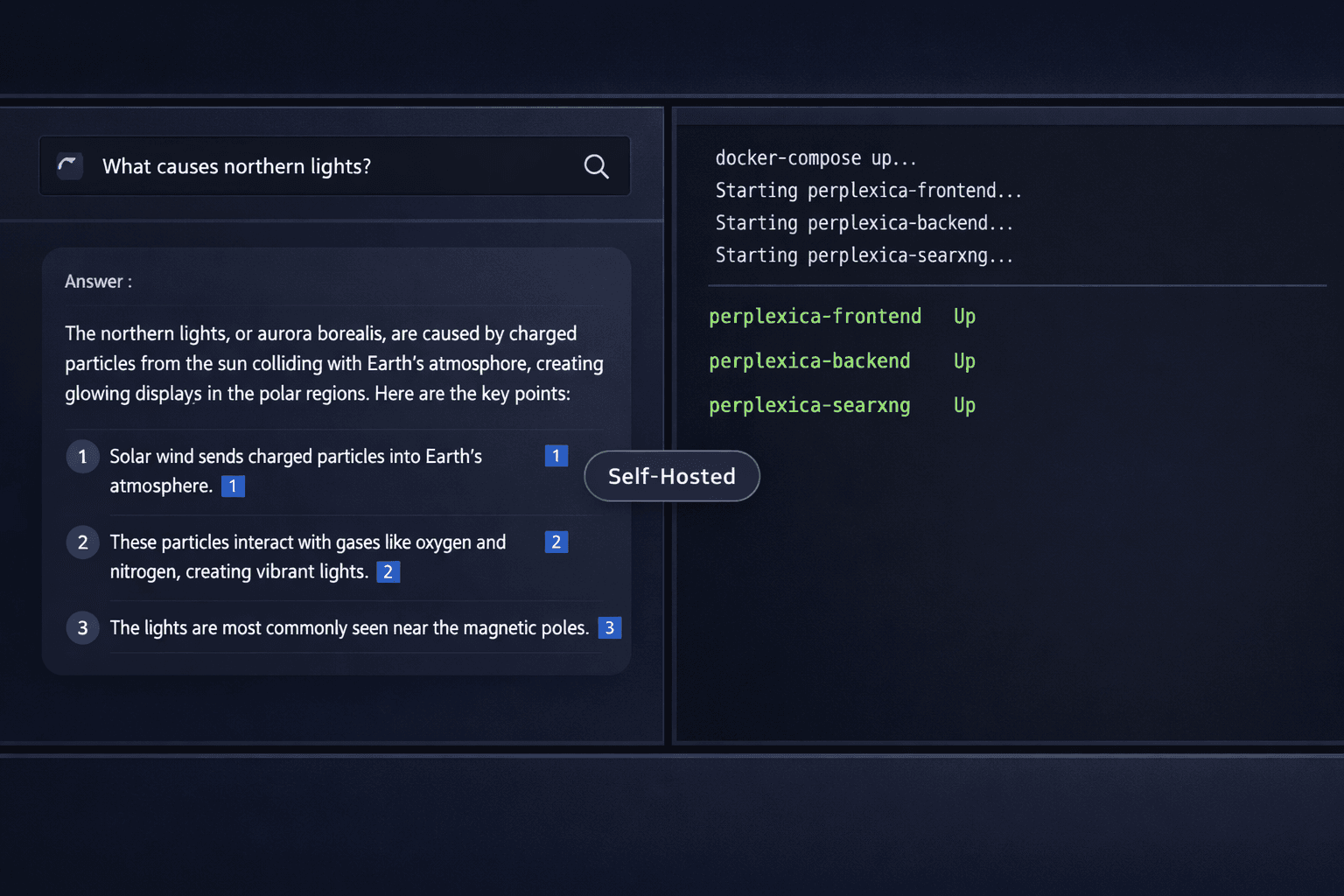
Perplexica is an open-source AI search engine that works like Perplexity.ai: type a question, get a cited answer. The difference is that every part of the stack runs on your own machine. SearXNG handles the web search. Ollama runs the language model. No query leaves your server.
The project has accumulated over 20,000 GitHub stars since its 2024 release, making it one of the fastest-growing self-hosted AI projects on the platform. Every search combines results from multiple engines (Google, Bing, DuckDuckGo) through SearXNG, passes those results to a local LLM, and synthesises a cited answer in 5 to 15 seconds depending on your hardware.
By the end of this guide you will have a working Perplexica instance accessible at http://localhost:3000, connected to Ollama running Llama 3.2 7B or Mistral 7B. You will also see how to configure the six focus modes (Web, Academic, YouTube, Reddit, News, Wolfram Alpha) and how to connect cloud providers like OpenAI or Groq as optional fallbacks.
Prerequisites
- Docker Engine 24.x or later (or Docker Desktop 4.x on macOS or Windows) — download from docs.docker.com/get-docker/
- Docker Compose v2.x, which ships with Docker Desktop. Verify with: docker compose version
- Git installed. Verify with: git --version
- Ollama installed and running locally — see the full setup at /how-to/run-ollama-locally/
- At least 8 GB RAM (16 GB recommended for Mistral-Nemo 12B or larger models)
- For VPS deployment: Contabo Cloud VPS 10 (4 vCores, 8 GB RAM, €5.45/month) handles 7B models at 8-15 seconds per query
Need a VPS?
Run this on a Contabo Cloud VPS 10. Reliable Linux VPS with NVMe storage, ideal for self-hosted AI workloads.
In This Guide
What Is Perplexica
Perplexica is a locally-run AI search engine. When you submit a query, it sends that query to a SearXNG instance (a private meta-search engine running in a Docker container), collects the top results, passes both the query and those results to an LLM running in Ollama, and returns a synthesised answer with numbered citations. The frontend runs on port 3000. The backend API runs on port 3001. SearXNG runs on port 4000, internal to the Docker network.
The project lives at github.com/ItzCrazyKns/Perplexica under the MIT license. It supports six focus modes that change which sources are searched:
| Focus Mode | What It Searches |
|---|---|
| Web | General web pages via SearXNG |
| Academic | Semantic Scholar and arXiv research papers |
| YouTube | Video transcripts and descriptions |
| Reddit posts and comments | |
| News | Recent news articles |
| Wolfram Alpha | Computational and factual queries |
How Perplexica compares to the main alternatives:
| Feature | Perplexica | Perplexity.ai Pro | SearXNG Standalone | Open-WebUI + Search |
|---|---|---|---|---|
| Cost | Free | $20/month | Free | Free |
| Privacy | Fully local | Cloud-tracked | Fully local | Fully local |
| AI answer synthesis | Yes | Yes | No | Yes |
| Cited sources | Yes | Yes | No | Partial |
| Focus modes | 6 modes | 6 modes | None | None |
| Hardware required | 8 GB RAM minimum | None | 1 GB RAM | 8 GB RAM minimum |
| Setup time | ~25 minutes | Instant | ~10 minutes | ~20 minutes |
Perplexica is not a speed replacement for Perplexity.ai Pro. On a CPU-only machine, a 7B model takes 8 to 15 seconds per query. On a machine with an NVIDIA RTX 3060 12 GB, the same query finishes in 2 to 4 seconds. Perplexity.ai responds in under 2 seconds from any device. The trade-off is privacy: with Perplexica, nothing leaves your server.
Clone the Repository and Configure Perplexica
Step 1: Clone the Perplexica Repository
Clone the repository and move into the project directory:
git clone https://github.com/ItzCrazyKns/Perplexica.git
cd PerplexicaThe repository ships with a sample config file. Copy it to create your working configuration:
cp config.toml.example config.tomlStep 2: Edit config.toml
Open `config.toml` in any text editor. The file has three sections:
[GENERAL]
PORT = 3001                          # Backend API port — leave as 3001
SIMILARITY_MEASURE = "cosine"        # Algorithm used to rank search results

[API_KEYS]
OPENAI = ""      # Optional — paste your OpenAI key here to use GPT-4o instead of Ollama
GROQ = ""        # Optional — Groq provides free-tier fast inference (Llama 3.3, Mixtral)
ANTHROPIC = ""   # Optional — Claude 3.5 Sonnet, Claude 3 Haiku

[API_ENDPOINTS]
SEARXNG = "http://searxng:8080"               # SearXNG address inside the Docker network
OLLAMA = "http://host.docker.internal:11434" # Ollama address — see the table belowThe correct `OLLAMA` value depends on where Ollama is running:
| Setup | OLLAMA value in config.toml |
|---|---|
| Ollama on the same Mac or Windows host | `http://host.docker.internal:11434` |
| Ollama on the same Linux host | `http://172.17.0.1:11434` (Docker bridge gateway) |
| Ollama on a separate machine | `http://[machine-ip]:11434` |
Leave `API_KEYS` blank to use only local Ollama inference. Perplexica uses Ollama as long as the `OLLAMA` endpoint is reachable.
Configure SearXNG
Perplexica needs SearXNG to accept API requests and return JSON responses. The default SearXNG Docker image has rate limiting enabled, which blocks Perplexica's rapid successive queries. You must create a custom `settings.yml` before starting the stack.
Step 3: Create the SearXNG Settings File
Create the `searxng` directory inside your Perplexica project folder:
mkdir -p searxngCreate `searxng/settings.yml` with this content:
use_default_settings: true

server:
  limiter: false        # Required — disables rate limiting for Perplexica's query volume
  image_proxy: true

search:
  safe_search: 0
  autocomplete: ""
  default_lang: "auto"

outgoing:
  request_timeout: 6.0

ui:
  static_use_hash: true

enabled_plugins:
- "Hash plugin"The `limiter: false` setting is the critical one. SearXNG's rate limiter blocks rapid queries from the same IP, which is exactly what Perplexica does during a search. Disabling it is safe here because SearXNG is not exposed to the public internet in this setup — it runs only on the internal Docker network (external port 4000 is mapped for debugging, not production use).
Step 4: Review the docker-compose.yaml Port Mappings
The repository ships with a `docker-compose.yaml` defining three services. Verify the default ports suit your setup:
cat docker-compose.yaml| Service | Internal Port | External Port (default) |
|---|---|---|
| perplexica-frontend | 3000 | 3000 |
| perplexica-backend | 3001 | 3001 |
| searxng | 8080 | 4000 |
If port 3000 or 3001 is already in use on your machine, change the left side of the mapping (e.g., `3002:3000`) and access the frontend at http://localhost:3002.
Start Perplexica and Connect Ollama
Step 5: Build and Start the Stack
Build the Docker images and start all three services in detached mode:
docker compose up -d --buildThe first build downloads base images and compiles the Next.js frontend and Node.js backend. On a standard broadband connection this takes 3 to 8 minutes. Subsequent starts (without `--build`) take under 30 seconds.
Verify all three containers are running:
docker compose psExpected output:
NAME                        STATUS    PORTS
perplexica-backend-1        Up        0.0.0.0:3001->3001/tcp
perplexica-frontend-1       Up        0.0.0.0:3000->3000/tcp
perplexica-searxng-1 Up 0.0.0.0:4000->8080/tcpIf any container shows `Exit` status, inspect the logs:
# Check which container failed
docker compose logs perplexica-backend --tail 50
docker compose logs perplexica-searxng --tail 30Step 6: Pull an LLM Model in Ollama
Ollama must be running on your host machine before Perplexica can reach it. Pull a model suited to your hardware:
# 7B model — runs on 8 GB RAM (Q4_K_M quantisation, 4.1 GB download)
ollama pull llama3.2:7b

# Alternative 7B with strong instruction following
ollama pull mistral:7b

# 12B model — for 16 GB RAM machines (Q4_K_M, 7.0 GB download)
ollama pull mistral-nemo:12bHardware reference for model selection:
| Available RAM | Recommended Model | Pull Command | CPU Response Time |
|---|---|---|---|
| 8 GB | Llama 3.2 7B Q4_K_M | `ollama pull llama3.2:7b` | 8-15 seconds |
| 16 GB | Mistral-Nemo 12B Q4_K_M | `ollama pull mistral-nemo:12b` | 12-25 seconds |
| 32 GB | Llama 3.3 70B Q4_K_M | `ollama pull llama3.3:70b` | 60-120 seconds |
Step 7: Open Perplexica and Select Your Model
Open your browser at http://localhost:3000. On the first launch, Perplexica shows a settings panel. Set:
- LLM Provider: Ollama
- Model: the model name you just pulled, for example `llama3.2:7b` or `mistral:7b`
- Ollama URL: `http://host.docker.internal:11434` on macOS or Windows; `http://172.17.0.1:11434` on Linux
Click Save, type a question in the search bar, and choose a focus mode from the header navigation. Your first query confirms the full pipeline is working: SearXNG fetches results, the LLM synthesises an answer, and Perplexica displays numbered citations below the response.
Access Perplexica from Other Devices
Perplexica binds to all network interfaces (`0.0.0.0`) by default. Any device on the same local network can reach it at `http://[your-machine-ip]:3000`.
Find your local IP address:
# Linux
ip addr show | grep "inet " | grep -v 127.0.0.1

# macOS
ipconfig getifaddr en0For access over the internet or from a VPS, configure Nginx as a reverse proxy. Perplexica uses WebSockets for streaming responses, so the Nginx config must include the HTTP upgrade headers.
Nginx Reverse Proxy Configuration
server {
    listen 80;
    server_name search.yourdomain.com;
    return 301 https://$server_name$request_uri;
}

server {
    listen 443 ssl;
    server_name search.yourdomain.com;

    ssl_certificate /etc/letsencrypt/live/search.yourdomain.com/fullchain.pem;
    ssl_certificate_key /etc/letsencrypt/live/search.yourdomain.com/privkey.pem;

    location / {
        proxy_pass http://localhost:3000;
        proxy_http_version 1.1;
        proxy_set_header Upgrade $http_upgrade;
        proxy_set_header Connection "upgrade";
        proxy_set_header Host $host;
        proxy_set_header X-Real-IP $remote_addr;
        proxy_set_header X-Forwarded-Proto $scheme;
    }

    location /api {
        proxy_pass http://localhost:3001;
        proxy_http_version 1.1;
        proxy_set_header Upgrade $http_upgrade;
        proxy_set_header Connection "upgrade";
        proxy_set_header Host $host;
    }
}Obtain a free SSL certificate with Certbot:
sudo certbot --nginx -d search.yourdomain.comAfter configuring the proxy, update the Perplexica frontend to point to your domain. In `docker-compose.yaml`, add these environment variables under the frontend service:
environment:
  - NEXT_PUBLIC_API_URL=https://search.yourdomain.com/api
- NEXT_PUBLIC_WS_URL=wss://search.yourdomain.comRebuild and restart the frontend:
docker compose up -d --build perplexica-frontendFor a Contabo Cloud VPS 10 (€5.45/month, 8 GB RAM), the Perplexica and SearXNG containers use approximately 600 MB of RAM at idle. Ollama with a 7B model loaded adds 4 to 5 GB. A Cloud VPS 10 runs the full stack with 2 to 3 GB of headroom for the operating system and other processes.
Troubleshooting
SearXNG returns no results or an empty response
Cause: Rate limiter active in settings.yml, or all search engine backends are rate-limited by the server IP
Fix: Confirm limiter: false is set in searxng/settings.yml, then restart: docker compose restart perplexica-searxng. Check logs with docker compose logs perplexica-searxng. Individual engines (especially Google) are often blocked from VPS IPs. SearXNG aggregates across engines so partial failures are normal and recoverable.
Ollama connection refused or request timeout
Cause: OLLAMA endpoint in config.toml is wrong for the current OS or network configuration
Fix: On macOS and Windows set OLLAMA = "http://host.docker.internal:11434". On Linux set OLLAMA = "http://172.17.0.1:11434". Confirm Ollama is running: curl http://localhost:11434/api/tags should return a JSON list of models. Then restart the backend: docker compose restart perplexica-backend.
Port 3000 already in use on startup
Cause: Another process (Node.js app, another Docker container) is listening on port 3000
Fix: In docker-compose.yaml, change the frontend port mapping from 3000:3000 to 3002:3000. Run docker compose up -d perplexica-frontend. Access Perplexica at http://localhost:3002. Apply the same fix to port 3001 if the backend port conflicts.
Responses take over 60 seconds per query
Cause: Large model running on CPU without GPU acceleration
Fix: Switch to a smaller model. In Perplexica settings change the model to llama3.2:3b or gemma2:2b, then pull it: ollama pull llama3.2:3b. For GPU acceleration, install the NVIDIA Container Toolkit and add GPU resource reservations to the Ollama Docker service in docker-compose.yaml.
Backend container exits immediately after starting
Cause: config.toml file is missing, in the wrong location, or contains a syntax error
Fix: Run ls -la config.toml from the Perplexica directory to confirm the file exists. TOML syntax errors (unclosed strings, wrong brackets) crash the backend on startup. View the error message: docker compose logs perplexica-backend --tail 50. Copy config.toml.example again if the file is corrupted.
Frontend loads but all searches return a network error
Cause: NEXT_PUBLIC_API_URL environment variable points to the wrong backend address
Fix: For local use, the frontend must reach the backend at http://localhost:3001. If you changed the backend port, update NEXT_PUBLIC_API_URL in docker-compose.yaml under the frontend service and rebuild: docker compose up -d --build perplexica-frontend.
Alternatives to Consider
| Tool | Type | Price | Best For |
|---|---|---|---|
| Morphic | Self-hosted | Free (Tavily Search API required, free tier available) | Teams who want a polished UI with real-time streaming answers and a Next.js codebase they can extend |
| Open-WebUI with Web Search | Self-hosted | Free | Users already running Open-WebUI who want to add basic web search to Ollama without deploying a separate SearXNG instance |
| SearXNG Standalone | Self-hosted | Free | Private web search without any AI response synthesis. Minimal resource usage under 200 MB RAM |
| Perplexity.ai Pro | Cloud | $20/month | Users who need instant sub-2-second responses and have no hardware for local inference |
Frequently Asked Questions
Is Perplexica completely free to use?
Yes. Perplexica is open-source under the MIT license and costs nothing beyond the hardware you run it on. No API keys are required when using Ollama for local inference.
If you connect a cloud LLM provider (OpenAI, Groq, or Anthropic) for faster or more capable responses, you pay those providers at their standard API rates. OpenAI GPT-4o costs $2.50 per million input tokens as of March 2026. For 50 to 100 search queries per day, that is under $1 per month. Groq offers a free tier with rate limits that covers moderate personal use.
For fully free operation: use Ollama with a local model. The electricity cost of running a 7B model on a desktop CPU is approximately $0.01 to $0.03 per hour of continuous use.
Can Perplexica use OpenAI or Anthropic APIs instead of Ollama?
Yes. Perplexica supports three cloud LLM providers as alternatives to Ollama: OpenAI (GPT-4o, GPT-4o mini), Groq (Llama 3.3 70B, Mixtral 8x7B), and Anthropic (Claude 3.5 Sonnet, Claude 3 Haiku).
To enable a cloud provider, add the API key to the `[API_KEYS]` section of `config.toml`:
[API_KEYS]
OPENAI = "sk-proj-..."
GROQ = "gsk_..."
ANTHROPIC = "sk-ant-..."Restart the backend after editing config.toml:
docker compose restart perplexica-backendThen open Perplexica settings in the browser and change the LLM Provider from Ollama to your chosen provider. Groq is the fastest option for free use. Llama 3.3 70B on Groq responds at approximately 800 tokens per second, faster than any local GPU setup.
What is the difference between Perplexica and Open-WebUI with web search?
The core difference is architecture. Perplexica is built around search: every query triggers a SearXNG search, the top results are passed to the LLM as context, and the response always includes numbered citations. SearXNG queries multiple search engines simultaneously and deduplicates the results before passing them to Ollama.
Open-WebUI's web search uses DuckDuckGo or a configured API. The LLM decides whether to trigger a search based on the query content. Citations are less structured, and the feature is an add-on rather than the primary interface.
Use Perplexica when cited, sourced answers are the primary goal. Use Open-WebUI when you want a general-purpose chat interface that occasionally needs current information.
What search engines does SearXNG query during a Perplexica search?
SearXNG is a meta-search engine that queries multiple backends simultaneously and aggregates the results. With default settings it queries Google, Bing, DuckDuckGo, and Brave Search in parallel.
Individual engines may fail or return blocked responses depending on your server IP. Google in particular rate-limits requests from cloud VPS IP addresses. SearXNG handles individual failures gracefully: if Google is blocked, results from Bing and DuckDuckGo still arrive.
You can configure which engines to include or exclude in `searxng/settings.yml` under the `engines` key. The SearXNG documentation at docs.searxng.org lists over 100 supported search backends including Qwant, Startpage, and Mojeek.
Can I access Perplexica from other devices on my local network?
Yes. Perplexica binds to `0.0.0.0` by default, so any device on the same network can reach it at `http://[your-machine-ip]:3000`. Find your machine IP with `ip addr show` on Linux or `ipconfig getifaddr en0` on macOS.
For access over the internet, set up an Nginx reverse proxy with SSL as covered in the "Access Perplexica from Other Devices" section of this guide. Certbot (Let's Encrypt) provides free SSL certificates. Once configured, Perplexica is reachable at `https://search.yourdomain.com`.
For security on internet-facing instances, add HTTP basic authentication to the Nginx config to restrict access to your instance.
What is the best Ollama model to use with Perplexica?
For most hardware (8 to 16 GB RAM), Mistral 7B or Llama 3.2 7B are the best starting points. Both run in Q4_K_M quantisation at 4.1 GB on disk and produce coherent cited answers in 8 to 15 seconds on CPU-only machines.
With 16 GB RAM available, Mistral-Nemo 12B produces noticeably better answer quality for research and academic queries, at 12 to 25 seconds per query on CPU.
On machines with an NVIDIA GPU with 12 GB VRAM or more (RTX 3060 12 GB or better), a 7B to 13B model responds in 2 to 4 seconds per query. Pull the model before starting the Perplexica stack: `ollama pull mistral:7b` or `ollama pull mistral-nemo:12b`.
How do I update Perplexica to a newer version?
Pull the latest source from GitHub, rebuild the Docker images, and restart the stack:
cd Perplexica
git pull origin main
docker compose down
docker compose up -d --buildThe `--build` flag forces Docker to rebuild from the updated source. Your `config.toml` and `searxng/settings.yml` files are not modified by the update. Docker named volumes (chat history, uploaded files) also persist across rebuilds.
Check the Perplexica GitHub releases page before updating. Configuration file field names occasionally change between major releases, which requires manually updating `config.toml` after the git pull.
Does Perplexica work without an internet connection?
No. Perplexica depends on SearXNG making outbound HTTP requests to search engines (Google, Bing, DuckDuckGo). Without internet access, SearXNG returns no results and the LLM has no search context.
The Ollama component works offline, but without search results Perplexica falls back to the model's training knowledge and produces a plain response without citations. This is functionally equivalent to using Ollama directly.
For a fully offline AI assistant, use Open-WebUI connected to Ollama without the web search plugin. Perplexica is designed for the use case where privacy means "no data leaves your server" rather than "no internet connection at all".