
How to Install Hermes Agent with LM Studio (2026)
Set up Hermes Agent with LM Studio as the local inference backend. Covers model loading, 64K context config, provider setup, SOUL.md, and tool-calling models.

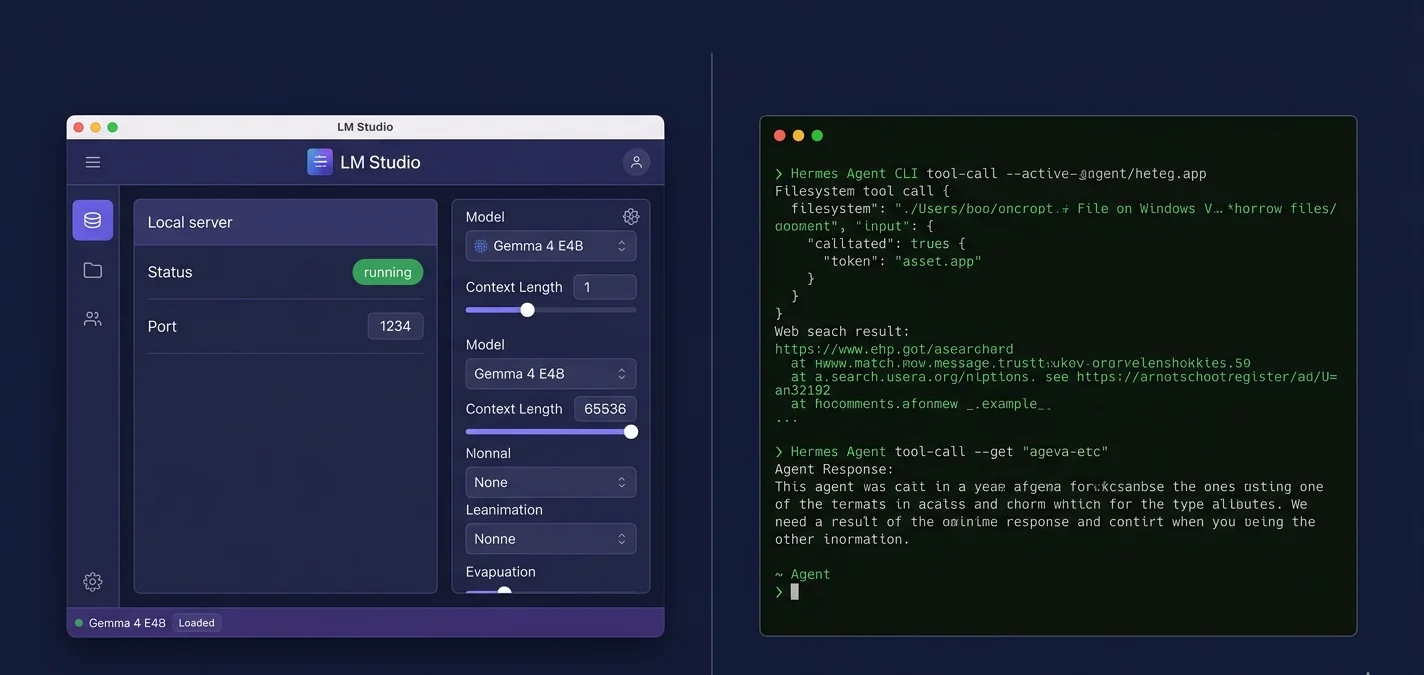
Hermes Agent (MIT license, v0.16.0) is an open-source autonomous AI agent that runs as a persistent process on your machine. It executes multi-step tasks across your filesystem and the web, connects to Telegram, Discord, and other messaging platforms, and builds memory between sessions in a local `~/.hermes/` directory. By default it calls Anthropic and OpenAI. This guide replaces those cloud endpoints with LM Studio, running the full agent stack locally at no per-message cost.
LM Studio brings two things the Ollama backend setup cannot match. On Windows, the combination is fully native: LM Studio ships a Windows app, and Hermes installs via a PowerShell one-liner, with no WSL2 required. On every platform, the LM Studio GUI handles model downloads, context length, and server toggle in four clicks rather than through CLI commands and environment variables. The API it exposes is OpenAI-compatible at `http://localhost:1234/v1`, and Hermes has a built-in LM Studio provider option in its setup wizard.
One configuration step trips up most new setups: the context window. LM Studio reads the default from the model's GGUF metadata, which is typically 2,048 or 4,096 tokens. Hermes needs at least 64,000 tokens to hold its working memory across multi-step tool calls. Set this before loading the model. The guide covers that fix in the second section.
Prerequisites
- LM Studio 0.3.6 or later installed on Linux, macOS, or Windows (download from lmstudio.ai)
- At minimum 8 GB RAM for a 7B-8B model with 64K context; 16-18 GB RAM for Qwen3.5 27B
- 5-18 GB free disk space depending on model size (Gemma 4 E4B is about 5 GB, Qwen3.5 27B is about 16 GB)
- Git installed (only needed if cloning the Hermes repo manually; the one-line installer handles it otherwise)
- (Optional) A GPU with 8 GB or more of VRAM for GPU-accelerated inference on 13B models and larger
- (Optional) A rented GPU if you want to run larger models such as Qwen3.5 27B without buying hardware
Need more GPU power?
Rent a RTX 4090 on Vast.ai from $0.20/hr. On-demand GPU rentals by the hour, useful for running larger models without buying hardware.
In This Guide
What Hermes Agent Does and Why LM Studio Fits the Setup
Hermes Agent (NousResearch/hermes-agent, MIT license) is an autonomous AI agent that runs as a long-lived background process. Unlike chatbots that answer one question at a time, it executes sequences of tool calls: browsing the web, reading and writing files, running terminal commands, and sending messages through connected gateways.
Hermes maintains four components on disk:
- `~/.hermes/SOUL.md` stores your identity and preferences. Loaded at every startup as the primary system context.
- `~/.hermes/memories/` holds fact-based memories extracted from sessions and retrieved by relevance on each run.
- `~/.hermes/skills/` holds step-by-step procedures the agent writes for itself and reuses across sessions.
- The gateway layer handles connections to Telegram, Discord, Slack, WhatsApp, Signal, and email for remote task submission.
Hermes uses any OpenAI-compatible API as its inference backend. LM Studio and Ollama both qualify. The choice between them is mostly practical:
| Factor | LM Studio | Ollama |
|---|---|---|
| API endpoint | `http://localhost:1234/v1` | `http://localhost:11434/v1` |
| Windows | Native app, no WSL2 | WSL2 required for most Windows setups |
| Model management | GUI browser, one-click download | CLI via `ollama pull` |
| Context length | Slider in model settings UI | Environment variable or Modelfile |
| Apple Silicon | MLX builds for faster inference | GGUF with Metal support |
| Hermes integration | Named provider option in setup wizard | Generic OpenAI-compatible endpoint |
For Windows users, LM Studio removes the WSL2 dependency entirely. For anyone who prefers visual model management over a command line, the LM Studio catalog and one-click download flow is faster to set up than Ollama's pull commands. The inference quality and Hermes capabilities are identical once both backends are configured.
Install LM Studio and Load a Tool-Capable Model
LM Studio 0.3.6 or later is required for tool-calling support. Earlier builds expose the chat completions API but do not process function-call schemas reliably, which causes Hermes to stall on tool-dependent tasks.
Step 1: Download and Install LM Studio
Download the installer for your platform from lmstudio.ai. LM Studio ships native builds for macOS (Intel and Apple Silicon), Windows 10/11 (x64), and Linux (AppImage and deb). Run the installer and launch LM Studio.
Confirm the version meets the requirement:
In LM Studio, go to Help and check that the version shown is 0.3.6 or later. If not, download the latest build from lmstudio.ai/download before proceeding.
Step 2: Choose and Download a Model
Hermes requires a model with native tool-calling (function-calling) support and at least 64K context. These models work reliably in LM Studio with Hermes Agent as of mid-2026:
| Model | RAM at Q4 | Download Size | Tool Calling | Best For |
|---|---|---|---|---|
| Gemma 4 E4B Instruct | ~6 GB | ~5 GB | Reliable | Starting out, 8-12 GB machines |
| Qwen3 8B Instruct | ~8 GB | ~5.2 GB | Strong | General agent tasks, balanced quality |
| GLM 4.7 Flash Instruct | ~7 GB | ~4 GB | Good | Fast responses on 8 GB machines |
| Qwen3.5 27B Instruct | ~18 GB | ~16 GB | Excellent | Complex multi-step workflows, 32+ GB RAM |
| Llama 3.1 8B Instruct | ~8 GB | ~4.7 GB | Solid | Strong reasoning on 16 GB machines |
In LM Studio's search bar, type the model name (for example "Gemma 4 E4B Instruct") and click Download. The download runs in the background. Wait for the status indicator to show 100%.
Step 3: Set Context Length to 65,536
This is the step that causes most failed setups. LM Studio's default context for many models is 2,048 or 4,096 tokens. Hermes rejects any model serving fewer than 64,000 tokens at startup.
In LM Studio, click the model you downloaded from the sidebar or model picker. Next to the model name, click the gear icon to open model settings. Find the field labeled "Context Length" and change the value to `65536`. Click Load Model and wait for the status indicator to confirm the model is ready.
If your machine's RAM cannot sustain 64K context at the model size you selected, try a smaller model or reduce to 32,768 tokens. Hermes will still launch, but very long multi-step tasks may hit the limit mid-session.
Step 4: Enable the Local Server
In LM Studio, open the Developer tab (sometimes labeled Local Server in newer builds). Click Start Server. The status panel should show:
Server running on http://localhost:1234Leave this window open while you use Hermes. LM Studio must be running with the server active for every Hermes session.
Confirm the server is responding before moving on:
curl http://localhost:1234/v1/modelsExpected output (abbreviated):
{
  "data": [
    { "id": "gemma-4-e4b-instruct", "object": "model" }
  ]
}If you see the model listed, the server is working. Note the exact model ID string shown in the response; you will paste it into Hermes during setup.
Install Hermes Agent on Linux, macOS, or Windows
Hermes Agent installs with a one-line command on all three platforms. The installer manages the Python 3.11 dependency via `uv`, so you do not need Python pre-installed.
Linux and macOS
curl -fsSL https://hermes-agent.nousresearch.com/install.sh | bashThe script installs Hermes, sets up the `~/.hermes/` configuration directory, and adds the `hermes` command to your shell. Close and reopen your terminal, then verify:
hermes --version
# Expected: hermes v0.16.0 (or newer)Windows (PowerShell — no WSL2 required)
irm https://hermes-agent.nousresearch.com/install.ps1 | iexRun this in a PowerShell terminal opened as your regular user (not as Administrator). After the installer finishes, restart the terminal and confirm:
hermes --version
# Expected: hermes v0.16.0 (or newer)Post-Install Dependencies
After the main install, run the post-install step to set up browser automation and other optional tools:
hermes postinstallThis installs Playwright and its Chromium browser, which Hermes uses for web browsing tasks. It is optional but recommended if you plan to use web research in agent tasks. The step takes 2-3 minutes on a standard connection.
Check for any missing components:
hermes doctor
# Expected output shows each component as OK or lists what to installConnect Hermes Agent to LM Studio
With LM Studio running on port 1234 and a model loaded, run the Hermes setup wizard to connect the two:
hermes setupThe wizard prompts you for a provider. When you see the provider list, select "LM Studio" if it appears as a named option (available in Hermes v0.14+). If it does not appear in your version, choose "Custom OpenAI-compatible endpoint" instead.
For the endpoint URL, enter:
http://localhost:1234/v1For the API key prompt, leave the field blank and press Enter, or enter any non-empty string such as `lm-studio`. LM Studio does not validate API keys for local connections. Hermes requires the field to be non-empty in some versions, which is why a placeholder value works.
For the model name, paste the exact model ID you noted from the `curl` command in Step 4. For Gemma 4 E4B this typically looks like `gemma-4-e4b-instruct` or a similar string matching what LM Studio returned from `/v1/models`. Using the wrong name results in a "model not found" error on the first request.
For the context length prompt, leave it blank. Hermes will auto-detect the context from LM Studio's server response. This is the safest option because it reads the value you set in LM Studio rather than setting an independent limit that may not match.
Manual Config (Alternative to the Wizard)
If you prefer editing the config file directly, open `~/.hermes/config.yaml` and add:
model:
  default: lmstudio

providers:
  lmstudio:
    type: openai
    base_url: "http://127.0.0.1:1234/v1"
    api_key: "lm-studio"
model: "gemma-4-e4b-instruct"Replace the `model` value with the exact model ID from LM Studio. Save the file. Hermes reads this on every startup, no restart of Hermes itself is needed.
To verify the connection:
hermes ping
# Expected: Connected to lmstudio via http://127.0.0.1:1234/v1 (gemma-4-e4b-instruct, 65536 tokens)A successful ping confirms that Hermes can reach LM Studio, that the model is loaded, and that the context length meets the 64K minimum.
Configure SOUL.md and Run Your First Hermes Task
SOUL.md (`~/.hermes/SOUL.md`) is Hermes's identity file. Loaded at every startup as the first block of the system prompt, it defines who the agent is, what it knows about you, and how it should behave. Hermes writes to it automatically over time, but adding a few lines at setup time improves output quality from the first session.
Open the file in any text editor:
# Linux / macOS / Windows (WSL or native)
open ~/.hermes/SOUL.md        # macOS
notepad %USERPROFILE%.hermesSOUL.md   # Windows
nano ~/.hermes/SOUL.md # LinuxA minimal useful SOUL.md for a new setup:
# Identity
You are Hermes, a local AI agent running via LM Studio on this machine.

# About the user
Name: [your name]
Timezone: [your timezone, e.g. UTC+1]
Primary language: English

# Behavior
- Be concise but technically accurate.
- Use tools when they significantly improve answer quality.
- Ask a clarifying question when the request is ambiguous rather than guessing.
- Prefer Markdown for multi-step instructions and code.

# Capabilities
You can call tools provided by Hermes Agent: web search, filesystem read/write,
terminal commands (with user approval), and messaging gateways.
All inference runs locally via LM Studio. No data leaves this machine unless
a tool explicitly contacts an external service.Save the file. Hermes will include this on the next run.
First Task
Start Hermes in terminal mode:
hermesThe agent loads SOUL.md, connects to LM Studio, and shows a prompt. Try a simple tool-calling task to confirm the setup works end to end:
>>> List the 5 largest files in my home directory and tell me their sizes.Hermes should call the filesystem tool, retrieve the results, and summarize them. If you see the tool call execute and a response come back with actual file names and sizes, the setup is complete.
Gateway Setup (Optional)
To control Hermes via Telegram or Discord, run the gateway setup:
hermes gateway setupThe wizard prompts for a bot token. For Telegram: create a bot via @BotFather on Telegram and paste the token. For Discord: create an application in the Discord developer portal and paste the bot token. Once configured, start the gateway:
hermes gateway runAll messages sent to the bot are routed to Hermes, which uses LM Studio as the inference backend. For 24/7 operation, run the gateway in a background `tmux` or `screen` session, or set it up as a systemd service on Linux.
Also see the Hermes Agent with Ollama guide for a comparison of how the gateway behaves with Ollama instead of LM Studio, and the Ollama vs LM Studio comparison for a full feature breakdown between the two local inference backends.
Troubleshooting
Connection refused or "Failed to reach endpoint" when Hermes starts
Cause: LM Studio server is not running or is not bound to port 1234
Fix: Open LM Studio, go to the Developer tab, and click Start Server. Confirm the status shows "running on http://localhost:1234". Run `curl http://localhost:1234/v1/models` to verify before retrying Hermes. Also check that no firewall or security tool on Windows is blocking local port 1234.
"Model not found" or 404 error on first Hermes request
Cause: The model name in Hermes config does not match LM Studio's internal model ID, or no model is loaded in LM Studio
Fix: Run `curl http://localhost:1234/v1/models` and copy the exact "id" value shown in the response. Update the `model` field in `~/.hermes/config.yaml` to that exact string. Also confirm that a model is actively loaded in LM Studio (the status bar should show the model name).
Hermes reports context is too small at startup or rejects the model
Cause: LM Studio context length is below 64,000 tokens
Fix: In LM Studio, click the gear icon next to the loaded model, set Context Length to 65536, and click Load Model to apply the change. Then restart Hermes. The context length set in LM Studio is authoritative; the value shown in `hermes ping` should now show 65536 tokens.
Tool calls fail silently or Hermes generates malformed JSON for tool arguments
Cause: The loaded model does not support function calling, or the Instruct variant was not selected
Fix: In LM Studio, verify the model name contains "Instruct", "Chat", or "it" (Italian convention for instruct) rather than just a base parameter count. Switch to Gemma 4 E4B Instruct, Qwen3 8B Instruct, or Qwen3.5 27B Instruct. These are confirmed to work with Hermes's tool-calling schema as of mid-2026.
API key error or 401 unauthorized response from LM Studio
Cause: Hermes sent an empty API key but a particular LM Studio build requires any non-empty value
Fix: Edit `~/.hermes/config.yaml` and set `api_key: "lm-studio"` under the lmstudio provider. LM Studio does not validate the key content for local connections; any non-empty string resolves this error. Do not add actual credentials here.
First Hermes response is very slow (30-60 seconds or more)
Cause: LM Studio is loading the model into memory on the first inference call, or is filling the KV cache for 64K context on a CPU-only machine
Fix: The delay is one-time per session. After the first response, subsequent requests are significantly faster. For sustained speed improvement: ensure a GPU with 8+ GB VRAM is active in LM Studio (check the Device panel in model settings), or reduce context length to 32768 if CPU inference is the only option.
Alternatives to Consider
| Tool | Type | Price | Best For |
|---|---|---|---|
| Hermes Agent with Ollama | CLI / Self-hosted | Free | Linux and macOS users who prefer CLI-based model management, or anyone already running Ollama for other tools. Ollama's context window is set via environment variable (`OLLAMA_CONTEXT_LENGTH=64000`) rather than a GUI slider. See the full guide at /how-to/hermes-agent-ollama-local-models. |
| OpenClaw | Self-hosted | Free | Users who want a web dashboard UI and access to a large third-party skill marketplace (molthub). OpenClaw gained 113,000+ GitHub stars in January 2026. The setup is similar in complexity to Hermes but emphasizes a visual UI over terminal-first workflows. |
| AnythingLLM | Desktop app / Self-hosted | Free | Document-heavy workflows (chat with PDFs, codebases, or knowledge bases). AnythingLLM supports LM Studio as a backend and excels at retrieval-augmented generation. It is not an autonomous agent but is much simpler to configure for document Q&A tasks. |
| Open-WebUI with LM Studio | Self-hosted | Free | Interactive chat rather than autonomous agent workflows. Open-WebUI connects to LM Studio's API endpoint and gives you a ChatGPT-style interface for any locally loaded model. Use this when you want to control every step rather than delegating multi-step tasks. |
Frequently Asked Questions
Is Hermes Agent free to use with LM Studio?
Yes. Hermes Agent is open source under the MIT license with no subscription or per-message charge. LM Studio is a free desktop application for personal use. Inference costs come from your own hardware: electricity, and optionally a rented GPU for models that exceed your local VRAM.
The only time you pay per token with this stack is if you add a cloud provider to Hermes alongside LM Studio. The default setup described in this guide keeps every request local and offline.
Does Hermes Agent work on Windows without WSL2?
Yes. Hermes Agent installs via a native PowerShell one-liner and LM Studio ships a native Windows application, so the entire stack runs without WSL2 or a Linux subsystem.
This is the main practical advantage of the LM Studio setup over using Ollama as the backend. Ollama on Windows typically requires WSL2 for reliable operation, which adds setup complexity and resource overhead. With LM Studio, Windows users get the same Hermes capabilities as Linux and macOS users with no additional setup.
What LM Studio version do I need for Hermes Agent?
LM Studio 0.3.6 or later is required. Earlier builds expose the chat completions endpoint but do not handle function-call schemas reliably, which causes Hermes to stall or return empty tool results on any task that requires tool use.
Check your version in LM Studio under Help. If you are on an older build, download the latest from lmstudio.ai/download. The upgrade does not remove downloaded models.
How much RAM do I need for Hermes Agent with LM Studio?
Hermes Agent itself uses around 300-500 MB for its Node.js and Python processes. The RAM requirement comes almost entirely from the model and the context window you configure in LM Studio.
At a 64K context with Q4 quantization: Gemma 4 E4B Instruct needs about 6 GB, Qwen3 8B needs about 8 GB, and Qwen3.5 27B needs about 18 GB. Add 2-3 GB overhead for the operating system and LM Studio itself. A machine with 16 GB total RAM handles Gemma 4 E4B or Qwen3 8B at full context comfortably. For Qwen3.5 27B, you need 32 GB or more.
Which models work best with Hermes Agent in LM Studio?
The three most reliable choices as of mid-2026 are Gemma 4 E4B Instruct (best starting point for 8-12 GB machines, confirmed in multiple Hermes + LM Studio demos), Qwen3 8B Instruct (strongest tool-calling at the 7B-8B size class), and Qwen3.5 27B Instruct (best overall quality for complex multi-step agent tasks on 32+ GB machines).
GLM 4.7 Flash is a good choice for faster inference on 8 GB machines. Avoid base or non-instruct variants of any model. They output raw continuations without following the function-call schemas that Hermes depends on for every agentic task.
What is the difference between Hermes Agent with LM Studio vs Ollama?
The inference quality and agent capabilities are identical once either backend is configured. The differences are in setup and workflow.
LM Studio makes more sense if you are on Windows without WSL2, prefer a GUI for model management, want Apple Silicon MLX acceleration without CLI flags, or are new to local models and the visual interface reduces friction.
Ollama makes more sense if you are on Linux and comfortable with the command line, already use Ollama for other tools, want headless server operation without a desktop app running, or need the `OLLAMA_CONTEXT_LENGTH` environment variable for scripted context configuration across multiple sessions.
Both use the OpenAI-compatible API format. Switching from one to the other only requires updating `base_url` in `~/.hermes/config.yaml`.
Why does Hermes Agent need 64,000 tokens of context?
Hermes orchestrates multi-step tasks where every tool call and its result stays in the context window so the model can reason across the full sequence. A single agent session might span 10-30 tool calls: web searches, file reads, terminal commands, and intermediate reasoning steps, each consuming hundreds to thousands of tokens.
At a 4,096-token default, the context fills after 3-4 tool calls and the model starts losing earlier steps. The agent repeats work, skips steps, or produces outputs that contradict earlier findings. 64K is the tested minimum for reliable operation. For very complex multi-hour tasks, increasing to 128K in LM Studio (if the model and your RAM support it) performs noticeably better.
What is SOUL.md and what should I put in it?
SOUL.md (`~/.hermes/SOUL.md`) is a plain Markdown file that Hermes loads at every startup as the first block of the system prompt. It defines the agent's identity, what it knows about you, and standing instructions for how it should behave.
You do not need to fill it in thoroughly to start. Hermes updates it automatically as it learns patterns from your sessions. Adding your name, timezone, and a short note about your primary use case at setup time improves output quality from the first session rather than waiting several interactions for the agent to infer your context.
Keep it short and factual. A few lines covering your name, timezone, and preferred communication style are more useful than a long list of rules the agent has to parse on every token.
Can I use Hermes Agent with LM Studio on a Mac with Apple Silicon?
Yes. LM Studio 0.3.x supports Apple Silicon with MLX builds for compatible models. In the LM Studio catalog, look for model variants tagged `-mlx` or with "Apple Silicon" in the description. MLX models run faster on M1, M2, M3, and M4 chips than the standard GGUF builds because they use Apple's MLX framework instead of generic CPU or Metal inference.
Note that MLX variants may not support all model sizes and may not expose the exact same context window options as GGUF builds. If you hit issues with an MLX variant, switch to the standard GGUF version of the same model and confirm the context length setting before restarting Hermes.
How do I set up Telegram or Discord with Hermes Agent?
Run `hermes gateway setup` after completing the LM Studio connection. The wizard asks which platform you want to connect (Telegram, Discord, Slack, WhatsApp, Signal, or email) and prompts for a bot token.
For Telegram: create a bot via the @BotFather account on Telegram, copy the token it gives you, and paste it into the gateway setup prompt.
For Discord: create an application in the Discord developer portal, create a bot user under that application, copy the bot token, and paste it. Add the bot to your server with the permissions it needs for reading and sending messages.
Once configured, start the gateway with `hermes gateway run`. Messages sent to your bot are forwarded to Hermes, which uses LM Studio as the backend for all responses. The gateway choice has no effect on which model runs inference.
Can I switch between models in LM Studio without reconfiguring Hermes?
Yes, with one small step. When you switch the loaded model in LM Studio, the new model ID may be different from what you set in `~/.hermes/config.yaml`. Run `curl http://localhost:1234/v1/models` to get the exact ID of the newly loaded model, then update the `model` field in config.yaml.
If you use the Hermes setup wizard's LM Studio provider (rather than a manual config), Hermes may auto-detect the loaded model from the `/v1/models` endpoint on each startup. Check `hermes ping` after switching models to confirm which model Hermes is using before starting a task.
What is the correct API endpoint URL for LM Studio in Hermes Agent?
The correct base URL is `http://localhost:1234/v1` (or `http://127.0.0.1:1234/v1`, which is equivalent). Include the `/v1` path suffix. Hermes appends `/chat/completions` to this base for inference requests.
A common mistake is using `http://localhost:1234` without the `/v1` suffix, which results in 404 errors because LM Studio only exposes its API under the `/v1` path prefix. Another common mistake is using port `11434`, which is Ollama's default port. LM Studio uses `1234` unless you changed it in LM Studio's server settings.
Related Guides
How to Set Up LM Studio: Complete Local LLM Guide (2026)
How to Install Hermes Agent with Ollama Local Models (2026)
Ollama vs LM Studio: Which Local LLM Tool Should You Use in 2026?
How to Run OpenClaw with Ollama Local Models (2026 Guide)
Best Local LLM Models to Run in 2026 (Benchmarks + Use Cases)
How to Set Up AnythingLLM with Ollama (2026 Guide)